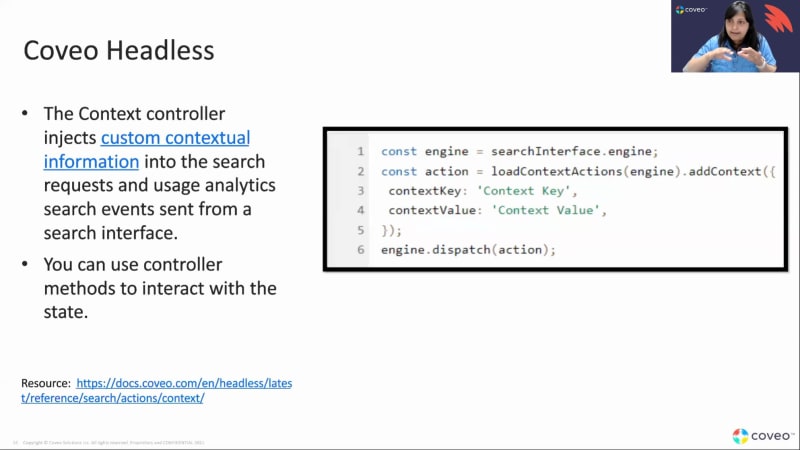
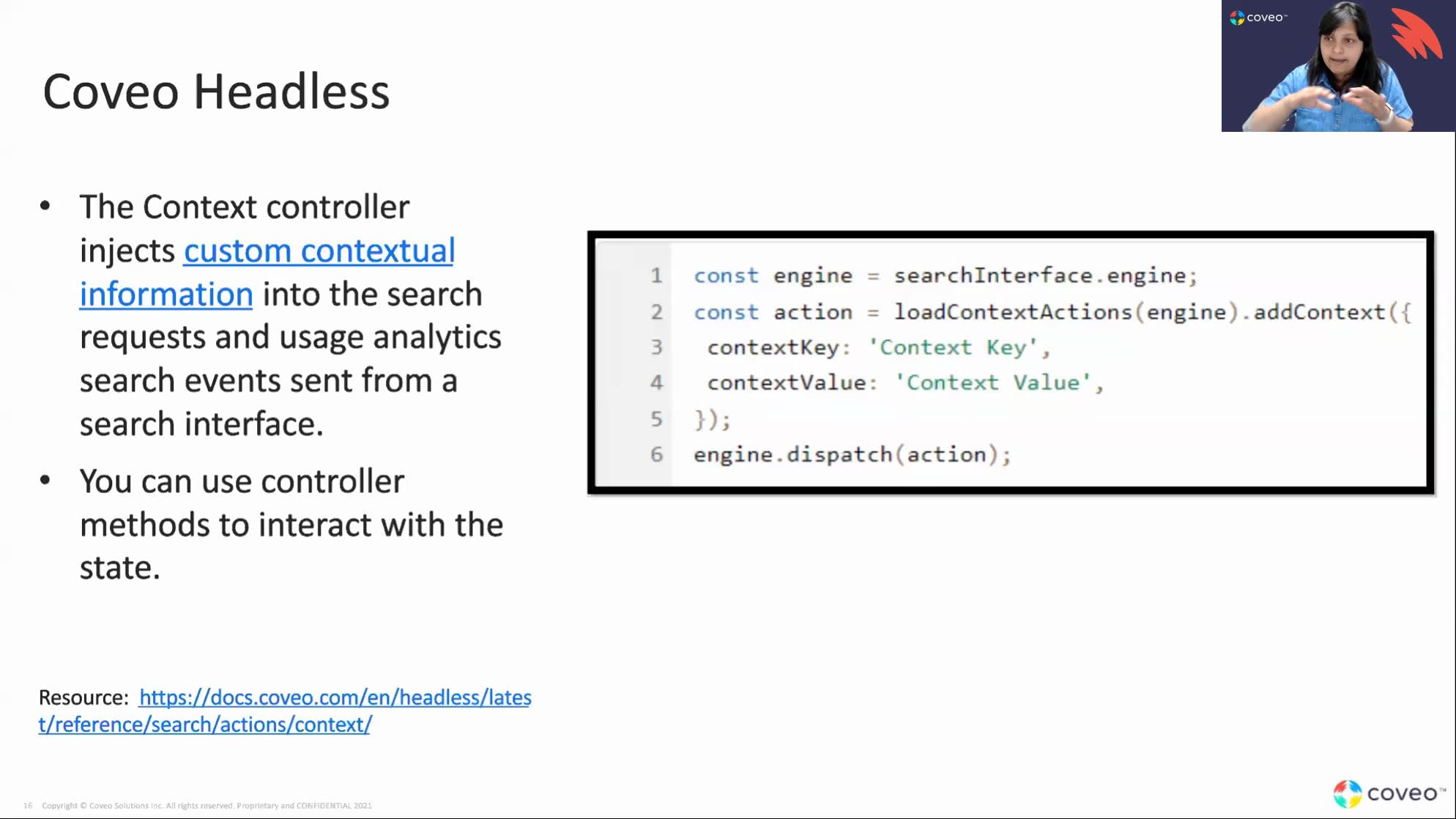
Okay. So we'll get started. So hello, everyone. Welcome to this month's learning series webinar. My name is Jasmine Oraz, and I work on the marketing team here at Kiko. So for those of you who are attending a learning series for the first time, this is a monthly webinar program where we get more hands on with how to enable Kobo's features that can help you to create more relevant experiences. This is the second session in, this three part series on understanding usage analytics. And today, we'll do a deeper dive, into usage analytics and focus on the concept of custom dimensions. So for anyone who missed part one last month, it's available on demand in our resource center. We can also drop the link in this chat if anyone wants to, view it after this. And before we get started, I just have a couple of housekeeping items to cover quickly. So as usual, we encourage you to, type your questions either using the q and a or the chat box, in the panel on your screen. Either as we go along, or at the end of the session, our experts can help, answer any questions you might have. And as usual, our session today is being recorded, so you can expect to receive the recording of the presentation within the next couple of days following the session, so look out for that in your inbox. And today, I'm super excited to welcome back our two speakers with us today. We have, Ludmila, our customer success manager, and Lipika, who is a Coveo customer success architect. So without further ado, I will pass it off to Ludmila to start. Thank you very much. Hi, everyone. So as Jasmine introduced, we have myself and Lipica on the call today. I'm an onboarding manager here at Coveo, and Lipica is a customer success Barca, and we'll be talking about custom dimensions. So what we're going to be talking about today is, firstly, what is a dimension and learning about the differences between an out of the box Coveo dimension versus a custom dimension. We'll also go through examples of dimensions and specifically what kinds of custom dimensions we tend to use depending on line of business as well as why we would want to use some of those custom dimensions. Then Lipica will take it over, and she'll talk about how to actually capture the dimensions in and add them into the Coveo platform as well as discuss reporting through dimensions and what kind of reports you can create and, again, what's the value of having custom dimensions in your reporting. So let's get started and talk about what is a dimension. So dimension is essentially metadata that's gathered by Coveo and by your search interface and passed along whenever a user performs an event. So, for example, if a user performs a search, a click, maybe a custom event on a web page, the a dimension is a piece of data or information that's passed along back to Coveo. So there's out of the box dimensions that I'm sure most of you are familiar with. They get tracked automatically out of the box with all Coveo implementations, things like AB test name, things like user queries, the search term the user searched for city, country, browser. All those all those, pretty common dimensions that we're aware of and we often create reports with. Now as you can imagine, custom dimensions are everything that's not out of the box. So because every client's user interface can be unique and slightly different, you're likely going to want to track certain additional custom dimensions that are not tracked out of the box, and we call these custom dimensions. So I just wanted to show here a visual diagram of what dimensions look like. So this is a payload of a Coveo event. And on the left hand side, you can see in purple dimensions what their values. So for example, we have a device dimension with the value of Chrome. I know it's probably a little bit, small, but it it it says Chrome. We have language, e n, origin level one, JSON page. These are all out of the box dimensions that we can see in this payload. But if there were any custom dimensions, we'd also be able to see them here as well. So this is information that's passed back to Coveo with a specific in this case, it's a search event. So as we discussed, each event that's sent over includes metadata, and we can use this metadata in reporting. So another important thing to remember about dimensions is that is that they're used specifically for reporting. There can be different types of metadata. So you might know that, in Covalo reporting, we have, dimensions as well as metrics. But for today, we're really focusing in on dimensions and custom dimensions. So now that I've talked and introduced dimensions themselves, I do wanna go into examples of some dimensions because I think this will now make a lot more sense as to why they're important and why custom dimensions can make a big difference when it comes to reporting. So I know that this is, again, maybe a little bit small, so I'm going to go into a demo in a second. But you can see on the left hand side, we have out of the box dimensions and some examples of them. And in the Coveo platform, I did wanna highlight that that out of the box dimensions are what we call system dimensions. Again, those things like AB test name, browser, and city. And then any custom dimensions in the platform are referred to as user defined dimensions. So anything custom that you add into a platform. And I can go ahead and in a test org here, I'm going to show you what these dimensions look like. So if you're in the analytics dimensions tab, you'll see the list of all of your dimensions that exist in your org. And if I click into the origin here, all is going to, of course, return all dimensions. System is those out of the box ones. So, again, we've been talking about them for a while. There's over seventy of them, those dimensions that we're all very familiar with. And then those user defined ones, these are the custom ones. So we actually have quite a few in here. You can see examples, things like account description, account industry, lead status, opportunity name, and there there's a couple more here. So these are not tracked out of the box with Coveo. If we wanted to see and split up our reports in any way by any of these dimensions, these, will have to be sent manually as they have been in this org. So you can probably start to get an idea about why having things like account industry or, for example, case origin, depending on your use case, might be really interesting to start splitting reporting out by. So I'm gonna go back into my presentation here, and I'm gonna go into some examples of specific lines of business. So I'm sure that everybody on the call will will, fit into at least one of these lines of business. So if if yours isn't service, just await, and I'll definitely go through your LOB. So the first one I'm starting out here with is the service line of business. So either having a community, search page or as well as a community case deflection or case creation page that uses Coveo. So just on the community search page and, actually, for both of both case deflection as well, you can use things like, for example, account ID, customer entitlement, location, or product preference. Now you might realize that these are all, pieces of information or or dimensions about the client. So, really, in the community, we wanna understand additional information about your clients and users. This is easiest to do if they're logged in and authenticated. If they're not authenticated, it'll be probably pretty hard to know their entitlement or account ID. For the case deflection page specifically, we also want information such as case subject and description, product category group, maybe case type or case code. The case subject and description are pretty much always included. Product category and group and the case dimensions, these are just examples, that can be included as well. So as you can see here, really gathering information about the case and what the user inputted into the case. So as you can see with dimensions, they don't always have to be about, let's say, just the user account. They can also be information that the user submitted into the case deflection form. So dimensions can really come from a variety of sources, but but they're all metadata that that is being sent back to Coveo. So another common use of Coveo is what we call the service contact center use case. So this is for agents specifically who are using Coveo, what we call the inside panel, or sometimes a full search to answer cases. So here, the dimensions we'd wanna pass through is really oftentimes information about either the case or the agent performing the work. So, again, those things like case subject, description ID, the product info, case info. But as well included here are things like agent department, agent manager, or KCS coach if you're using KCS. So here, we're we're actually bringing in very similar information as to the to the case deflection page. All that information about the case is the same because it's pretty much the same case that we're looking at from the case deflection side and the agent side. However, on the agent side, we'd like to also, potentially look at information about the agent. Now why is this important? Well, oftentimes, clients will want to know, information about their agents' stats or usage based on things like agent department or the agent manager to better be able to split out, reports and share those out with the team. Now another really common use case of Coveo is website or Internet use cases. Now for a standard website use case, there's often not a lot of dimensions that we can send over due to the fact that users often don't authenticate on a website. So there's not really too much that we can send over, potentially the location. But if the user is not authenticated, generally, there's not a lot of user information we can send over. However, if they are authenticated, things like the solution or product interest, if they have those inputted into their their account can be great. And then if you have an Internet use case, things like department, manager, or employee type are also really interesting ones to, send through as dimensions for reporting. You can imagine that as if you have an Internet use case, you're interested in knowing the behavior of your users, again, by department or by manager or maybe employee type, to then better service and and improve the user experience per, for example, department. And before you go ahead, Londmila, I just wanted to add one more point to the website use case. So like Londmila said, it can be very difficult for you to, you know, collect feedback about something where users are anonymous. You don't know who they are. So a lot of times what we have seen customers is use, you know, other software platforms to, you know, track behavior of their users to understand who those behaviors are, whether they are prospects or customers or partners. And based on that, prospects or customers or partners. And based on that, they show, you know, information to them. So if you have that kind of information available, even if it is not there right in the UI, but if it is getting collected by another platform, you can send that information back to Coveo, and then Coveo can use it for, you know, you can use it for reporting, or Coveo can obviously use it for machine learning and so many different, so many different ways. Thank you, Linda. Yeah. That's a really great point, Lipica. Thank you so much. And just to wrap up on the use cases, we have our probably our last use case here, and that's commerce. So, again, a a pretty specific use case here. But with commerce, there's quite a lot of information we can send over because there's so many different events that are happening on a commerce website. So, for example, if we have, campaign information, add to cart method, manufacture of products, information about the product itself, quantity, transaction ID, or a loyalty group. So as you can see, there's a combination of information about, the user themselves as well as the product. So information additional information about products being sent back to Covea reporting since that's not always things like product group number or product ID are not out of the box dimensions. So as we've seen, with each different use case, there's really a lot of very different dimensions that you might be wanting to send through. For example, commerce versus, a community use case has very, very different dimensions that we'd like to use. But there's really a an overlying theme of why we need custom dimensions that's important for across all use cases. And that's really the fact that for custom dime the custom dimensions are going to help us have more specific reporting in order to really validate and and understand the business outcomes for each client. So as an example, if you'd like to know your case deflection rate, great. That's something that's available out of the box with Coveo. However, oftentimes, you might wanna know your case deflection rate, for example, split out by the case product type. And in that case, we'll need to send that case product type as a custom dimension in order to be able to use it in reporting and have this kind of report, which is going to help us then understand are we meeting our business outcomes in a better way than just the generic case deflection numbers. So things like product category, case category, or account information, just as examples of some of those custom dimensions we went through, these are all really, really great for understanding better reporting. And this being said, I'm gonna hand it off to Lipica so she can talk to us about how we actually create those reports and set them up. Mhmm. Thank you, Ludmila. Do you mind if I start sharing maybe? There you go. Thank you. Okay. So, I mean, Loomera walked us through why we need those custom dimensions and what are the different types of custom dimensions that you can add by different use cases. So for service, you have difference. You know, for commerce, you'll have different, custom dimensions and so on and so forth. So now how do we actually do that? So there are two parts to creating and adding custom dimensions to your, to your use case or to your Coveo use case. So, basically, after you've decided, you know, the metadata or the meta information that you need for tracking those KPIs. So say, for example, you know, you've just launched a KCS program and you wanna look out for, you know, different departments and how the adoption is through these different departments, you know, out of the box, like Loomila was showing in in the UI, out of the box, we don't necessarily track the department. And the reason being that, you know, the department field can be called department for one user, something else for another customer, something else for another customer, which is why we don't track it out of the box. Hence, customers have to track it as a custom dimension when they're ready to go live with Coveo. So, there are, like I said, there are two steps. So the first step is to make sure that, you know, you're sending that information along with Coveo events. So I'm gonna, you know, talk about a little bit of basics before I go into, you know, the core of how you can track it. So, Coveo by default tracks four different kinds of events. One is search, one is click, then is custom. Custom is anything that cannot be called a search or a click. So it can be something like, you know, a case submission or, you know, a like button or a dislike button. And the fourth one is view events which we call as page view events. Now we have so many different applications of of Coveo and so many different products that are available of Coveo. So like Coveo for Salesforce, Coveo for Sitecore, you know, you can, you can be on the platform. You you might not be using any of these integrations that we have. So the way you capture these custom dimensions will differ based on, you know, what is your underlying, you know, the core of Coveo that you're using. If you're using Coveo for Salesforce, it'll be a completely different way to capture the custom dimensions as compared to if you're using Coveo for Sitecore. So and I will talk about it a little bit as we go. So we're gonna talk about the different ways you can track these custom dimensions. First and foremost is, you know, the most simple way, and this applies to most of our use cases depending on what kind of framework, UI framework you're using. And like I said, Coveo tracks four different kinds of events, search, click, custom view. You have to make sure that you're passing that custom data or that custom information with each of these actions. You're passing it when a search is happening, you're passing it when a click is happening, and you're passing it when a custom event is happening and depending on what you wanna track. So say for example, going back to my whole, you know, idea about tracking a department of the user, if you wanna track that department and you want to look at, you know, usage by department or adoption by department, you wanna see how many of, how many users of a particular department actually came to the interface, did a search, did a click, you know, attached a k, attached a knowledge article. All of this if you wanna track, you have to make sure that you're sending that department, information into all of these events. So on the screen, you'll see, you know, a short snippet of how the code actually looks like when you're passing this custom information. So if you look at this, this line over here that says metadata, and if you remember, Ludmila was showing in her slide that, you know, you usually have key and value pairs, which is basically your key in this situation. Going back again to my department example, your key is department. Your value will be what department that user is in. So, depending on, you know, how many values there are, you you will get you will capture all of those values once you track that key information, which is the department information. This can, of course, vary package by package depending on how your you know, what use case you have. So, let's take for example, you have Coveo for Salesforce and you, you're using it for your contact center and you want to pass the department of the user or you wanna pass the manager of that agent or support engineer. In that situation, what you would do is it's actually very easy to do it inside Covey for Salesforce. You might not even have to go go and touch any of the code. In Covey for Salesforce, you have a way to edit the page and you can add different custom dimensions right over there. Now all of this happens via what we call as the, you know, the analytics component. The analytics component is very very important because it makes sure all of the actions that are happening on your site are getting tracked. So that's how you would do if you're using the Covey JS UI which is if you're using Covey out of the box you're not doing any, any coding on your end. It might be you might be using Coveo for Sitecore, Coveo for Salesforce. All of that uses the JS UI framework. If everything you have out of the box, you most likely are using the JS UI framework. Next, we're gonna talk about Coveo headless. Now Coveo headless, I wouldn't say it's different from the JS UI framework. The Coveo headless is another way of implementing Coveo. So if you if you wanna go a route where you're not using our JS UI framework, but you still want to use the components of it, what we have is the headless library where we give you these components, and then you can just, you know, reach those components and use them. So if you're using the headless component, again, it's not very different. You can still log these custom, dimensions or, you know, custom events, and you can use, you know, a a controller to do that. The headless, Coveo's headless, allows you to, you know, kind of be independent of the framework. So if that's the route you wanna go, you would use the Coveo headless framework, and you can easily track the custom dimensions very similar to how you would track it with the JS UI. The next one is the Coveo collect endpoint. This is another way of collecting custom dimensions. This is not, you know, dependent on the Coveo JS UI. Also, the Coveo collect endpoint is very popular among our, commerce use cases. And, also, if you have a community with with Coveo, you might have heard of our case assist feature. So these two currently are the most popular for using the collect protocol. So the collect protocol, if I have to put it simply, you know, it allows you to track, events in a very standardized format. And all of those events are basically coming from what we call as a data layer. So, typically, you know, if you have a commerce implementation where you have a site where customers can purchase, items from your site. You might be using, you know, any other analytics framework like Google Analytics. You might be using Google Tag Manager, or you might be using, you know, Adobe Analytics, Adobe Tag Manager. Most of these tag managers get all of that information from what we call as a data layer. The reason it is easier to implement, you know, a collect endpoint and send custom data through a collect endpoint is because it standardizes a lot of information. So it becomes easier for you to, you know, go from different, you know, different vendors. The other thing I wanted to say is that this is a good way to track custom events because you can track events even before you implement Coveo because it has nothing to do with Coveo. It's just the way you track your events or you track your custom data. And last but not the least, as you know, you know, Coveo acquired Qubit, last year, and the Q protocol is very similar to the collect protocol. But, currently, it is used, in in your in in our QBit commerce solutions. So, specifically, our customers who are using, you know, different components of our Qubit solution, they are using the the Q protocol to send these custom events and dimensions. Now I'm gonna do a very quick demo of, you know, the part two of it. So the part one was everything that I explained until now is how do you send that information. You have to send the custom dimension. Like, you have to send the department of the user when they're doing a search, when they're doing a click, when they're, you know, clicking on the thumbs up button, thumbs down button. That part is done. The second part which actually makes sure you can see the custom dimension inside the Coveo platform for your reporting needs is you have to add that dimension into the platform. And I'm gonna, like, jump into a very quick demo here. So if you go into the platform, and this is my demo org, so you might see a lot of things, that are named test. So I'm gonna go over here and here. So if you go under analytics, under dimensions, and you might have seen this, when Ludmila was showing, you know, out of the box dimensions versus custom dimensions. So here you'll see all of the dimensions that are available in your organization. By default, Coveo has, I think, sixty six out of the box dimensions and then the rest are user defined. Anything that is user defined is your custom dimension. For example, you see, and this is a particular use case where we were looking at account information for a particular account. So, you know, they're logging into a customer community, and we are tracking what account they belong to, what industry that account belongs to, and whatnot. So you can see things like account industry, account name, account type, all of that. Now how do you add this dimension? So you would go here you would say add a dimension. Now the the one thing that you need to make sure before you come to this step is that you've typically, you will need, you know, a a developer to to come and create that dimension in the back end for you. And once that is done, they can give you the API name, and that's the API name you'll be using here. So say, for example, I'm gonna use account, account number, and the API name typically looks something like this. Card number underscore underscore c. And then the most important part is you wanna make sure that it is passing through into all the different event types on searches, on clicks, and on custom events. You wanna select the type of dimension you're creating. So say, for example, it's account number, so I know it's gonna be a number. If you were creating, say, for example, a department, going back again to my example, it would be of type text. If you were creating, you know, a dimension that would track, say, the date a case was closed or the date a case was opened, then it would be a date. But for now, it'll be a number and say add a dimension, and it gets added. Now once it gets added, what you should be able to do is you should be able to go into the visit browser. And, again, this is a demo environment, so it won't show data right away. But I will show you a couple of, custom dimensions that were added before that are now getting tracked. So if you go into your visit browser, and what I what I did over here is added a filter that'll basically show me all the visits where the accounts industry was present. That it wasn't blank, it was getting tracked. And you'll see I find, you know, fifty events. So I'm gonna open maybe one of these. And if you open one of the events over here, you'll see the industry getting tracked. So that's the account industry. That's the account name and these are all custom dimensions that are getting tracked along with whenever the customer is performing a search. So in this case, as you can see, whenever there is an interface load, which basically means that they they logged into your community and they just, you know, loaded a page that has, you know, any Coveo component. The other thing to remember is that, you know, you wanna track that journey as as early as possible. So you don't you don't need to wait to track these custom dimensions when they perform a click. You wanna know, right when they're doing a search or right when they're landing on the community. So make sure that it is getting tracked on searches. So which is why we see it over here, and you can see it in here, searches. And that's how you know that this information is now being collected and you can report on it. So, that is how you create a custom dimension. So two parts. Kind of recapping really quickly. Two parts. The first part that allows you to capture this custom dimension from the action that is happening on your UI, either a search or a click. So you have to somehow hook onto that event and send the custom information or send the data along, back to Coveo, you know, using the various methods I I described. The second step is actually to create that dimension inside the Coveo platform, and then it's ready for use for you to to be used in your reports or your dashboards. I'm gonna quickly go back over here. And this is the same. Here creating custom dimension. So now, let's look at how you'd use these custom dimensions in your reports. You know, Ludlow described a couple of different, you know, KPIs that you would want to, use when you want to track these custom dimensions. I'll show you a couple of examples of reports where custom dimensions are being used and why they were needed. So for example, in this one, this particular, report is tracking case volumes and trends. So this is, you know, a customer community. The customers are coming in. You know, they're they're they're logging different types of cases. There are, different types of dimensions or custom fields that we are tracking for this customer. By default, we we track the case subject, the case description, but we as you know, different customers will have different case creations page and they would expect their customer to fill out different information. So which is why the rest of the information that isn't, you know, common across industries or common across customers, we track them as custom dimensions. So if you see over here, there is one that says case origin, then there is case status, then there is case regulator, and then you say case driver. So why these different cases, you know, different fields were needed for this customer? So we wanna look at KPIs that actually help us determine, where where our business is before and after Coveo. Right? So you wanna understand if Coveo is delivering on the value, that was promised to you. You wanna understand how machine learning is doing. You also want to understand what you can do to optimize what you already have with Coveo. And because of this reason, you need to track these custom fields so you can really understand where to focus on. So say for example this report is showing the different case submissions by category. So you're looking at different categories of cases that were submitted, And one of the KPIs or one of the goals of your organization is to reduce the number of cases that are logged in your organization. If you wanna do that, if you look at a big number which gives you, okay, you had thousand cases logged in your organization, and now I need to bring that down to eight hundred. That's good information, but it's not directed information. It doesn't tell you what actions you need to take. So for you to understand, okay, how can I deflect more quote cases? You need to understand which products are already deflecting cases by a lot. And you also might have cases that cannot get deflected. So, you know, certain products that are services that you have to provide and you cannot deflect that case no matter what. So in those situations, you need to understand the case category, the product category, why that case was logged. And you you will probably be able to understand, you know, certain categories where you you were expecting to see a higher case deflection, but you're not seeing that yet. And that gives you very directed information to go after rather than, you know, big number that you have to get down somehow. And it also helps you, like I said before, it also helps you understand cases that are not getting deflected at all. And another important reason to to track all of these is because you can optimize COVID. And I'll give you an example. Say, for example, you are looking at cases different categories of cases that were logged and you found a particular category, that cases never get deflected. And you've come to understand that, you know, this is a a problem that we our our agents have to get on the call to solve. This will never be deflected no matter what we do because it could be a service that you provide. It could be, you know, password reset that the customer cannot do on their own, you know, because of security reasons or whatever. They will need to be on a call with an agent to solve that problem. So if you find, you know, nuggets of information like this, what you can do is if you if you, if you've seen a a Covio interface with the case deflection, you will see the case form on the left, which says, you know, enter your case subject, your description, and everything. And then you see the recommended information or recommended solutions on the right. So every time this recommended, solution shows up, it logs an API called to Covios index and brings back the result. Now we wanna make sure that you're using you're optimizing your queries per month as well. So if you find, you know, cases that cannot be cannot be deflected, you just don't show any recommended solutions for them. And you will save on QPMs for for for those types of cases. So, you know, tracking these custom dimensions, it feels like a simple thing, but it can really lead to, you know, greater greater optimizations at at scale as well. Another example, of, how you can use these custom dimensions. This is an example of a customer who tracks, different types of documents. So, they produce a lot so they have a very complicated product and they produce different types of documents for that product. There is warranty information, there's warranty bulletin, there's instruction sheet, you know, so many different things. And they're putting a lot of effort, time, and money into creating these different collaterals. What they would like to know is, you know, which one is really helping their customers and which one is really leading to maybe case deflection or which one is leading to, you know, you know, self-service success which means which one is answering customers questions the most. Because that would then help them either, you know, make their collaterals better or stop producing a certain collateral that has never been used. Just, you know, no put no effort into it. So this is again another example of how a custom dimension can help you understand, you know, critical information that can sometimes save you a lot of dollars that you can again put into something else that will get you more dollars. So this was my example of case, you know, custom case, custom reports that you can create with Kaveo. What I would want to do now is show you, you know, a very small example of how you can put a custom dimension into a report. So, if you remember before I was showing you the custom dimensions that are getting tracked, like the account name and the account industry. So if you wanna use that in your reporting, three steps to be able to use that in your reporting. First, you have to make sure someone created those dimensions and is sending that value back to you. Second, you create that dimension inside of Salesforce like I showed you. Third is you can use it in the reports now and which is what we're gonna do now. So we're gonna say add a blank dashboard, and I'm gonna say add a card. And just for, you know, keeping it simple, I'm gonna create a table. And I am going to look at customer engagement by industry. So I wanna see, you know, which are the industries that are getting the most that are doing the most searches on my on my site. Count industry. Okay. I'm gonna do search event count. And over the filter over here, I'm just making sure that I'm looking at the right UI. I'm gonna add a filter. And what this should show is, you know, engagement by account. So which should basically show, and this is showing zero because all of our information was from twenty nineteen. Like I said, this is a demo art, which is why you don't see a lot of information over here, but I will bring some of it back to you. Okay. Let's see. There you go. So if you look at this info, I know it's only a little, but this can give you a little bit of information about, why sometimes how how you can use these custom dimensions in your report, and what valuable, you know, data they can give you. So this is basically how you would create a report, and that is all I really had for today's, webinar. I'm just gonna, quickly run you through the resources that we have. So with the slide deck, you'll also get links to, you know, documentation and also level up courses. Level up is our training platform. There are level up courses that will kind of bring you up to speed about, you know, dimensions and metrics. And in each of the slides, if there were resources, I have put the links over there as well. We can put them back in here as well, but, this is all I had for today's webinar, Julie. Let me see if there are any questions. I don't think there was any questions that I spotted. Doesn't look like there are any questions. K. Well, if we don't have any questions or if nothing comes through, I guess we'll just take this time to, plug the next session. So for anyone here, you should be getting the invite to the next session. It's coming up on June twenty third, and it'll be the final, session of this series. And then if you do have any questions following this session, we also have an in office hours, with our customer success and onboarding team on June eighth, I believe. So you can sign up for that as well. And I guess, I guess we'll do that if no one has any questions. Okay. Thank you. Thanks, everyone. On. Bye. Bye.
Understanding Usage Analytics: Part 2
Part 2: Discovering Custom Dimensions
Continuing on from Part 1, this session will take you deeper into the world of Usage Analytics, focusing in on the concept of Custom Dimensions.
We’ll show you some examples of Custom Dimensions and explain, at a high level, how you can:
- Capture them from the UX/UI and display them within the Coveo Cloud Platform
- Create reports using Custom Dimensions
- Building customized and informative dashboards


Make every experience relevant with Coveo