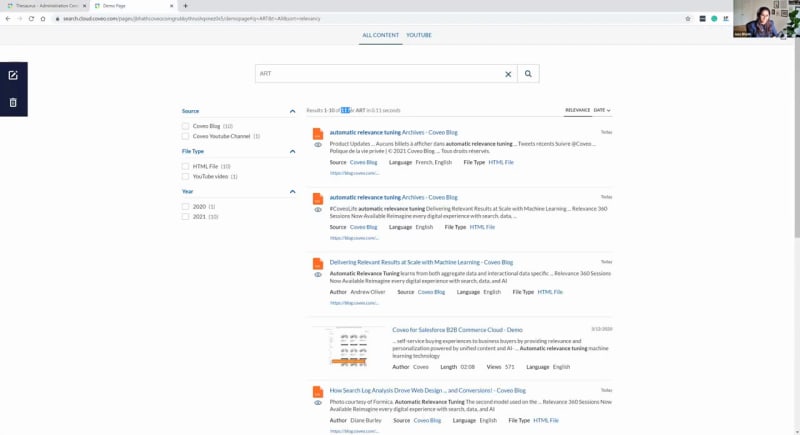
Okay. Hello, everyone. Welcome to another learning series webinar. My name is Claudine Ting, and I work on the global marketing team here at Coveo. For those who are attending a learning series webinar for the first time, this monthly webinar is where we get more hands on with how to enable Coveo's features that help you create more relevant experiences. Today, we're kicking off our three part webinar series on search performance. For this session, we'll focus on building your foundations on the Coveo cloud console and effectively utilizing your query pipelines. Before we get started, I just have a few housekeeping items to cover quickly. Before for this webinar, we'll entertain your questions at the end of the presentation. However, we encourage you to type your questions on the q and a box and the chat box as we go in twenty four hours in your inbox. Our presenters for today are Jas Bath and Jesse Jas Costa, our onboarding specialists here at Coveo. Now ready to get started. Jesse, Jazz, take it away. Okay. Let's get started then, and welcome to our webinar learning series. Might I just say, I believe that this is actually a record for a webinar learning series in attendance. So no pressure, but many reasons to be really excited. So this is part one of three and we're gonna be covering use of the Relevance Cloud platform. With the intros out of the way, let's jump right into the agenda. Starting off with a quick overview of some core concepts within the platform. From there, we'll jump into a live demo to show you some of the features in action, and we'll leave some time for a q and a in case there are any questions that might have popped up along the way. Now there's a lot to get our hands on, and I'd really like to just say that starting with relevant digital experience is the start of good search. As our CEO, Louie, likes to say, only the relevant survive. And with this webinar series, we're really hoping to empower you and give you a solid understanding of how you can get great search and stay visually relevant all through our cloud platform. In part one of our series, we're gonna cover navigating the platform, understanding search hubs, and using the query pipeline to fine tune and improve your search experience. Of course, different use cases can have different needs but at the core, these principles are really gonna help you understand how you can take your search experience into your own hands and take it to the next level. So with that, we've done a round of intros on our end, but we'd love to do a quick poll and see what kind of personas that we're working with. So if you'd like to go ahead and simply let us know your use case so we can do a bit of a room check from here. Okay. Interesting. I'll give you just a little bit more time. Let's say another ten seconds. Okay. Perfect. So let's call it there. And really interesting to see, we have a, quite the wide array of use cases, very heavy in self-service and website search. So great to know, and thanks so much for your participation. It's appreciated. So moving on, let's get right into a couple of details starting with commonly used terms. So core concepts within the cloud platform starting with the unified index. So think of the unified index as to where we gather all of the information that we're gonna be giving to our end user. So whether that's an agent, whether that's a client on an ecommerce perspective, this is where we're consolidating that information which will then be sorting. Next up, hubs. Simply put, these are your different search pages. So what's important to know here is that multiple is fairly common in this case. Think of Apple's store for devices, iPhones, iPads, computers, then think of the App Store. Both run by Apple, but different hubs, so different search pages for different experiences. They have to be catered to differently so that we can give a unique experience. Finally, query pipelines. So this is where the live demo will take place and this is where all the magic happens. We'll go ahead and modify search results by adding rules in the query pipeline, adding conditions. We can even run AB tests so that we can measure performance. I'm a visual learner myself, so let's go ahead and think of this as a wheel. With the unified index at the center, it's the common point for all of our information. Hubs are the points at the end of the wheel where all the information is ending up, and the query pipelines would be the spokes in the wheel which is leading up to each hub or each endpoint. So we take all of that and put it together, and we take the necessary info from the unified index, send it to the appropriate hub, and modify it through the query pipeline based on what's gonna be most effective for that hub. With that out of the way, let's go ahead and get into some of the main features of the platform itself. Starting with content, so the content section. Think of this as the what, the substance. So everything that we're pulling in to be indexed, you can think sources, metadata, their associated fields and this is the information that we'll be indexing to then rank to then make relevant. Moving on to search, this is where you'll be able to directly impact an end user's search experience. So it's where you'll be able to manage a query pipeline, where you'll be able to create rules, where you'll be able to do your AB testing. Next up, machine learning. So as the name implies, this is where we can go ahead and create machine learning models. Now what I wanna go ahead and preface is that machine learning in itself can have a technical or complex connotation, but it really doesn't have to be. In fact, with machine learning through the Cavio platform, this can actually be done with very much a point and click with a couple of options. And if you wanna get a little bit more detail, we actually just finalized a webinar series on machine learning in itself. So we'll definitely be sure to go ahead and send that over once we're done. Finally, analytics. So this is for anybody who is really into the numbers and where we can dive into metrics. So think creating and viewing reports. And what's great is that we can get really specific with how we dissect numbers. We can view them based on time frames. So think seasonal trends. I won't spend too much time here because this will actually be a topic for part two of the series. But this is very much where we can have the road meet the rubber and we can see some of these metrics. We can see some of these numbers in action. So finally, right before we get into the live demo, I'd love to go ahead and do one more temperature check and essentially just see how familiar you might be with a query pipeline. So the goal here really isn't to think of it as if it's your, first time getting your hands on it or say if you're an expert with it, but really just to do a temperature check as to where you stand with the query pipeline and your familiarity with it. Perfect. I can already see all sorts of answers popping up. This is great to know. I'll give you a bit of time here. Okay. Let's say ten more seconds. Okay. Let's call it there. So again, thank you for your participation. Really appreciate it. And looking at the results, it's interesting to see that there's definitely a lot of ground to be covered. That makes me more than exciting because from here, let's go ahead and jump straight into a live demo where we can improve some of your knowledge and really go over some of the core functionalities of a query pipeline. I'll pass it to my colleague, Jazz. Alright. Thank you, Jesse. Let me know if you can see my screen. Mhmm. It should be in my admin console. Alright. So let's get, started with the demo, guys. Jazz here. Very excited to have you all onboard today. We're gonna cover a little bit of the most used roles, when it comes to query pipelines. But before I dig into those query pipeline rules, I wanna take a little bit of time to cover conditions because conditions are very important to establish your context. So whenever you're creating a query pipeline or a query pipeline rule or even machine learning model, conditions become super handy to give a context. So we have a tab here where you can go, create your conditions. If you just click on it, you can edit it, you can delete it. Keep in mind that whatever you're editing, existing conditions that that is being applied on one of the rules or query pipelines, it will also modify the the where it's being used. So just when you're editing, be careful with it. But, why I'm showing you this page, it's because conditions, should be leveraged a little bit more. They're super useful to target what you're trying to achieve with the query pipelines or different kind of rules. And, if you go on top of the title here, and that goes for any kind of page that you're on in you within your administration console, you have this question mark. If you click on it, you have general detail details about what a condition is. But if you read on the document, it will take you, to actual resources where you can find more details about the conditions or whatever page you're trying to learn more about it. So always the title on top, you have the question mark, for more documentation or for more information about it. Conditions can also be created in the query pipeline directly or query pipeline rules. We will see that together in a second. So let's get started. This is my query pipeline page. Before I do that, I do wanna grab my search page. I've created one for, this demo in particular. So this is my search page. No rule has been applied so far. We're gonna test them together today. And this is by demo page name. So I just wanna copy it to make sure there's no typo when it comes to, adding this pipeline to my search page, which is, the demo page here. So as you can see, I have only two query pipelines existing in my page. You might have a lot or you might have, like me, just maybe one or two, and that's totally fine. It depends on your use case and where you're at with, Barca, architecture when it comes to your administration console. So nothing to worry about. Our main goal here is really to create one and test some of the rules. So let's get started. On top here, add pipeline. Very simple. You add your name for me to demo page. User notes, I'm just gonna take one second to, put the emphasis on user notes. Please use this as much as you can, especially when you're working with, other team members. So if you're creating a query pipeline or recruiting some kind of rules in within the query pipelines, they will know why this rule exists. So I'm just gonna add, you know, demo page for now because I'm the only one in this, org. And the other important thing, whenever you're creating a query pipeline is to add a search page. So for me, I want to add a query pipeline here because I wanna tweak this page. Right? I wanna, make the search experience experience more relevant for my users, and I will test it out. So I need to add a condition here. Like I was saying, you can create conditions directly from here. This is what it looks like. You have a bunch of different options, but we're looking for search hub because this is again, Jesse explained it, hub, this is mine. And the value is I'm just gonna paste it because I don't wanna have a typo. You select and add the condition on top condition saved. If you already have a condition existing, the system will tell you use the one that already exists. You cannot have a duplicate when it comes to conditions. And that's pretty much it. So add the pipeline. I've created my, query pipeline. It's that simple, my name, conditions, and my user notes here. So if somebody else is looking into this query pipeline, they know why I created it. And let's get started with it. This is the interface. It's a new interface. So if you're already working with query pipelines and you have some kind of knowledge, please don't freak out. It's totally normal. New search interface coming up into your sandbox at the end of next week, I believe so. And this new interface will be deployed overall into all the administration console, by the end of May and beginning of June if everything goes well. So nothing, I mean, the displays has changed, but you can still find every you know, your favorite rules are still there. Not much has changed. It's just more user friendly. So we're gonna just cover a little bit on top here, overview, basically, what, your query pipeline main information. So that's literally what I added, when I was creating my query pipelines, my condition, pipeline name, user notes. And then we have a b testing. We'll, talk about it at the end of the demo if I have time. Just, FYI, AB testing will be covered in the third part of the webinar series. So, relevance tuning, if you wanna learn a little bit more about it, definitely join in on that third webinar. We have search terms here. So we have, these are rules and stop words, gathered under search terms. Result ranking, not much have changed. It's still the same page, so you can add your role on top here. Machine learning, same thing. As mentioned by Jesse, we have a three part series webinar that exists on machine learning. Super knowledgeable, super useful. You're gonna learn a ton when it comes to, how you wanna use your machine learning models, what kind of machine learning models you should, use based on your use case. So a lot of details in those webinars. Please feel free to, watch them. Super helpful. And advanced. So in under the advanced, tab here, we have filter, query parameters, ranking weights, and triggers. So, basically, what we've done, it's just, gather together, those rules that were important and, you know, matching together. And today, we're going to be covering triggers in the advanced mode, result ranking, and search terms. So these are the the rules we're going to be assessing today. The one rule that I wanna get rid of it, it's, stop words because it's super easy. Stop words, it used mostly to cover, let's say, curse words, or you have those, kind of words, for example, multiply used words or, heavily used and repeated words. For example, it, you, what, this, that. So these kind of words are already being taken care of by Coveo. You don't have to add them here, unless you have, like, really some specific words, related to your use case that you don't want Coveo to process. So the thing to remember here is words that you're adding into stop words are not processed by Coveo at all. You can add a condition if you want to, and that's pretty much it on stop words. If you want more information, again, on top here, you have your question mark. You click on it. It's gonna take you to the documentation that exists for these rules, and you can always leverage Colbyo Connect to learn even more, about that. So let's move on to thesaurus rules. For thesaurus rule. Sorry. I actually just thought I'd jump in really quickly. I can see that we have a couple of questions that have filtered in. I wanted to take a really quick moment to be able to address them. Just starting with, a question from Rose specifically asking about setting up a search hub via Sitecore. And just to make sure there's visibility on that, I can see that Lipica went ahead. There's a document that was added to the chat, which actually has a breakdown of all the steps to be taken there. And I can just see a quick comment from Christine about, slowing down over the actual concepts themselves, and I believe that that's all of the questions that we have. Alright. Thank you for that, Jesse. So, let's continue with the desires rules. Again, if you have any questions, I have Jesse and Lipika and Claudine, monitoring the chat so they can answer your questions there as well. Desires rule, basically, it's a little bit, kind of confusing when it comes to our users. Most of you use this for synonyms, but it can do way more than that. So you can use this for acronyms. You can use this for new product name or new name changes as well. So product name changes, synonyms, of course. But it could be also, like, various different terms that are used across your, work organization that is using Coveo, and you can just gather it together. Basically, with the desires, what you're doing is you're providing context, your business context to Coveo, by adding some of the desires rule here. One of the main thing, like, FYI on the side here is when it comes to stemming, it's already been taken care of. Okay? So you have robot here, bot, robotic. It's already been taken care of Coveo. You don't need to add this in the rules. Really use your rules when it comes very, important for you and your use case. Okay? Let's try some of the rules, see what it looks like. So we have four rules here. We have expand, expand any, replace, and quote. The most popular ones are expand any and expand. Let me explain you a little bit what expand any can do. We will test then, test them all out together here. Again, no rules have been applied. We're gonna test expand any. So before I do the the the testing, I do wanna cover here expand any. What you're allowing to do your users here is basically whatever you're gonna add in this list here, will share the content. For me, the example that I have here is ML and machine learning. So we know that machine learning and ML means the same thing, but they might have different content related to ML because the queries are different. The wording is different. It is a acronym. It could be same for the synonyms, but let's test it out. Alright? So if I type in ML, I have just fifty one result. And if I type in machine learning, machine learning, I have thousand five hundred eighty two. So for me, it doesn't make sense that I have that fifty only fifty two or fifty one, fifty one, documents appearing when ML means the same thing as machine learning. So I want to allow my users to share the content, to to see the content related to those both queries even though the the terminology not the terminology, but the way it's written is different. Okay? So see it as a full circle. No matter what you're gonna add here, we'll share its content. If people are typing in machine learning, they will see the content related to ML as well. And if they're typing ML, they will also see the contract related to machine learning. K? Add a user note, add a condition depending on what you're trying to achieve here, add a context to it, when you're using any of those tools. So let's test it out. Let's say if I apply this rule, what does it do? Now we saw that when I was doing ML only, I had fifty one results. Right? Now if I've applied the rule, I'm gonna read you the search, and it went up, which is what I'm trying to do here. And in my result, you can see machine learning be highlighted as well as ML. This means they're both sharing the content now. So you have two different kind of results lists being merged together to show, like, one list of content that you can share with your, users. So same for machine learning. There you go. It didn't change anything. It's the same thing. You have the same content. The content is now being shared because everything you type in here, that's what it do. Expand any full circle. All the terms that you will put in here will share the content. Now when it comes to expand, expand any full circle, expand one way only. That's my best way to explain it. The example that I found here is let's say you have some old documentation, old, content, old product, and you have some new product. I'm gonna add a note here, new product, because I want I want to test it out. So, basically, what you're trying to do here, you have your origin original expression, which is your original query, and you have your target expression, which is what you're targeting. So from original to target, this means that if somebody is looking for old, they will be seeing content for new. So you're sharing your content. This can be super useful when you're, let's say you're trying to, kinda get rid of some old content. You have a new product, but you still have some old content existing for the old product, but you wanna allow your users to be able to use it because it exists. It's not deprecated yet. So you wanna kind of allow your users to be able to search those terms again. Now if I don't apply the rule, what happens is here's old. We have two hundred seventeen, documentation and result list that exist. And if I type in new, it's thousand, one hundred eighty. Now I need you to keep an eye on this number when I do this query. You will see why. So, again, I said one way only. If I'm typing old, I will see the content for new and old. But if I type in new, I will only see the content for new. So not the other way around. It's one way only. Let's test it out. So if I save it let's see now if I type in old, what happened? You see? The number went way higher. In my query, I can see old and new as well here. So in my results, now the results are being shared. This can be super useful when you're trying to kinda promote a product or you're trying to, like, slowly get your user used to the new product or new product, or new documentation. You can definitely use this. It could be any kind of expression that you can add. Again, condition is super useful when it comes to this. And, I told you to keep an eye on the new number here. Right? So if I type in new again, same rule applied, nothing has changed. It's the same number of document because my rule only goes one way. If I'm allowing people to type in old, search for new, share the content for these two queries, but not the other way around. So expand any, super useful when you're kind of moving on some to some new content, new material, new product name, things like that. Replace. Replace is a little bit more drastic than expand. Basically, what you're doing here is I'm gonna use the same wording here. You're so old and new. Right? Old and new. And, basically, what is this doing is I'm gonna type in old again, and I'll show you what it does. So old, we have old and new content here because we have that rule. So all good. We still see old. Now if I, replace it and I say, when somebody is typing in old, replace it with new, what does it do? Let's save it. And now my query is still there. Let's run it again. I don't see any content for old anymore because it's been replaced with new. Now use this with precaution because it can be a little bit weird for your users to be searching for old and seeing content for, you know, something totally different. It can be super handy when it comes to, like, some deprecated, documentation that you had or you don't have any like, the product is not existing. You've really moved on to the new product, to the new name. It can be useful in these cases, but, again, use it with precaution because it can be a little bit, like, shocking to see me searching for this and then getting different results. So, at the end of the day, we try to think of our end users. And quote is the last one. Quote is the the I would say the least used, rule here. Basically, what this does is it's gonna take an expression that you're using and quote it. Basically, use it for, multiple word, that are together. It could be a product name. The best, kind of idea that I can give you here as an example is art. Okay? Art mean a lot of things. For you guys, it means, you know, movies, paintings, music, art eng globes, a lot of things. But when it comes to my word here in Coveo, it doesn't mean art. I mean, it means art, but different kind of art. It means automatic relevance to Nick, which is one of our machine learning models. So whenever I'm on my page and people are looking for art, I've added the art blog just to show you as an example. Art blog. That could be useful for, let's say, you know, my marketing department is using art as it should be, like the word art, not the acronym. But for me, I don't want art. It doesn't mean that. I want it to be automatic relevance tuning. So what I'm gonna do here is add it automatic relevance tuning here. And what's this gonna you, do here is you're telling Cobia to use this as an expression. The reason what I'm saying use this by, like, very precaution, it will limit the amount of content that you can share with your, users. Again, why? Because your expression here will be considered as one, query. It's gonna quote it, hence the name. And I'll show you what it does. So as you can see here, art, there's we had a lot of content, five hundred ten. But if I just limit it to this, quotation, basically, what it's gonna do here, it's gonna only search for the wording that I added in my list here. So it was automatic relevance tuning. I have eleven document existing on it only when, previously, I had more. Right? So, basically, what this is doing is you're telling Coveo search for whenever somebody is searching for art, I want you to show the documentation where automatic relevance tuning are three words together in this order only. So quote. You could have, you know, if I'm typing automatic relevance tuning, which I didn't add to the list here, I only added art. So let's say if I'm doing this, I'm gonna have a different kind of result list. As you can see, I have relevance which which is, you know, the stemming relevant here, automatic tuning relevance. The words are not being together. So quote can be very useful when it comes to long product name, and you know, like, you hundred percent know that this is what people are looking for when it comes to acronym. Again, add a condition here to make sure that if a different department is using the same wording and it needs something different to them, that you're not blocking this for them and you're only using it for your use case only. And that's pretty much it for these ARES rules. Again, you have four of them. Two are mostly used. Circle, one way only, replace you replace the result list and quote. You quote whatever you're adding in your substitute expressions here. So that was it for Caesar's rule. Let's move on to result ranking. Most of you are familiar with this. There's two type of result ranking. We have feature result and ranking expressions. Here, the, kind of the most important thing to, keep in mind is this is all based on scoring. So any result that you see in your demo, sorry, not the demo, but your page here in your result, they all come with a certain score. Okay? And what you're doing here, you're modifying that scoring manually. Okay? When it comes to future result, you're what you're doing here, it's you're kind of giving a million point on top of the score that they already have to a one document in particular. So it could be one document or more. It's really up to you. I will be using the example of one document. And, nowadays, what I see a lot is, let's say, COVID. You know? It is what it is. It's a reality. And, I want what I'm trying to do here. If my query if anybody is typing, anything and the query contains COVID here for me, or let's say COVID nineteen, You can change the languages, depending on what your use case is. And what I'm trying to do here is I want to promote one document in particular to the top of the list. So here, the first document here, that's what you're trying to achieve with the future result. And how you do it, future result item, you click on it simply, add an add an item, and you have your search page. So I can simply search for COVID, and you have the list of, search, sorry, result that people will get. This is the document that I wanna promote. Right? So I'm gonna simply select it. It's been selected. Multi languages, if it is. Add to the item. Now it has been added and added up. So covid, doc here simply. And you can add a condition. I can, I would you know, I can decide, like, hey? If the query is this or if people are on my YouTube page only, we'll test the condition a little bit later. But you have this super page here that allows you to test, this without going in your search pages. So for example, I've added this rule. This is the documentation I wanna pop on top. COVID, here you go. It's on top. COVID nineteen, it's on top. And let's try it before I apply the rule completely. COVID, it's the fourth documentation here. Right? But that's not what I want. I really want them to be able to see this document on top here because I feel this is the most useful information for them, And, hopefully, this is the documentation that they should click on. Right? When it comes to, advanced query here, matching advanced query, the only thing, you're allowing here is do you wanna allow them to select some facets that will maybe, you know, modify your query or not or you don't. For me, I don't want, I don't, for example, if they've selected any kind of facets, filters, or anything related to that, it doesn't matter to me. So I I don't want it to affect that documentation being on top. If they've selected any facets and the core the core, query still contains these words, I still want this documentation to be on top because that's what I wanna promote. So at the rule, let's go see on our page. Now if I do the search again, there you go. It's on top. COVID. It's on top. This is what you can do with future results. And, again, it gives a million point to whatever document that you choose here, and it will hundred percent bypass your machine learning model. So, use it with precaution. Not not precaution, but if you wanna use it, just keep in mind that it will bypass, machine learning model and, mostly used when it comes to promoting some articles, some documentation, or products. So that's that's pretty much it when it comes to future results. Now let's try the other rule, ranking expression. Other rule, that's what it looks like. So instead of giving it million point here, what you gotta do, you're giving a small boost. So you have this line here, that you can give plus boost or you can deprecate documentation as well. The, kind of key here to remember is don't go over two fifty. That's your kind of, like, golden number here. Two fifty, if you go over it, you will interfere with machine learning. If you're two hundred fifty and under, it's still gonna be okay. Won't interfere with machine learning as much. So what I'm the example I wanna use here is let's say for employees. And this is not a document in particular. It it it's really like a a bundle of documentation that you wanna promote. So, you're choosing an expression. You're choosing a sort of document. When it comes to content matching here, I'll show you in a second what it looks like. So let's say Corey contains employee here. Whatever. It could be like, you know, employee guide, new employee resources, anything related to that. What I'm trying to do here is I have a lot of content, in videos when it comes to employee resources and anything related to employees. I know a lot of YouTube videos, and I wanna promote them. So what do I do? Before we do the changes, employee here. As you can see, we have a lot of documentation, but no YouTube videos unless I select the the facet here. So that will promote the YouTube videos, but only YouTube videos, that's not what I want. I still want to have that documentation on top, but to promote in a certain, like, small boost the YouTube videos. And this is the portion where it's gonna be super important for you. You have to add, an expression here. So when you add it, you have the basic mode, advanced mode. If you're more into, like, these coding, please feel free to use this. I'm not a pro. I'm gonna go with the basic mode. So you can select a different field. Most of the field that are, already, existing will be appearing here. The one that I'm looking for is file type. Why? Because I wanna promote videos. And you can decide is to find equal to. For me, it's gonna be equal to. And this is the list of the type of file that exist in, my sources. So all my sources, these are type of documentation. I'm gonna select YouTube videos. These are kind of the result and done. That's pretty much it. So as you can see, I tried here. I have a lot of documentation. I give it a little boost. So let's see. Boost here. Boost for YouTube videos. YouTube. And add the rule. So I give it, a little little boost here. Now if I do the query again, as you can see, I have YouTube videos on top. I still have some other documentation, which means that my whoever is looking for this or whoever is doing this query will still have access to the other documentation that I have, but they have a lot of boost to the videos because that's what I wanna promote. You can also choose to deprecate this. You don't wanna show them YouTube videos or whatever content and say, you know what? No. Let's deprecate this, and let's do it again. And now you see no YouTube videos. Go to the fifth page, no YouTube videos because they've been added really at the end of the list pretty much here. So, that's what you can do with future, result expression here ranking expression. Sorry. If you wanna learn a little bit more about it, add the condition here on top here. Again, question Barca. Feel free to use them, as much as you want, especially when it comes to promoting content. So that was it for results ranking, rules. Let's move on to our last one, triggers. These are my favorite goals, because they're fun. I found them fun. I don't know for you guys, but, they're my favorite ones to pay play around. Notify, query, execute, redirect. What you can do with these? Notify basically is, you wanna provide, certain information to your users on top of your result list. For example, here, I have, you know, there's nothing. I just have the result list here. If I go on my YouTube tab, there's nothing. It's just the result. Okay? But I wanna provide this information. And for triggers, just keep in mind that you have to add a condition. If you don't, it's not gonna work. So add a condition. I can decide, for now, let's try it to YouTube. You know? I want this message to appear on top of my result list when my tab is YouTube. So whoever will be on my YouTube tab, as you can see, there's nothing. Let's add the rule and see what happens. So now I can just go back our content in YouTube, and there you go. You can find the the information that I just added. This is mostly used for, the use case that I see is, for example, in COVID not right now, people have a lot of information about COVID, and they wanna promote it. They really wanna make sure sure that people are seeing this information. So they put it on top. For support, if you have a support number that you wanna allow your people to be able to reach out to, you can add it there. Keep in mind that for now, it looks very simple. You can modify this. You can make it little, I mean, not little, but way more prettier than just a line. It takes a little bit of coding. You can have more information on Cognito Connect if you want to about this. But for now, this is it. Let's say, you know, if I wanna add this to all my content, I want this to appear on any tabs, not just the YouTube tab. What I can do is change my condition and, you know, my search page is demo page because this is my search page. Save it, and did I see it? I think yeah. I saved it. And now if I go back to content, it's still there because I applied it to the whole page. So notify, that's pretty much what you can do with this. Super useful when you wanna promote a certain information that you really wanna make sure that it's on top and it stays there. So that's for Notify. Query, query is one of my favorite. It's it can be very confusing for you users. So if you're using this, please be careful with it. We have to replace. Well, when it comes to query, it's even more drastic than replace. What this does is, I'm just gonna show you. So let's say we're gonna take the take the same thing. You know, new product, and we wanna promote the new product when somebody is looking for the old product. So my condition here is when somebody is tapping in for old query is old, I want to promote the new one. But here, let me show you what it does. I haven't applied the rule yet. Old. We still have two hundred seventeen content. Right? My information is still there. You have old in my result. Perfect. And now I need you to keep an eye on this here on top, my query. Okay? You'll see what happens. Query, I'm adding the rule. And now if I do keep an eye on this again. I'm doing it. It's shaped. It reloads the page completely with the new query. So now my query has changed. It's new. My results are related to the new query. It can be very confusing for your users to be tapping in for something, and then the whole thing changed. So use it with precaution, if you want to. But just a FYI, very confusing for your users. Execute, I don't have an example. I'm really sorry about this. But execute, you can use this for, kind of like spice up with your pages a little bit. You wanna add some animation, you wanna add some pop ups. You can definitely use execute for that. A little bit of coding is involved in this. So if you wanna have more information about this, I think you already know what I'm gonna say. Cogwheel Connect is here to go. You can find more information or even the community. You can reach out to our community and see what they have to say on this. So execute and redirect is my personal favorite because I play around a lot with this one when it comes to your demos. Basically, redirect, I'm gonna use Jesse's example, Apple Apple Store, two different search hubs, two different kind of entity when it comes to just Apple and Apple Store. So basically, what you wanna do, if you have any kind of product that is not indexed to this page in particular or this Covia in particular, and you have another page for it, you have another COVID org for it, and people are searching for it, you wanna redirect them, to that, correct content. For example here, let's say Apple. If somebody is on the Apple page and they're looking for Apple, store, you whenever they're typing in this query or let's say you have a tab, they click on it, they're gonna be redirected to the Apple Store instead. So how you can use this? I'm gonna use a a very, example personal, some personalizing. But, let's say somebody is looking for my name. My name is Jazz, and, they have nothing to do to look for my name here. They shouldn't be looking for my name anyways. But if somebody does, I want them to be redirected to this page, which is a YouTube page. So let's test it out and see what happens if somebody types in jazz. It switches the page. They're on the YouTube page. I'm not gonna click here, but you saw what happened. So it's gonna directly and my page closed. So it really redirects them to that page in particular. They're not on your page anymore. They're on a different page, so you're not gonna be able to collect their data as well. Very, again, use this when it comes to, promoting a different type of product that you have a different kind of page for it. So redirect, it needs a link, and that's pretty much it when it comes to our query pipeline different rules. One last thing I wanna cover with you guys is, again, I said a b testing. Based on our previous, like, the old interface, you had to kind of duplicate your query pipeline to run a a b test. You don't have to do this anymore. So when you will be having access to this interface here, you can do it directly in your query pipeline. So you click on it. Basically, it takes you to this page. You decide where you wanna send your traffic. Let's say I wanna say sixty percent sixty five percent of my traffic. I still wanna keep it on my original pipeline, and the test around you are only thirty five percent. The important part here is the test scenario. That's what you have to set up. If you click on it, it takes you to basically what it looks like, you know, query pipeline page. So I can decide, you know what? I wanna test, this rule. I wanna remove it and see what people are, what's the reaction of my user when it comes to this. So I have a test scenario. I have my original query pipeline, and you simply start. It stays on your query pipeline. You have you don't have, like, a different page. It's it's here. You will see your different metrics appearing here. You can modify it. You can stop the test and keep the original configuration if you see that, you know, it's not worth it. And if you see some positive result, positive metrics coming in, you can simply decide to keep the test one. So, you know, I removed the rule. I'm gonna keep the the query pipeline without that rule because my users are reacting better to it. I can override it with this click here. Now I'm just quickly going over this. Again, we will dig a little bit deeper into AB testing when it comes to our, webinar series called relevance tuning. So, that was pretty much it from my side. Thank you, guys. Jesse, all yours. Perfect. Let's go ahead and let me share my screen. So I'm absolutely thrilled to say that we've had a whole plethora of questions. In fact, the, chat section has been quite the discussion since we've gone ahead and started. Now what I'd love to do quickly is we would love to address the questions themselves so that we have them within the recording. One question was specifically about summarizing and recapping everything that we had gone over. So definitely a lot of information to cover. Jas did an amazing job with explaining some of the functionalities of query pipeline. So I'd love to do a really quick recap and then get into some of the questions that we had. So very simply put, looking at all the information that we will be gathering and collecting in Nicovio Unified Index, we'll send that information to our search pages, our hubs. And the answers that are most relevant for the end users will be tweaked through the query pipeline. This will be done through conditions in the query pipeline, adding rules, and this is where we can AB test, all done from within the platform. Finally, looking at the actual rules is what Jas had just gone ahead and covered, in which case we can send the recording of the webinar for anybody who wants to review any of those details. So without further ado, let's go ahead and cover some of the questions. I've gone ahead and taken them down. We've had some great answers actually as a discussion, so I'll go ahead and paraphrase some of these answers. So, specifically, I can see, would machine learning not pick up on the ML use case? So this answer would be that, yes, it should pick up in time. It learns from user behaviors, and it needs enough actions or occurrences to be able to learn. Having a thesaurus entry will be able to help machine learning right away and fast track it. If I if I may add something here, when it comes to adding rules to the query pipelines and machine learning models, the the main thing to remember is we wanna leverage machine learning the most we can. Right? Because it learns from your user behavior, and that's what we wanna promote. Now when you're adding rules to your query pipelines, you're kind of tuning and tweaking things. So if there is some kind of interference with machine learning, so the least rules that you create, the best it is because we want to learn from machine learning. We want to learn from our actual user behaviors. But at the end of the day, if you really need to add those rules, you know, you're more than welcome to do so. But just keep in mind that, you know, machine learning should be always the priority. Amazing. Thank you for that insight, Jazz. Okay. So let's go ahead and move on. Could this work for groupings too? This is in context of the thesaurus rules. For example, searching for computer would include laptop and desktop, but a search for laptop would not include desktop. So essentially, is there a way to have a thesaurus rule work one way but not bidirectionally? And the answer is absolutely. This would be a great example for a expand thesaurus entry. Expand is one way, whereas expand any is two ways. So expand would be the answer in this case where we have, computer include laptop and desktop, but laptop does not include other answers like desktop. Moving along, can thesaurus rules impact machine learning as well? If we remove them later, will machine learning still show the results due to its learning? So thesaurus entries will be able to give you a bit of context to Cabello and understand what word means what. So what's implied by the word itself. So to answer the question, machine learning is going to learn from user behavior. As long as it can associate relevant results, you should be good. So as long as it can associate that fast and speedy should mean the same thing, then you should be okay. For machine learning, another thesaurus rule example, I saw separate learn instances highlighted in the search result excerpts. Is this just a highlighting issue or is machine learning matching, is mesh is matching machine learning actually matching either machine or learning? So great question. And that very much has to do with one of Kaveos' stemming features. I can go ahead and include a link that is able to describe that in full. Yeah. It's also something that I showed, during the demo. We had the word relevance. I had tapped in relevance. We had relevant appearing. We had, I think there was another, stemming word related to relevance appearing as well that was highlighted, and that's, yeah, it's stemming. Perfect. So moving along, just a few more questions. Is it possible to use notify with a condition about the number of search results? One issue we have had is that there's some confusion about the cap of results at a thousand, but the results showing there might be more than a thousand results in the index. So definitely just making sure that we're able to see all of the results that are popping up. And the quick answer is that the limit can be increased. I can see there was actually a little bit more back and forth after the question was asked. But, yes, the limit can be increased for specific circumstances. It's not something that we've done, whole often. So if somebody would wanna go ahead and do this, we definitely recommend reaching out to our support team and logging a case to make sure that it can be done, with care and delicacy. Next up, is Coveo able to collect information after a redirect? So the short answer will be only if the, result resides on a redirected page. If that's the case, then we absolutely can. One final question, which I'll actually go ahead and leave to my colleague, Lipika, who had answered the question, is a response to one of the first questions, about stemming. And I'll go ahead and leave it to her to answer the questions. I realized that it's stemming. I'm wondering why it's mass matching isolated instances of learn slash learning as opposed to the phrase machine learning or its stems. Yeah. Of course. So, one of the things that Coveo does is the way Coveo search results are presented, Coveo takes into account many, many things. And it's not just machine learning that drives all the results on the top. So if if we actually think about it, Coveo machine learning or the ARP model actually by default only suggests the top five results. The rest of the results are, you know, what we call as the out of the box Coveo algorithm. So the Coveo algorithm, takes takes into account, what we call as proximity. So say for example, the word machine learning is is a keyword that you enter, Kobeo will give the any of the documents that have the word machine and learning right beside each other the most importance, but it will also search for documents that have the word machine and learning which is also due to another feature we call partial matching because we cannot always, you know, rely on our users to know the exact term, of of, you know, the document or the exact keyword to enter. So which is why we give a little bit of leeway, and we we say that, okay. We're not gonna do a hundred percent match what you're trying to search for, but we'll also find relevant documents that might serve up your your purpose. And I hope that answered the question. Thank you. Perfect. I can see we have, just one other question. Can we make a condition about the number of results to be returned? I'd love to go ahead and check a little bit more details on that answer, unless if Jazz may be able to chime in. No. You can. Not sure to know the answer on this one, to be honest, and definitely curious to learn more about it. That's perfectly fine then. Okay. So to the person who had gone ahead and asked that question, we'll definitely be in touch to make sure that we can give any necessary detail and make sure that there's no, no stone unturned with that. Okay. So I just wanna quickly thank you for such an engaging q and a. That was honestly, it was a discussion more than just questions and answers. Really cool for the first part of this. Just before we touch off, I wanna go ahead one more time and emphasize that we've covered a lot of details today about getting set up and about some of the hands on things that you can do to take the search experience into your own hands. Don't forget that we as an organization and as a whole work a lot on what kind of resources that you might have after the webinar. So think our community, Caveo Connect, The Caveo Academy, so these are glossaries of documentation, knowledge bases, videos, even discussions that have already happened with the academy having full on courses courses to make sure that you can know everything that's relevant to you being able to improve your search experience. Aside from that, on demand resources, so please do stay connected within the Coveo community. Don't be shy to access some of these resources. I highly recommend it. They're extremely valuable with understanding some of the more technical aspects. And finally, I just wanna say, thank you so much for your participation. Definitely keep in touch for the next webinar coming next month, which we'll be in touch with. I appreciate it. I hope you all enjoy the rest of your afternoon. Thank you, guys. It was fun doing this. Take care.

Part 1: Getting Started With an Intelligent AI That Starts on Day 1
If it feels like data is everywhere, but the right data is nowhere…
You need a comprehensive way to maintain, collect, and manage your data and information.
We see too many digital experiences that try to be all things to all people and end up being nothing at all. Why?
They didn’t leverage AI to make them relevant. AI today is designed based on what individuals want and need.
Coveo Relevance Cloud™ is an intelligent platform that starts working and learning on Day 1. Redirect your low-value tasks to higher ones all while customers are served an experience to remember.
Join Part 1 of our three-part webinar about search performance.
Coveo Relevance Cloud™ is an intelligent answer to outdated storefronts and experiences that fall flat when they don’t deliver relevancy.
You can deliver the experiences your customers and employees expect.
And curve your business to being one that people remember, go back to, and tell their friends and family about.
This three-part series is all about search performance — how on Day 1, you’ll be able to optimize your search experience, draw metrics insights from Coveo’s reporting dashboard, as well as cover the basics of relevance tuning.
If you’re not sure about how to define your metrics…
And not sure how to utilize your query pipelines...
Our first session will help you build your foundations on the Coveo Cloud Console, define your metrics, and effectively utilize your query pipelines.
You’ll understand how to:
- Browse your search hub
- Manage conditions and set up A/B testing
- Fine-tune your search with Query Pipelines
Learn from Coveo relevance experts today.


Make every experience relevant with Coveo