
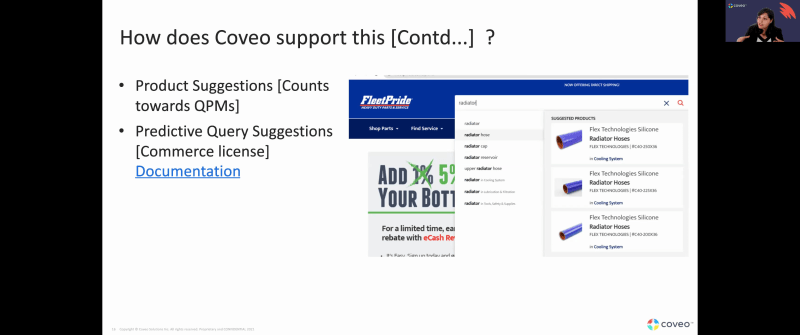
Perfect. Uber, I see that everyone is coming into the participants room. Welcome, everyone. We'll be, we'll get on our way shortly, but we're still waiting for more participants to join. Excellent. Looks like we have, a good bunch of attendees, so we will get started. We will share, the necessary resources afterwards, and you will be able to find, the, webinar recording links in the right places. Good afternoon, everyone. Thank you for taking time out of your days to join us. In the next installment of our customer success webinars, focusing today on UI US best practices. My name is, Thomas Kellwat. I work with some of our strategic clients, I'm really working with them to make sure they get the most out of their Covio investment, and I believe, I may have worked even with some of you in the past. I am thrilled today to be joined by my awesome colleague, Lipika, who will be our main speaker for today, and I will be taking on the role of moderator. Lipica has been with Coveo for, quite some time now, and she provides architecture and solution advice to her clients as part of our customer success programs. Next slide, Rebecca. Here is our agenda for today. We ask that you please send your questions in the q and a section of the Zoom webinar. I'm gonna send over some polls as well that we encourage you, to participate in. And, ultimately, the idea and the purpose of today's presentation is we want you to walk out of today's session with some key actionable takeaways that you can do to improve your user experience and also really better understand how it ties to value and bottom line savings for your organization. Without further ado, let's jump into today's presentation. Over to you, Letika. Thank you, Thomas, and welcome everybody. So we're gonna keep try and keep our session as interactive as possible. So at any time during the presentation, if you have a question, please feel free to use the chat or the queer q and a. We'll do a mid presentation check to do the q and a, but we're we're also open to, you know, peppering in some questions in between as well. So, today's topic, we're gonna talk about UI UX and why is it important for your business outcomes and why should you care? So, one of the things that, you know, both Thomas and I, we work with a lot of enterprise customers, a lot of different customers, SMB customers. And one of the, you know, main reasons sometimes that we see that customers don't achieve their ROI, which is the return of the investment that they're looking for with Coveo is UI UX. So there are several things that can impact why you're not achieving the outcome that you're expecting to see from Coveo, and one of them is UI. So today, I know UI UX is often used together, but today we'll focus more on the UI part of it. So, I also wanna bring in Thomas into this conversation because he works like you said, he works with a lot of our strategic customers. So, maybe, Thomas, why don't you tell us about a little bit about how you have seen, you know, UI or UX affect, you know, achieving those those business outcomes? Sure thing. Thank you, Lipika. And to provide some more context around what Lipika is saying, I can think Barca from the time that I've spent working with support organizations. And in my time working with them, it became very clear how their user experience is so closely tied to their strategic goals. We at Coveo and in customer success in general, we define those strategic goals as business outcomes. And those objectives are the value driven ones that define the partnership with Coveo and they are directly impacted, by the user experience. With with the right design features, that are aimed at improving the search interface and the user experience and the user interface, your community, your support portal, or whatever portal that your website visitors use, well, you are effectively putting them in a better position to find the information they seek in a quick, timely, and relevant manner and ultimately to self serve. Self-service success has a significant clear bottom impact on the bottom line of the support organizations that I work with, and it provides a positive customer journey to knowledge and all of these can tie back the the value that Coveo or just your your community that your portal generates for your organization. Mhmm. Thank you, Thomas. And, you know, both of us have worked in in different lines of business, and we know for sure, especially when it comes to our commerce customers, you know, customers that search usually will have an intent to buy. They know what they are looking for. So, you know, when they search, they intend to convert almost twice or thrice as much as if they went through a navigation. So that said, today what we're gonna do is in, in today's webinar, we're gonna look at some common best practices, especially when it comes to, you know, search pages, and how the different elements of the search pages can fit in together. So what I would like to do before going into those specificities, let's just, you know, have a baseline and figure out what are we talking about today. So UI, UX, CX, we sometimes mangle them all up, but they're not the same thing. They are different elements. So UI is your user interface. So anything if you go on your website right now, if you have facets, filters, if you have a menu, if you have a search box, you know, the color of your site, the the branding, all of that is your UI elements. The UX is what is in the back end. So how your customers interact with your site, what happens at the service, what happens when they log a case, do they get an automated message, do they do they get sent to a particular site, All of that encompasses your user experience. And when we bring them together, together they form your customer experience, which is, you know, the total interaction from when your customer is going on your website, trying to find out more about your product and services, when they're in the lead stage to getting qualified and then to become a customer and then to log in cases as a as a customer or to figuring out more products or upselling or cross selling as a customer. So in the next slide, what I will do is, and we're gonna remember this slide because I will come back to this slide in our second session. So in today's session, we're gonna talk about user experience. In our next session, we're gonna talk about service design. So as you can see, the user experience is everything in the front end, and the service design is everything in the back end, what you can do to enable that experience. And Coveo can impact both of these experiences. So today, we're gonna talk about, as I said, the user experience or the UI. So here are some of the common search UI best practices that we have seen work very well with customers that have improved relevancy, improved, you know, engagement on their side. So let's let's let's begin. The first thing is search should be a box. There is, there is lots of study that has been done on, you know, what kind of UI should the search box be like. Should it be a magnifying glass with the icon? Most websites have that too, and that is okay as well. But the most impactful searches, come from where customers can find a box where they can type out a query. And the box should be long enough for them that they can type a longer query as well, maybe a four, five word query so that, you know, it doesn't taper off and they then don't have to go back to the front of the query to see, you know, oh, what did I type? I forgot. So it has to be wide enough, has to be on the top of the page, usually on the right, but left works well as well. It should be a box, and I will say this multiple times. It has to be a box, and it has to be a field where they can type in a query. And there's an example here on the left hand side, that you can see there is a box right on the top of our of our page of our website, and it clearly defines what what you're gonna do in that box. What are you looking for? Right? As the presentation progresses, I'll also, you know, touch upon a little bit on how Coveo supports this. So Coveo supports this through the JS UI framework. So when you use Coveo, you can use different UI frameworks. Our most popular framework is the JS UI framework. So if you're using Coveo for Salesforce, Coveo for Sitecore, everything out of the box, you will be using our JS UI framework. And if you use any of the Coveo frameworks, automatically the search is a search box. It's it always comes as a search box. It, it it has a space where they can write in the query, and it also has, you know, enough space to have a four or five word query. Now the next thing is make it pop. So what you've done now is you've put your search box right on top of your page towards the right hand side. Now sometimes what may happen is the header portion of your website can be very busy. Right? Because it has your menu, it can have a login button, it can have, you know, other elements that you're trying to highlight over there. It can get very busy. So how do we make sure out of all of these elements that the search box really pops pops out over there? So if you can see in this example, the background is blue, the search box is white, and the magnifying glass, which tells me that this is a search box, is yellow. So there is nothing left to guesswork. There is nothing left for the customer to, you know, search for where the search Barca is. It's right there, right in the middle, no guesswork involved. Now what we can also do is a lot of times, customers also, you know, use only the magnifying glass without the box. There are some guidelines on how you can, you know, best practice that approach as well. So, what we can do is I have put a link over there. You can go ahead and read that. There are some best practices on how to develop using a magnifying glass icon. So as we're going through the the presentation today, we wanna learn more about your websites too. So Thomas is gonna launch a very quick poll about, you know, certain aspects of your website. So let's look at that. Yeah. Very quickly, I just wanted to share the results from the previous, all poll that I sent. Thank you all, to the, forty participants who replied. About half of you mentioned that you do have a dedicated UI UX team. Ten percent of you indicated that you do not have a team but a dedicated budget. And the remaining thirty five percent of you, mentioned that none of the above as an answer to that survey. And I'm just gonna launch another question, really around your search interface and, really the design that you have in place around the search box or, the magnifying glass icon. So please go ahead and, submit the answers. Back to you, Linda. Thank you. So I'm just gonna wait, like, maybe couple of seconds, and maybe we can share the results of the poll before we move on. So a couple more seconds, and then we move on. Yep. Sure thing. K. It's all still coming in. Okay. Looks like the answers have stabilized. So, the vast majority of you indicated that you do have a search box or a a magnifying glass, and it's almost, half and half between the two, but the majority going to, fifty four percent of you that indicated that you do have a search box. Mhmm. Maybe I would really like to follow-up with everybody who said no search box option because, go back and make a search box on your website. Very, very important. And I would also wanna know what is something else other than magnifying glass and search box. So, feel free to put it in the chat. I think that's a very interesting point to follow-up on. Okay. Moving forward. The next thing we come up to is that, you know, given that search is really becoming an old hat, so it's it's it's it's a must have on every site because that's where we first go. Anytime I'm looking for something, I'll say, I'll just search for it. My five year old says the same thing. Go search for it, mama. So search has kind of become like ours. You know? It's it's a day to day thing. We do it every day, every second. So you would think that, you know, users will develop more advanced search skills, but it's not so. That's what research is telling us is that users still need a lot of help while they are searching. And the most help they need is, you know, figuring out what keywords do I use so I get the best possible results. Right? So, in the screen, you'll see, you know, I'm searching for the keyword as this. And then as soon as I type in, I am seeing a lot of suggested query, queries that are coming through. And as soon as I type this, it said this content is blocked. Full authentication is required. So this is just based on one keyword. So suggestions also help avoid typos because a lot of times, you know, you might have, you know, product names or service names, that can create a lot of typos, which means that your customers will end up getting a page with no search no results. Right? So we wanna avoid that. We wanna avoid that by showing them suggestions, that are telling them, hey. Other users have searched with these keywords, and they have been successful. So why not try them? By doing this, we are also reducing the interaction cost. And what does what does that mean? You know, one of the business outcomes that a lot of our customers go for is reducing the customer effort to get to a knowledge to get to a knowledge article or to get to a PDF, get to, a manual. So by by giving them queries, we are telling them, hey. Use this, and you will get there right away. If I didn't do that, they would have to figure out exactly what to search for. If it didn't give them the right result, they have to go back, remove their query, search again. So it just causes, you know, more interactions on your site. And we all know that, you know, when when we look at customer service, the customer's, you know, sentiment is at the at the highest point when they are first interacting with your site. And as they interact and as they're not getting answered, it kind of keeps going down. Right? So we wanna make sure that in their first try, we give them as much possible successful results, as as there are. It also decreases mental effort. I don't have to think about what keywords to use. It's already there for me. I'll just use them. And there are some other best practices on how you should style them. So the customer recognizes that this is the word I'm searching for that I've entered, I've already typed in, and these are the other words or keywords that are available for me. So which you can see over here. Now how does Coveo support this? Coveo supports this by having a query suggestions model. Our query suggestions model is a machine learning model that learns from searches and clicks. So the machine learning model, what it does is it looks at successful searches, which which means that it'll look at searches that have had a click. So the more searches and the more clicks that happen, now I understand that, you know, what the customer entered before was a typo, and this is the actual correct keyword, and it starts suggesting that. We also have a did you mean feature, which, looks at the index. So anything that you're indexing all of the sources that you have, you look at the index. And if there is a word that is different by one or two letters, we will automatically correct it. And that can be enabled very, very easily. Even the query suggestions model, very easy to enable. Most of our customers enable it even before they go live because it starts working right away. It starts looking at searches and clicks, and it starts working right away. Okay. The other thing that we wanted to talk about today, and I did talk a little bit about query suggestions, and the fourth UI best practice is we need to detect intentions sooner. Why is my customer coming on my side? Right? Are they coming to buy a product? Are they coming to do some research? Are they coming to log a case? Are they coming to find an answer? So, if you can see in this example, you will also notice that the query typed in is a wrong query. It says Samsung. It doesn't even say Samsung, but it automatically corrected the query. And now I can see, oh, do you wanna search Samsung in devices, or do you wanna learn the news about it? Do you wanna know when the new model of the phone is coming? Or do you wanna buy a product? So in the same little box over there, I know that or if I wanna check out news, I just click over there and I go straight to the news. And if I wanna buy a product, I just click on any of these products, and I go straight to the product product page. So there are different ways you can, you know, show customers where to search for by detecting their intention. And, again, Coveo has various different ways to do that. We have, again, query suggestions. We have what we call as category suggestions, which is saying which is what you see over here, which says Samsung in devices or in newsroom. This is based on what we learn from the user. Right? We learn that whenever the customer is looking for a laptop, the next thing they would do is go to the devices section. Or when they're looking for a phone, the next thing they will do is go to the news to know when the new model is coming. Right? And then we have product suggestions. Product suggestions are basically leading you right to the product so you can buy them right away. Or at least you can look at them and you can browse around. So what is happening over here is we are giving customers some social proof. So, I'll give you an example which is not a complete digital example of it. So if you see a new bubble tea shop in your neighborhood and you see queues, lines of people lining up over there every day, day in and day out, which means that it's very popular. And the next thing you know, you're you're in the queue too because now you have social proof that this is a good, place to go to. So I see, Thomas, you've raised your hands. Is there a question for me? Yeah. I believe, Katya apologies if I'm mispronouncing your name. But, Katya Muscal, I believe you had raised your hand. I just wanna make sure you do have the chance, to speak if you want to. Hi. No, sir. That was a mistake. Oh, no problem. Excellent. No worries. We can carry on with it then. Okay. No worries. Okay. How does Covio support this? I have linked all the necessary documentation over here, so you can go to those pages and you can see, you know, what kind of, what kind of components you need to enable something like this. The next thing we are talk about is product suggestions, and I showed a little bit of an example over there. This is very, very applicable to, you know, commerce customers or customers that have catalogs, different products they're showcasing on their side. They might not be either they could be b to b, b to c. There could be an option to purchase. There might not be an option to purchase, but there could be an option to, you know, download a specification, whatnot, but you're still showing products. You're still showing a catalog. So product suggestions, you know, they they count towards your queries per month. So if you're a existing Coveo customer, you know that we have different kinds of entitlements, which basically means that's how you pay Coveo, right, for using Coveo. So, based on what kind of use case you have, you either pay per user or per per the query you do. So the product suggestions counts towards your QPMs. So every time we so for example, if you're searching for radiator, you see there are three, different products that are getting loaded here. And if, any every time we look at those products, it's hitting the index and getting back the product. But it's doing that based on what's the most popular, what's getting the most hit. So it's doing it very intelligently rather than just bringing our products back from the index. Then we have scoped search experiences. Now this is a very important thing. Be it a commerce customer, be it any any search page, we wanna make sure we give customers the option to filter down searches. We wanna make sure that they're not seeing five thousand results or a single word query. We are giving them options to bring it down, bring it down to maybe ten results. So this is also especially important if you have a knowledge base and you have different products. For example, us, we have Coveo for Salesforce, Coveo for Sitecore, Coveo for Commerce, lots of different products. Right? And documentation sometimes can be overlapping between products. So it's very important to find those different categories that work for your customer. And the most important thing to consider is don't go by what you're tagging your content. Go by how your customer sees your content. Right? Instead of calling it knowledge articles, documents, and, you know, something else, specification documents, whatever, all of that is still knowledge. Right? So the customer shouldn't have to figure out, okay, what is knowledge articles and what is documents now? So when you're creating these filters, think about how your customer perceives your content rather than how you have your metadata inside your index. Right? This is a good example of, you know, unifying different sources. And this is something a lot of our customers are doing now is there is only one page for support content. Also, it's the same page where you go and buy products. Now it can be a challenge because you're looking at completely different things. Right? You're looking at knowledge articles that are telling you how to solve a particular problem versus you're looking at, you know, how do I buy this product? They they're completely different things. So we can still scope them using using a tab like you see over here, and we can scope them so that customer knows that, hey. If I have a question, I go to the support tab. But if I wanna buy an accessories or browse the accessories, I go on the accessories tab. So a good example of scoping down different, sources. So the other thing that I'm gonna talk about here is dynamic filters. Now this is something that we see a lot in, you know, customers that have a huge amount of metadata, huge amount of tagging, very complex taxonomy where we are saying that, you know, if if I see a list of products, there could be multiple different categories. Like you see over here, you could filter it down by brand. You could filtering that filter it down by, you know, pet type. You can filter it down by that kind of nutrition. It can get very, very complex for a customer to figure out those filters. So what we have done with a lot of different customers is we have a different machine learning model called dynamic navigation experience. What that ML model does is, again, it takes off the guessing game from the customer, reduces interaction cost. So say, for example, I come on the site to buy pet food for my dog, and typically, the first thing that I do is select the brand. Or typically, the first thing that I do is go and look at, you know, the flavor. So if you look at the menu over here, it's a really large menu. So sometimes it might not fit on my mobile, and a lot of my purchasing is done on my mobile device. So with DNE, what DNE does is that it automatically looks at the kind of searches that are happening and the filters that are getting selected and automatically repositions the filters. So, for example, if color is the one that I always click on, color is now at the bottom. But next time I come, color will be right on top because that's what I used used most often. Again, it goes back to the whole thing about social proof. It's what everybody's doing. You're kind of personalizing a little bit based on what the customer is searching for and what kind of filter they're using. So this is all about using dynamic filters. You can also auto select filters for customers where you can say every time they they search for a pet product, they select brand. So I'm gonna automatically select the brand filter for them. Or, for example, I'm buying a laptop, and the most popular laptop, you know, desktop size is what I look for the most. So I will automatically filter it down for that. So all of this really is to reduce the interaction cost. We want customers to do less but find more. So by doing things for them intelligently and not just doing it based on what we think they might do, we're doing it based on what they have done in the past, what they have what's the historical data telling us, and we are basing all of that on that. So we give them more and ask them to do less. Help them out a little bit. How does Coveo support this? And I went through this a little bit already. But I'm gonna talk a little bit about DNA here. So the DNA model, can be set up with your Coveo interface. There's a couple different prerequisites that are required. Remember I said the facets can go up or down, which means we want them to be movable. Right? So there's a different kind of facet that is used for that. It's called dynamic facets. If you are if you're a latest Covia customer, you should already have dynamic facets, So no worries about that. But if you've been a customer for a little bit longer, you might not have it, but you can still convert your regular facets to dynamic facets. A lot of a lot of our customers have done that. Now when to think about DNE? When you have a lot of different filters, that's the best possible use case for DNA. If you have two filters, maybe not. Too much effort for two filters, not not needed. But if you have a lot of different filters or or facets that you have on your website where you have, like, different categories, more than six, more than five, yes, DNE is a very good option for you. The other thing and this is something that our customers ask very, very often. And we have different lines of business. Right? So one of the lines of business where I where we get a lot of question about advanced search is the contact center. Because typically in a contact center, you have engineers who know how to write expressions, who know how do I write logical expressions. They they know how to do advanced queries. So is advanced search a good option in those kind of scenarios? So even even in your website, sometimes we get asked, you know, should I provide my users an advanced search? The answer is we have seen very little usage of advanced search. What we're doing here is we wanna emphasize the the and the search engine's ability to handle single word queries, multi word queries, and and really, you know, take away the need of advanced search. So if I'm getting what I need from from the search box without having to go into, you know, like, a very specific page where I'm saying use these words, use these exact phrases, don't use these, This can get, you know, again, a lot of lot for the user to figure out, okay. What should I be doing over here? Rather, if your search engine just handles all of that, which most of the time, Coveo does. And Coveo also has, you know, you know, did you mean, query suggestions. We we also have, you know, where we can auto complete keywords, lots of different options where you can do advanced search without having to create a separate UI for advanced search. Okay. I'm gonna pause very quick and see. Thomas, do we have any questions? Anything that I can take? Yes. We just have one question from Ludwig that just came in. Can you apply DME based on the behavior of an individual authenticated user for this particular user only, or is it relying on the user behavior of all users? Mhmm. That's a good question. So all of our machine learning models, really depend on couple of different things. So we use the search hub or the name of the UI as a filter. We can also send additional context to machine learning. We can say, and machine learning automatically looks at which user is authenticated, which user isn't. But really we learn more from, you know, collection of data. So the way I would put it is, I don't think we can do personalization just by looking at what that user has done, but there are other components to do that. You can show recent searches. You can show saved searches. There are many different components to do that. But the DNE really looks at collection of data. So say, for example, you have different types of shoppers coming on your site and you have a different tool that recognizes what kind of shopper each one is, then we can send that to machine learning, and machine learning automatically creates these different buckets of behavioral data and, you know, uses DNE based on that. I hope that answered your question. Super. We have another question from Danielle asking if VNE can filter the specific filters or just moving them. Yeah. It can do specific filters as well. It can do that. And you can automatically select a filter as well if that's what you're looking for. So auto selection of filters also it can do. Super. And the bigger last question before we move forward from Daniel. Daniel says that they have data from their users indicating that they use and want advanced search. Mhmm. Their their users are used to it from an internal platform they had prior, and they're working on revising that platform. Did they Daniel is asking us if we would still suggest not not offering this feature in this case. So I would really go by what kind of features are they looking for. Are they looking for doing field searches? Are they looking for using logical expressions? Are they looking for creating different search expressions? All of that is possible with Coville. So you don't necessarily have to create a different UI. But if this is something, now now here's the other thing I would keep in mind is if this is something that users were used to doing before, instead of trying to create, you know, another UI that it does exactly the same thing, why not figure out what they were doing in that UI? And most of the things that typically advanced users do is possible to do with Kubera. Wild count searches, we can do, you know, and or not, any of those things. You can create field searches. You can search by your field. All of that is possible in Kaver. So we don't necessarily need to create a different UI, but I would really go by comparing what's possible, what's not possible. If maximum of the things are impossible, then I would maybe still create a different UI for advanced search. Superb. I think that's it on the question side of things. Cool. Okay. Let's get ahead. We're almost getting there. Okay. No results page. No results page where, you know, you see nothing come out, from the search that you did. You took so much effort to type in a query, figure out what query to type, and then you don't see anything. So the no results space is really an opportunity for for you to do something for your customers. So if there is nothing on the page, we're not returning anything for them. Why not put a recommendation panel in there where we can recommend them different products? And if it's a commerce customer, it will improve your conversion. It'll improve your engagement on the side. Why leave them on a dead end? Right? So if there is a no results page, you either put a message over there or you put recommendations with additional products. Now Coveo supports this in various different ways. So we have a no results page recommendation component, which is designed just for the no results page where I'm not seeing anything, but I would still learn from what other users are doing from. So I would put a recommendation component. There is you can put a custom message. Again, there is, like, a component for that. There is a blog post that I linked over there. Instead of saying blog post, I think I should have described what it is. But the blog post really talks about the different things you can do on a no results page. Rather than leaving your customers high and dry, let's give them another avenue. Let's reengage them back. Let's pull them back into where they were going and what they were looking for. And last but not the least, the first page is still golden. So I know, in a in a lot of customer calls that Anya Thomas and I are, we talk to customers about relevancy. We talk to customers. Okay. What do you expect to see? Are you seeing good results? Are you not seeing good results? Now Coveo I'll talk a little bit about, you know, how Coveo processes processes these results so you can understand what kind of results you're seeing and why you might be seeing those. Coveo looks at various different things along with machine learning. Now machine learning, what it does is it injects results based on user behavior. But say, for example, machine learning hasn't learned anything from that query, then we see everything that is returned by using the Kovayo secret sauce algorithm. There's certain things that Kovayo looks at is the title, the summary. The summary is typically, you know, the body of the document. The different keywords, we look at that. We look at the date field. We look at, you know, when was it last modified. We will look at the frequency of how many times that keyword, occurred in that document. We also look at proximity, which means that if I searched for the word best practices, the documents that has the word best practices right in the title and also right next to each other will be will be ranked higher than any of the other documents. So in this situation, I don't see a lot of different search results here. But say, for example, I'm looking for a document that is recent and is a best practice and is a best practice for increasing employee engagement, for example. So if I type in best practices, I would see the document that is, you know, the most recently published or the most recently created, and you can control that. And I will also see documents that have it in the title ranked higher. I will see documents that have the word best practices in the summary. I will I can also control what fields Coveo looks at. So when you index your content, you have so much metadata. Right? You have your date fields at one of the most important metadata. Then you can also have tags. You can have taxonomy. You can have topics. All of these are helpful if Coveo looks at them and searches for them. So in Coveo, you can tag these fields as searchable, and then we look at them and we make sure that they stay on the top. Now first page is still golden, so you still need to make sure that the first page of results that comes on is the best set of results that customers are seeing. Coveo supports this by a multiple different ways. We have the ART model, which is the automatic relevance tuning model. It learns from, you know, searches, clicks, what users are doing after or before, and it will automatically rank items that are getting the most clicks to the top. And then we have content recommendations. Content recommendations are more like people who have viewed this have also viewed this. But I would say there are multiple different applications of this. If you you can put a content recommendation model on the home page. You can say these are the most trending articles, the trending topics. Or you can say, you know, if you have a known issue, you can put all the known issue articles right in the beginning of your home page. You can show recent searches, recent documents, and Kavir has a component for all of these. So if you wanna try it out, I would say we've linked all of these documentations, right in the in the presentation, so you should be able to reach those links and try them out. And I'm gonna do a very quick recap because that was a lot of information, squeezed in a very little time. So first thing, search should be a box. Make it pop. Help customers formulate queries. Give them query suggestions. Detect intention. Figure out why your customers are coming to your site. Is it to buy products? Is it to, you know, troubleshoot problems? What is it for? Scope down searches. Give them options to filter. And I say no advanced search, and I know sometimes it can be a very strong expression to say no advanced search, but, really figure out why they need advanced search. Right? And if Coveo can, can really do everything that the advanced search can do, then we don't really need a separate UI. Use dynamic builders. The no results page is an opportunity. Give more content over there. And last but not the least, your first page is golden. So make sure your first page of result is always the best possible results that you're getting. And with that, I think, these are some resources that we have tagged over here for you to go and look at, you know, some of our blog articles that have been written by our UX experts, who have, you know, given suggestions on different things like filters, facets, how many search box examples that are great, search results pages, what to put on it, what not to put on it, and so on and so forth. So with that, we come to the end of today's session. Are there any other questions, topics to discuss? Let me now pause. So far, no questions in the Zoom webinar interface, but we'll give it a few seconds to see if anyone else feel free to, raise your hand as well if you'd like to speak up and ask your first your your question directly to Rebecca. For sure. Anything else we should not do? I see the question. No. I I I I think what I said about the advanced search is also based on some of the research that has been done. So I really like this web, you know, this organization called Norman Nielsen Group. They do a lot of research on UI UX. A lot of people go over there to, you know, to look at their different user studies. I have also tagged a couple of YouTube videos from this particular, you know, website. So go ahead and look at them. We have a lot of different blog posts about UI UX best best practices. So we've tagged all of them, so go look at all of them. Yeah. We have a question from, Danielle asking, if the query suggestions product suggestions model would be counting towards two PMs. Mhmm. So the queries so the product suggestion model, not the query suggest. Where we are suggesting queries does not count towards QPMs. When we are suggesting products, yes, count towards QPM. But if I wanna answer your question in a more granular way, it's not one QPM for each product. It's one query to bring back all the products. So, that that's about it. Thank you, Daniel. Okay. Cool. Any other questions, folks, as a quick reminder? Because I saw a few of you asked, this question. You will receive a copy of the deck, and you will receive a copy of the, a link to the recording for today. Alfredo is asking if we have more material on our customer experience practices. Thank you for ensuring that you like how we use UX and UI to conceptualize the whole Alfredo, this seems like a nice plug for our next session, but I I promise I did not bribe Alfredo. But our next session will be all about CX. So today, we we presented, like, very practical aspects of it, which is UI. You come join our next session. You'll learn all about the UX and the CX portion of it. But thank you so much. That was a very good and timely question. Okay. Okay. Cool. I think, that's it, from the participants, Dipika. Okay. Cool. So if there are no more questions, I think Thomas and I would I would like to thank you guys for coming and spending time with us. For most of you, it will be lunchtime now, so thank you so much. I hope you got some really practical things to take back to your team. And if at all you have any other questions on this sessions, like, feel free to ping me or Thomas on LinkedIn. We're happy to have a chat with you. If you're an existing customer, and you have a question, talk to your customer success manager, and, they will definitely bring us into the conversation if needed. Okay? Thank you everyone for your time today. Thank you everyone. Have a good day. Have a good rest of your day, folks.

UI Best Practices for Improved Relevancy
Watch the second part of this Learning Series
UX Best Practices that drive Customer Satisfaction happening on Nov 23, 2022