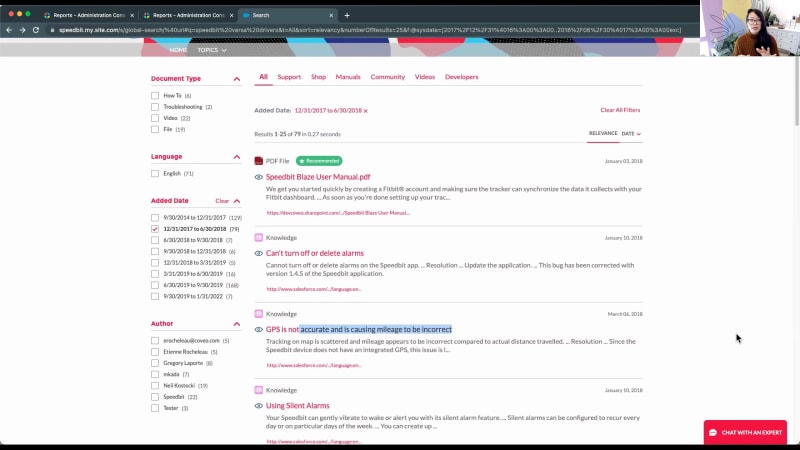
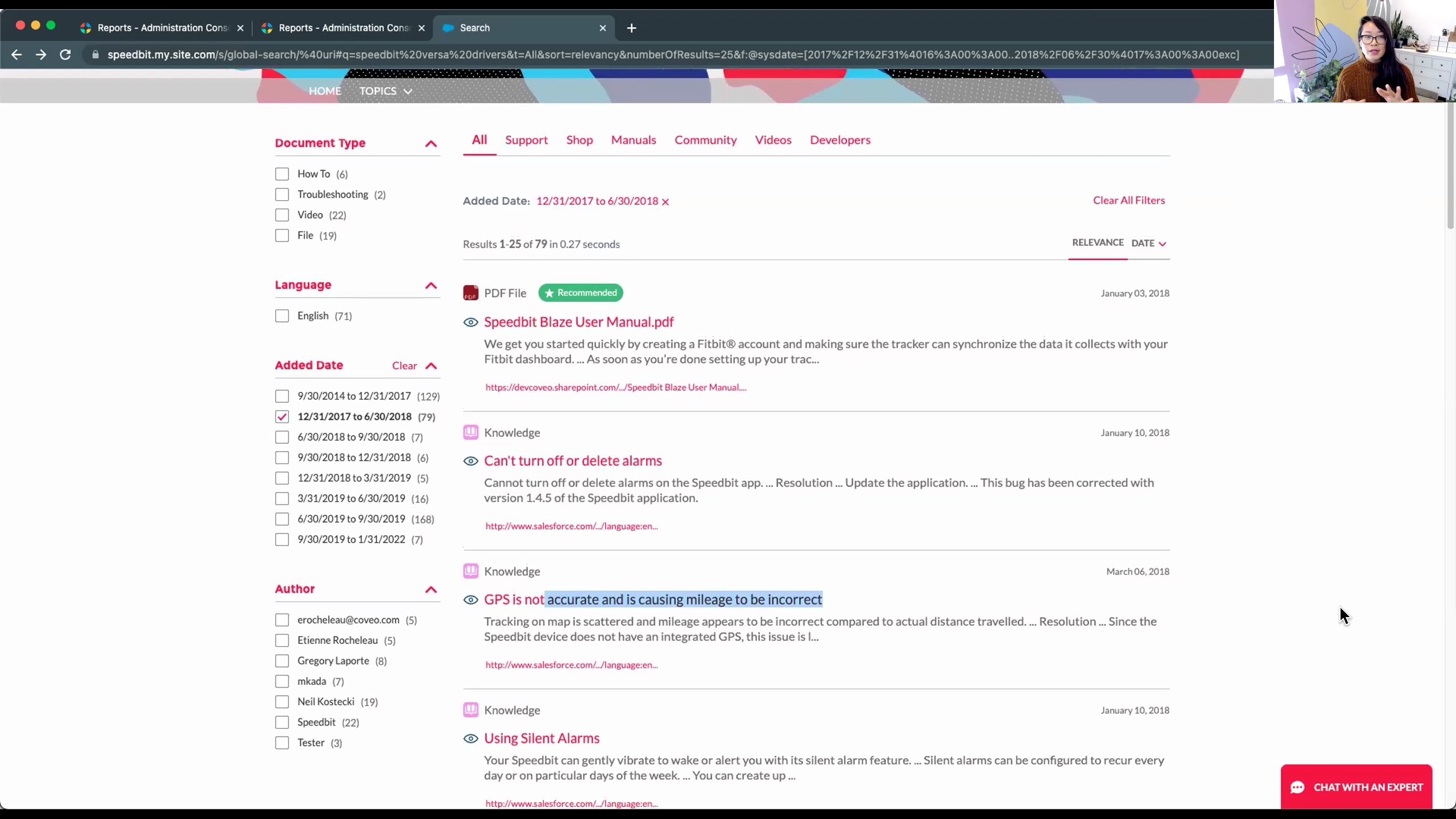
Good afternoon. Welcome to the Coveo analytics session. Today we're going to be spending time on as far as how to be able to, create reports and to work with the data within Coveo. My name is Kevin Clepp. I'm a solutions engineer here at Coveo. I've been with, Coveo for a little shy of three years, and I have my colleague with me, May. Hello. My name is May Wen. I am a strategic customer success manager here at Kaveo. I help our customers leverage our tool to the fullest ability. So welcome. So between the two of us today, we're gonna be talking a lot about reporting. And during that time, we're gonna dive in, show you how to build reports, and what what you can do with some of the data. Before we get into that, though, we're gonna be talking a lot about click events, and search events as we're going through our time and wanna be able to define what a search event is. Let me start sharing my screen. And some of you are probably well aware what search events are just from using Google, Bing, Yahoo, any of the the search, engines that are out there. From a Coveo perspective, what is a search event? Well, just like Yahoo and Google, you know, a search event is coming in and typing into the query box of how do I do a specific thing, but it expands beyond that. Right? A search event is any click typically that the user will take while engaged with a Coveo search results page or a Coveo page. So anytime that they would come in and make a request, the page loads. You'll see any clicks that I would may do for tabs that may be established at the top, filters that may be established over on the right hand side or left hand side depending upon how your pages may look as you implement Coveo. As they continue to filter through Coveo using the facets over here on the left hand side. Your mileage may vary as far as what the titles of these facets may be and what the values are that sit beneath them may be. But then we also include click events as far as being able to perform a quick view on specific documents. So when I instead of having to click on that document and going out and looking at that document wherever it may reside, you know, it could be SharePoint, it could be your website, it could be your knowledge base, because we're able to pull content from a lot of different areas, different sources that you that you may have. Giving your customers the ability to get at that information quickly without losing them from the search page that they're currently engaged with. And then certainly, as they click on the specific document, we want to consider that to be a search event as well. So as your users are clicking on each individual one, and it doesn't matter if it's information that has been curated to be appear at the very top or at the very bottom, if it's machine language, machine learning generated and pushing content towards the top. All this information is being gathered by Coveo and doing one of two things. It's still certainly feeding the machine learning. So when we look at the query suggestions that are appearing down here, it's helping to be able to build those machine learning models. When it when I click on specific articles within the search results, it's feeding that machine learning model to be able to boost or bury content in the search results for similar type of queries. But the other thing that it's doing is also helping to feed the analytics side of things. So now if I switch over into the administrative side, you know, we're looking at this from the end user's perspective. But now if I put on my administrator's hat and I go into the Coveo administrator looking specifically at the visit browser here, Here we have a look in of as far as what all of our customers have done. And we see, you know, their username, if they've authenticated geographically, about where they've come from, the technology that they're using, and the event counts. These are those search events that I was just talking about. So we see that Sue had performed three search events. Now you may be looking at some of this information on here and say, you know what? It's great that we're able to authenticate and see see who these people are, or geographically where they may be from. But, you know, we don't wanna be able to reveal this to the administrators that use this system. Can we go out and hash this information out and to be able to anonymize this? And the answer to that is yes. So you see in some instances, we have anonymized some of these visits. You can certainly do that for all of your visits if you needed to as well. So let's take a look at what Pedro's done here. Pedro visited from, looks like, Oregon, and he has nine visits or nine events that he's done. And what are those nine events? Well, as I mentioned before, the events are the searches. It's the click. It's the looking at the quick view of the document. It's the facet value changes. And see, looking at from what Pedro has done, he started off with a search. And what was that search? Well, he wanted to learn how to be able to connect his fitness watch to his phone. And he performed that search, and that's some very good information to be able to see what people are searching for. Well, let's dive a little bit deeper into that and see not only what did he search for, but what was the response time for that search? What were the total number of results that came back for that search? And it's this information on the search side in conjunction with what we're looking at here from the click as far as the document that he has opened, where we also collect a lot of data as far as who the who the author of that document is, where they may have come from, if you have multiple search pages, if you have a search page using Coveo within your knowledge base and your your help documentation and your website, well, which one of those three search boxes did they engage with to be able to find the specific document? And we're capturing this information. As well as, you know, you have a lot of content that resides within your content library or new on your website. Where did that specific document that Pedro clicked on, where did that reside within the search results? So we have a lot of information that we're capturing on the documents open, on the searches that are occurring, the facet value changes, if they are filtering based upon date or based upon, relevancy of the content. All this information is captured within Coveo, and certainly you're not well, most likely, you're not going to run a report specifically on what Pedro did. Right? All this information bubbles up to what May is going to then show you now as far as how to build a report and how to use this information with along with all your other customers' information to give you visibility as far as how your your processes are working and potential for, process improvement as well. So, May, I'll hand it over to you right now. And the Sure. Let me just get my screen up. And in the meantime, if there's any questions, please do let us know. Alright. Let's try this. Alright. So I'm gonna just quickly show you how to create a report from out of the box. We have some let's see here. We go here. We log in. We go to reports. There's an add button here in the upper right hand side. I'm gonna add a dashboard from template, and we have quite a few out of the box reports here. The one that I I recommend using, for most use cases is going to be called the detailed summary here in the advanced section. So I would just select that, select template. I here's where it's asking for origin level one. That's basically another way of asking what use case are you wanting your report for. I'm gonna just click community search. And I'm gonna mute this now. We're in a dev environment, so this is not really real data, so I'm gonna just expand the data here. But, ideally, you would have a hub identified. And then you'll see here all of these tabs pop up with data coming in. So I'm gonna go ahead and save that. So this detailed summary report, it shows quite a bit of information, and I'll skip over to this one that I have open already. Here in the summary, you'll have some really over a good overview of, your search performance, but basically the volume of people coming to your to your particular site. In this case, I'm looking at several hubs, so I can see visits by different, entry points, whether it's your community, your documentation page, your dot com site. That gives you an idea of where the mass majority of your users are going to. And then also visits by device. Here's what's really useful this, to to business users. Your top manual queries are shown here in the summary tab as well as the top clicked documents. This is really nice to share with your, with your stakeholders, with your documentation team, your documentation writers. You can always export it by clicking on this little icon with explore data. That'll open up this window, show you that same content, a list of the quick documents, and then here is a little download button. I won't do it now, but it's it just exports to CSV right on your computer. So that's how you can download information from outside of Coveo usage analytics. Now I've added a a custom tab here. So I went into edit mode, and you'll see I can add a tab. I did that already here. I called it my health check. So this report has so much data, especially if you're starting out with Cabello. It could the info it can be TMI. So so I'd like to, for this webinar, really zero in on four key relevance metrics that tell us just right off the bat how we're doing as a business. Those four key those four relevance metrics are here at the top. So we there's the visit click through rate, the search event click through rate, an average click rank, and a content gap. And, I like to have this on a separate page just because it can be easy to get lost in all of the other metrics shown in this particular report. I'll show you real quick for these first, metric cards. All of these are created, with something called a visit metric card, and there's already all those scores three already have basically what it is, the visit click through rate, the search engine click through rate, and the, average click rank. So it's really easy to create. And I'll start with some what do these actually mean? So visit click through rate. This is this is basically out of everyone who is coming to your site, what let's just say it's a community site. Out of everyone who's coming to the community, what percentage of those visitors are actually clicking on a result? And and so that's what this this seventy six percent is in this example. In parentheses here, I have some rough benchmarks. This, for for visit click through, we wanna see something above sixty five percent, and and this applies to almost all use cases. The caveat here is probably going to be, I would probably say it it may be different for commerce, and it will be different for agent use cases. But other other things like an intranet search or a search page or a community, a documentation site, it's roughly gonna be in this this, benchmark Barca. About sixty five percent would be considered pretty good. And this next item, the search event click through rate, it's slightly different from visit click through. The search event is a little bit more more precise. So search event click through looks at, okay, out of everyone who is coming to community, in our example here, how many clicks are happening based on the number of search events happening? So back to what Kevin was saying earlier, if I go back to our example community here, and I I do a search, right, speed bit vers versa drivers, that's one search event. Now if I say, I I I know it's probably between these dates. I select a facet value. That's the second search event. And and and right now, we have one one one, result here. But let's say there is a whole list of results, and I said, well, let let me go to the next page. I don't see anything good. That's a third search event. So those are all examples. Basically, anything that would refresh this search page, even resorting it, that's a fourth search event, that is considered a search event. Even refreshing my web browser, that's a fifth search event. So all these kinds of actions that a person takes, whether it's facets, going to the next page, resorting, maybe even I go to a different tab, that's that's a six search event type. Those are all counted as we look at this search event. So so so that's six search events, and I I let's just say I clicked once, clicked once. That's one in six. And so that's the percentage that we're seeing here. So over all of the activities are going on, all of the users, all of their actions going on, their their searches, whether it's a query or a facet selection or the next page, all those kinds of actions, those search events are calculated here against the number of clicks. And so the benchmark for that is we we ideally would like to be above fifty percent. So another way of saying that is for every two search events, for every two refinement actions, we want somebody to find to click, to find something worth clicking on. Because at the end of the day, we wanna make it easier for an end user to, to find the content that they're looking for. We don't want somebody to click and refine the six times like I just did and then click. We wanna we wanna we wanna make it easy. So that's what this number is telling us. And this third item, the average click rank, this is a nice easy one. So if I go back let me just take out this query. The average click rank is basically the the placement the average placement that a person is clicking on. So if I click this third one, that's an average click rank of three for me, for my for my personal visit. Now this report is looking at all visits across all visits on average, what which placement, which click rank placement are people tending to click? Are they tending to click the first, result, which is what we want, ideally in a perfect world? Or are they having to go down to the tenth result? Or are they having to go down to the next page, the twenty fifth result? So we want that, but we that benchmark for that is is generally going to be less than three. Within the first three results that we see is what we want people to click on. Of course, the first is ideal. Now this is gonna the other caveat here as we think about average click rank, it's gonna be dependent on your UI. So for this example, it's three because I can see I can visually see three results without having to scroll. Now some people might have, four, so then your benchmark would be four. The ideal is that that when somebody searches, they can see something worthy of clicking right away without having to move their mouse, to do any extra effort, to go to the next page, anything like that. We just wanna make it as easy as possible. So so that's the average quick rank. Now the fourth relevance metric, very important, and this is especially, helpful if your company engages in the KCS method methodology. This is something called the content gap. A content gap happens when and I don't know if I can do it here, but when somebody searches a term that just doesn't exist in your content. Now this is a a a silly term. Of course, I wouldn't find it here, but, you know, sometimes people are searching on your community, on your intranets, on, your agent portals for things that should actually be there. And so we wanna know what those queries are. Ideally, benchmark wise, we wanna it's it's safe to be under five percent of, per content gaps because we know that people we also know that people are imperfect when they're typing in searches. People misspell things, and people legitimately look for things that shouldn't be there on their site. So that's why we allow a little bit of wiggle room. But let's say let's say we're above five percent for our content gap. We do have this content gap tab on the detailed summary report. Super helpful. I'm gonna scroll down to the most helpful part, which is this table view of the actual queries being searched that are coming up with that no results page. So so because this is this is fake data here, ideally, you would be seeing, or if you do have content caps, hopefully you don't. If you did, you would be seeing some, variances in numbers of unique visits and search event counts. And what I like to tell a lot of customers as they're looking at this particular, table of their content gaps is to is to sort it by the unique visits because we can I mean, I can look at this whole list of, queries, but if only one person if it's only really only affecting one person, and I'm probably me as a business person, I probably, like, have spent too much time or any time on, correcting this? But if we've got, like, tens, hundreds, in this fake case, three thousand, unique visitors trying to search this term, then it's gonna draw my attention. So pay attention to the how many people it's impacting. And then the second item, pay attention to how many times it's been searched. The higher the number, the more it should the the bigger the magnet it should draw you to to pay attention. So sometimes so let's say, you know, I'm a business user. I see Speedbit. It may perhaps a case number. This actually happens frequently, I see, on, community sites, or support portal pages. Customers will search their case numbers, and not every company, not every company actually indexes their cases. And so if you see enough people doing that, whether it's your external customers or even your internal agents or your employees, maybe on an HR IT portal system, if peep if you're finding that there are many people searching their case numbers, their ticket numbers, that's a cue for you. This information now tells you, okay. Well, let's index that so we can make it easy for people to get to their cases, and find you know, whether it's an old case or a new case. You know? This is the this is the value that this data brings to us is, okay. What are people expecting to find? If it's not there, okay. Fine. But what are they what what can we take from this these content gap queries? Should should these be queries that are legitimate, and should we, on the business side, make a decision to now index in that in this example, cases? Should we index, you know, should we are we missing are are we legitimately missing documentation on tracking activity for the speed bit? You know, this is super helpful. And I another this is another report that is super helpful for your documentation team to share with the documentation team, your writers, get direct to the source, of where this can be corrected. So those are the four relevance metrics. There are I mean, there's tons of tabs here. I won't go through each one. What I will say, what I find helpful what I find my customers finding helpful is this documentation performance tab, which, again, kinda goes a little bit further into your top trending documents. I'll tell you a little secret here. Anything when you hover over anything in your Coveo usage analytics report and you see this little hand like this, you can click that, and what that will do is create a top lever level filter for the entire report. So now no matter what tab I'm on, all the metrics will reflect based on this click on this document. So let's say somebody came from you came to you as a business user from the documentation teams, and they say, hey. We have we we just recreated the manual. Are people using it? And if they are, how are they getting there? What queries are they using to get there? So this is so this is really nice. You can see the click counts, the search event counts for that document. I'm telling you another little secret. Whenever you add as long as you're outside of edit mode, you can add as many filters as you individually want, and nobody else on your team will will have to see those updates. So if Kevin actually came to this report at the same time as me, he actually wouldn't see this filter because, I haven't edited it and save it saved it. So it's only for me to look at. So that's kinda nice to know because, oftentimes, we're we're sharing these reports for different kinds of stakeholders, different team members, and but we also wanna kinda do our, you know, do our work, do our own work and, like, needle in on the things that we wanna needle in on. So and you and you can disable or remove these things as needed. The other the other nice thing, which I don't see a lot of customers do, which I push for, is, leverage your note cards. So this right here, if I go to edit mode, this verbiage right here, this text box, it it's called a note card. So I can add different types of cards to the report. This is a note card where I can say, you know, I can put in definitions of of, in this case, the four relevance metrics. Right? We can add hyperlinks to make it easier for our extended team to to learn and remember and learn more about some of these topics. You can the other nice note card I I like to push customers to do is leverage a timeline note card. Here are some examples of what you would have on your timeline. So things like your go live date, when you have added a significant amount of content sources to to your use case. These kinds of things impact, can impact your metrics. You know? If I'm seeing, a rise after June of fifth June fifth of click activity, after I've added five sources, that's a really good sign. That's telling me as a business user, like, oh, we're on the right track. Even things that are outside of Kaveo. Right? And perhaps there was a system blackout for half a day. That's for sure gonna impact the usage analytics if we're looking at a quarter, you know, a month or quarter. We wanna make a note of that. Other other things related to Caveo, things like when we when we implement something called partial match, roles. That's another webinar, but, these are all very important. And and it's also nice because, you know, what I the other thing I find is, you know, customers are on today for multiple years, and sometimes we we we forget these things after six months. And so it's nice to keep track, really nice to keep track, especially as people come and go, you know, use cases, get merged. You know, these this information is so gold when when we, when we look at data from, like, a year ago where we might not have remembered everything. So that's my two cents about best practices that aren't always intuitive. Those are my secrets. Now some of you may be wondering, this is really great data, but I have so much other data outside of Kavio that I want I really love it if I could marry this Kavio data with Payone data or other things that are my in my Tableau or other BI tool. Can I do that? Yes. I can. I'm gonna hand it back to Kevin to talk about that. Alright. Thank you, May. Let me go ahead and and, share my screen again. I'm actually surprised we didn't get that question as we're going through the reports because that's typically from the demos that I do. One of the first times people ask their questions on analytics is, hey. What can we do about this content? Can we export it to a CSV file? The answer is yes. We have this, you know, we're using Tableau or some other BI tool. Can we, you know, pull that information in and start chopping and dicing Coveo data with web other web analytics data or ecommerce system data. So the answer to it is yes. I'm back in the Coveo administrator, sitting underneath this raw data area here. And there's a couple ways you can get the information out of Coveo. You know, May talked about being able to click on and and CSV to be able to get the report out itself, of the con the contents of the report out. I can also come in if I'm interested in the CSV side of things, I can come in and create my own CSV export. I can schedule that export to occur. And then as I, you know, run through the the wizard here, it's gonna ask me, alright. This is for the past month, similar to our analytic reports, being able to select or type in your own dates. And it'll go up and gather and say, oh, here are the click events that we have, or here's the information that we have for this specific time frame while also being able to add those filters, that May had mentioned, as she was speaking. So as I click on add data export, I can get at that data immediately through a CSV and potentially send it to one of my colleagues to be able to pull into Snowflake. Right? But there's an easier way. Right? From Coveo with your license of Coveo, you are given a co Snowflake reader account. What that means, it entitles the users that are identified, and we see in this environment here that I only have one user that's identified. And for security purposes, you have to identify and and say what is the allowed IP address or IP address range to be able to get into Snowflake. Once I have this information set up and and I walk through the being able to configure this, you're also given a certain number of monthly credits for Snowflake to be able to push data out, to be able to access the data. From what I've seen from the customers that are using it, the amount of credits that are given are very, very liberal. Certainly, if you do go above and you're pulling a lot of data out, you can certainly purchase additional, credits from Snowflake, to be able to go above and beyond what you have on a monthly basis. Now what does this actually mean when you get into Snowflake? So once you establish the accounts and you initiate the transfer of the data or to be able to get the data into Snowflake, what it's pulling over is just the raw data. Right? It's from within here that I'm then able to and Snowflake now has their classic mode and their, their newer mode. I'm gonna use the classic mode here because if you're going out into our document site, if you're going out into our level up, which is our online learning, and you start to take the courses, for Snowflake integration, it uses the classic environment. So I just wanted to show you this to make sure that it it coincides with what our documentation has. As the content is moved over into into Snowflake, it'll pull in the data dictionaries of sorts, the schema of where the data is supposed to reside. This is not gonna give you the pretty pictures that may had gone through and showed you from the graphics perspective. That is using tools like Tableau or any other BI tool to be able to put those nice pie charts, line charts, and everything else together. What we're really looking at here within Snowflake is just the data. And you may have data in your if you're using Snowflake for for Coveo, you may have it for your AEM. You may have it for any other business enterprise solutions. You may have information in here, and Snowflake allows you the ability to stitch all that data together where possible or where desired. Now certainly there's ways to be able to build queries, and you can use if I'd use one of what I have here, this this specific query, and I run it. And let me go ahead and put a new one in here. So I go ahead and I run this query. It's going out into the con the content that we have within Snowflake, and it's pulling up the raw data for us. I can then you know, as if I was more knowledgeable within Snowflake and their query language, I can modify this just like any other SQL statement to filter or to be able to group by. Say I want the top ten. And this really allows you to get very down to the detailed as far as being able to see the source names, to be able to look at the name of the document itself, the title of the documents, the user that may have queried for those documents, where that user had come from. A lot of this information, if you recall, we saw as we were looking in the visit browser and also from the reports that they had put together. But this just allows it now to be shared a little bit deeper. So this is something, that comes with your Coveo license, the ability to get that reader account, and also those credits for that are reset on a monthly basis, for anybody that may not be working, have a license to be able or administrator to be able to go in and look at the admin, the, analytics and run the reports, but somebody that may sit outside of the world of Coveo but then does wanna work with that data. And then they'll have visibility to it from within Snowflake, within BI tools, or within Tableau or any other application that you may be using. So I know we went through analytics in a fairly quick tempo here today. Wanted to see if there's any questions. Use the remaining time that we have for some q and a, to to come on in, and we'll get you the answers. If we're not if it if there are questions that go a little bit too deep into a unique experience for you and your your company, we can certainly set up a follow-up phone call directly with you for that. Yeah. Do we have any questions? Alright. I don't think we do. Alright. Because, May, we must have covered everything, and everyone's happy with this. Yeah. Everyone's got it. Alright. Well, thank you everyone for joining. As Kevin said, we are always here for questions, and we hope you have a great day. We hope you learned a lot today. Alright? Have a great one. Bye.