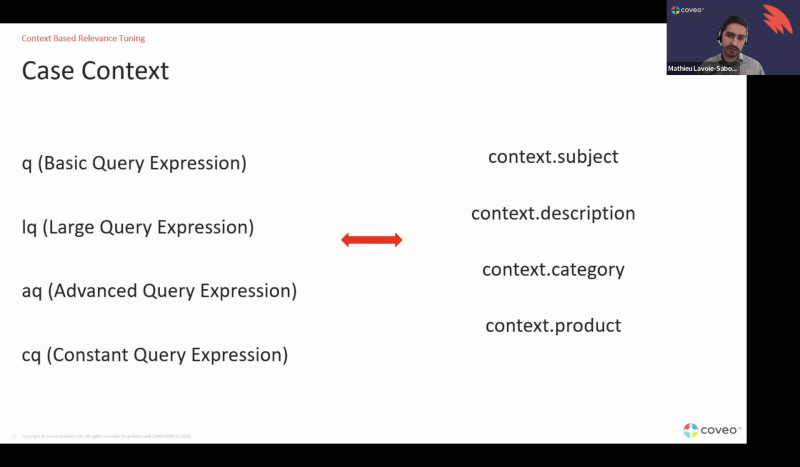
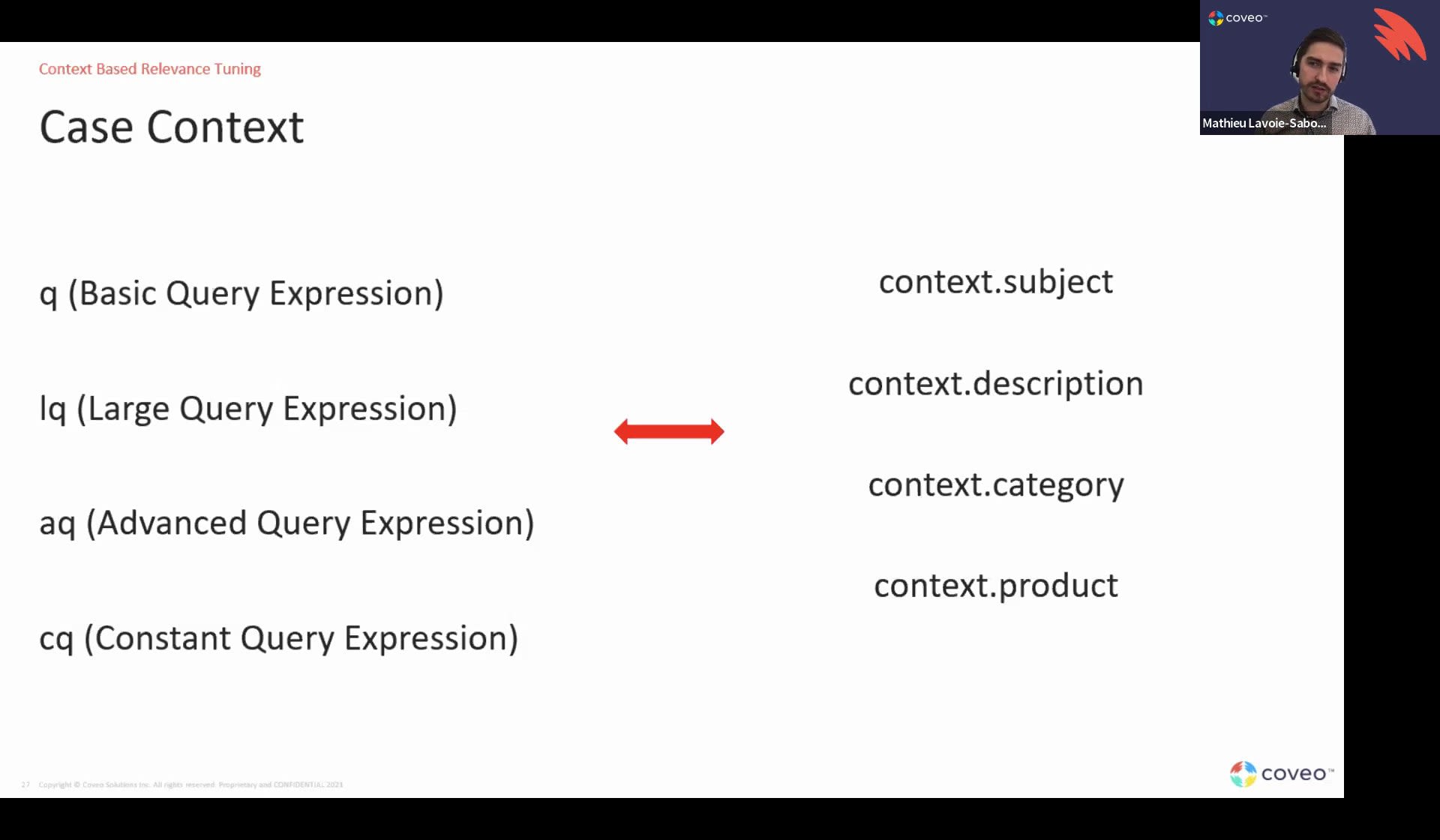
Alright. Hello, everybody. Welcome to another learning series webinar. My name is Claudine Ting, and I work at the marketing I work at the marketing team here at Coveo. So this is part two of optimizing relevance tuning, and we're gonna focus on tuning your insight panel and case creation interface. So for those who haven't, joined a learning series webinar before, this is where we get more hands on on the benefits of the plat of the features that your Coveo platform offers. In the session, you'll learn more about the support journey, how Coveo can assist throughout. We'll also talk about how context keys work, what they're used for, and query expressions, how they're, how with query expressions, how we utilize context to drive relevance in case deflection and inside panel interfaces. So I know it's a lot, but we have Matthew and Ludmila to carry you through the entire hour. Before we get started, I just have a few housekeeping rules. It's pretty easy. We're probably gonna ask, we're gonna we're gonna answer questions halfway through the webinar and at the end of the webinar, but please feel free to send your q your questions at the q and a box or the chat, and we'll still try to answer your questions as soon as we can. Lastly, this webinar is recorded. So if in case you miss a few things or you wanna share this to your colleagues, an email will be sent to you in a few days with the recording and, some recommended documentation that could help with enabling, enabling the features and best practices that you see from this presentation. So without further ado, let's get started. But we all okay. I'm gonna take a pause right now. I'll introduce our host for today, Matthew Lapua Sapurin, our customer success architect, and Ludmila Mekaterova, our onboarding manager. So, Matthew, wanna wanna kick it off? Yes. Thanks for the introduction, including. Greatly appreciate it. So thanks everyone for joining. Welcome to today's session. As including Express, we're gonna, you know, discuss configuring and tuning your side panel and case creation interface. Before we get specifically to those components, we're gonna do a bit of an overview. So here's gonna be our agenda for today. We will essentially there we go. We're gonna look at the support journey as a whole. Essentially, try to kind of locate, you know, our case deflection as well as our insight panel within the broader support journey. So we can essentially see in which context we're gonna be discussing and where those elements actually plug into the larger support journey. We're gonna then gonna discuss what is context, what are the context, and how do we then use it in the in the phase two. It's gonna be the context based relevance tuning to drive automatic relevance and automatically generated results in the case deflection form as well as in the inside panel. Both of these components have the same thing in in common is that they use the case context to automatically show relevant results. So we're gonna be exploring that and essentially going over how do we actually then use all the information from the case to automatically give the right answer to a user who's about to open a case or an agent who's trying to solve that same case from the information we have in in said case. And lastly, we'll finish with some resources, documentation as well as learning paths so you can learn more about some specifics. I will also invite you, of course, to reach out to your customer success manager or your onboarding manager, to help you improve, you know, relevance in both of those interfaces. So I'll kick it off with essentially looking at the support journey. I'll Lubil and I will both will both share this part. We'll we'll look at the first part of the support journey, which is essentially the self-service journey, and then the second part, which is the agent journey, which both tie in and are related to the case, which is kind of our central pivotal component of that that overall support journey. So, support journey will typically start, nowadays within the product itself. So we've we've we've, really stressed the importance of this over time. And and with Coveo IPX or in product help, this has become more and more important, and we've seen great results from this. Because, ultimately, as we can see on the bottom part of the page here, if we want to avoid a customer journey, a self-service journey to finish with a case being created, the best way we've seen to actually avoid cases from being created is just to try to avoid them ever even getting to the case deflection, component in the first place. Right? So, ultimately, addressing questions, addressing issues earlier on directly within your product has proven over time to be the best way to avoid the journey ending with a case, which is obviously what we don't want. So this is an example here from a demo we have, and we can see on the bottom right corner a little hi how can I help you box, which is our IPX or in product help, which can be accessed by simply clicking a little help button, and then that will deliver contextually relevant content through the page? So that's not gonna be the main subject of our discussion today, but I nonetheless wanted to introduce this for everyone to understand where the journey starts, which is typically within your product, within your software. Another nice example we have here, is from our friends like Xero, which have, wonderfully utilized this as part of their little help button that we see on the top right corner. Same thing. They're providing contextually relevant information based on where the users are, and also allow users, of course, to do a manual search if they have a more specific question regarding the page they're on or they're have they have a more specific issue to address. And, you know, those of you who are working often in the Coville, platform probably have noticed as well that we have our own APX. Essentially, when you click on that, question mark, same thing, we'll deliver and show you contextually relevant information based on the page you're on. So we can see in this example on the source pages, and we have some recommended articles about how to add a specific source, how to add an Amazon source, a database source, which is some of the most popular requests we got from this page specifically. Quick note here, product managers actually love this because it typically helps them to understand whether the specific issues they have on specific pages based on the actual manual searches that users are doing. So very interesting stuff. Invite you all to get informed about APX. It's a great a great solution, again, to keep our self-service journey successful and keep them within the product and avoiding leakage, avoiding users to go out of your product into Google, to ask questions when they do have an issue. So we get now closer to our our our case to the the meat of our of our discussion today, case selection inside panel with the support portal. So, obviously, some issues will arise, and users will then need to go through support portal to find them. This is an example from our own support portal. As you can see, we have a search box that that's for first in the forefront. We also have some content recommendations of people like you have also searched for as soon as people land on the page. And because we are Coveo, we went we went all in, and we even have an IPX, directly here on our on our homepage on the right hand side here, the help button, there we go, which is our own IPX as well to really try to guide the user towards a solution as soon as they enter the support portal. Ultimately, at some point, they'll need to search. This is another example from our friends at Salesforce. Same thing. They have the search, the search box on the on the main page. They have some trending topics that are powered by Coveo. Again, trying to show them some, you know, relevant, very popular issues or very popular items that are being searched. This can be particularly useful if you have a a sudden outage or sudden issue that's affecting a lot of your users. Of course, those those items, those documents are about to become very popular, and then, therefore, Coveo can automatically bring those documents, you know, on the first page, on the home page so that they don't even need to search to find the answer for the issue they might be looking for if it's a a, you know, a wide a widely, you know, an issue that's affecting a lot of users. Ultimately, of course, at some point, they're gonna start searching. So this is again is an example from our own support portal with our search page here. We have some nice new components from our headless framework. Actually, those are some of our atomic components, like the recently opened doc. Again, trying to guide the journey as much as possible, and giving them the answer to the issues they might have. And, ultimately, obviously, they we can't solve all the issues. They'll end up on the case form, and they're gonna wanna open the case. So this is a great example we have. It's a new demo we built using some Quantic components from our Quantic, library of, Lightning web component, which is specifically designed for, Salesforce Lightning. It's also powered by a headless framework, but with Lightning specific components, again, the Quantec library. So this example here will see a very typical case flow, right, where the user is entering their subject. In this example here, we can see speed bit Blaze is not tracking my heart rate. And then we'll have a description where they can explain the problems in more detail. This will lead them to a second page where they can get to choose the the product for which the issue is for, the feature that's problematic, and even the type of problem, Right? Which are very typical. Try the, you know, categorization that we'll have in cases, whether it'd be a category, a product, a type of issue, which which line of business is this is affecting and and so forth. And here in this example, it's actually making use of our case assist experience with the case classification model where we are suggesting in advance, you know, what might be the category. So in this example here, we actually suggested blades. We suggested heart rate tracking, and we suggested data entry as well, which they can choose to change if they desire, if this is not indeed the right category and the issue is for another reason. And then, ultimately, you know, once they've entered all the information, we will try to present the right information to solve the case, to avoid the case from being created. So case deflection form before the case secures. This is, again, our our latest and and greatest demo using the Quantec library. Clients have used different flows and different ways of visualizing this, but the the underlying, underlying relevance of this remains the same, and it's gonna be the same for the inside panel as we're using all the information that we just provided in the case, our subject, our description, our category, our product, or type of issue to power these solutions here so so that they can be as relevant as possible and ultimately avoid the user going in and opening that case. But, ultimately, we can solve them all if an issue, you know, if it's a new issue and a solution does not exist for that issue, users are bound to open the case. Therefore, the case sometimes will be created, and this is when we'll start our agent journey, which I'll let Lyudmila walk us through. Yeah. Thanks so much, Matthew. So as Matthew walked us through the user journey, at this point, if they go ahead and create a case, we're gonna move over to our agents. Right? And so what Coveo can help power is really your agents helping solve that case or that issue that was created. So we see here I know it's a little bit small, but on the left hand side, we have all the information about the case. On the right hand side, we have that Coveo powered insight panel. So this is very similar to actually those results that we saw that were that, were shown to the user on the case deflection page when we were trying to get them to actually solve their own issue. But now we're presenting these similar types of articles or documents, maybe different slightly different, content depending on what you choose, to the agent. So the goal here is that we're using the context that the user, added and submitted to the case. We're using it to actually display that content. Of course, the agent can also go ahead and actually manually type into that that search bar as well as they want, but the the goal is that they don't need to do that. And like my two is showing here on the next slide, we see, again, latest and greatest with our quantum components, insight panel here. So, like, we see there's that search bar. We have an all tab. We also have tabs for different types of content. Very easy to distinguish what content is cases, what content is how tos, what content is is other types of of information for the agent to be able to solve the case or attach to the case. However, sometimes, the agent might wanna see a full search experience. Maybe that insight panel is is not enough. So we also have that option. And on top of that, we have, so so sorry. So if I go back a slide, we'll see that we have, user activity timelines that we can display to our agents. For example, if the agent is interested in knowing, okay. Well, what what clicks did my did the the user who created this, this case what clicks did they create or complete before they actually created the case? What did they click on? When did they create a case? You You can actually see in that session summary, their most recent click documents, their most recent searches. But then in that activity timeline, you can see, okay, they clicked on these things, then they looked at these things, and then they created their ticket. So the the great thing here is you're not going to then submit or attach a, an article for them to look at that they just saw. Right? So you're not gonna be kinda presenting them information that that the duplicate or that they've already seen, which is really not going to solve their issue because they've already looked at it. And then if we go to the next slide, we're gonna see that full agent, search. Sometimes maybe the insight panel is is either too small or it's just it's it's, you know, not enough for an agent. So we also power just a standard full search page for agents where they'll see the same results. However, they're just gonna have a little bit more, functionality with me. The the the facets that we see on the left hand side, some of the recent queries, recent searches on the right hand side, and just a bigger screen. So here, the goal will be that an agent will actually go in and type out whatever they're looking for in that search bar rather than getting context from the case itself. And this really is a feedback loop. Right? So it so we go from all the way from the in product help to the agent full search experience all through the different ways Coveo is helping power, your support and agent experience from the self-service journey to then the agent journey. Now for today, we're going to focus really on the case deflection and insight panel because those are the two, places where we're really using case content and information from the case to actually power search results. However, we just wanna tie this back and show that once you have that agent experience, if the agent realizes that, hey. We're actually missing content to answer this type of question. If they go ahead and create a a knowledge article, especially, you know, if you have a a very well established knowledge practice, if you ask your agents to go ahead and create knowledge articles for that issue, then that can help the next user who's using their in product help or support portal or even case deflection to solve their case before it gets to an agent because they might see that article next time and say, okay. This solves my issue. I don't even need to create a case. So just closing in that loop, which I think is is super important. So now if we go on to the next slide, let's introduce this idea of context. So context is really information about the case itself or about the user that we can use to power those results. So if we start here in that case assist or case deflection flow I know the images are a little small, so I'll make sure I, like, explain this to you guys. On the left hand side, we see those questions from the slides Matthew showed us. So these are questions that we're asking the user when they create a case, during the case deflection process. Right? Things like, let's put a title for on your case. Let's let's explain the problem. Type out a description. We might also be asking them, hey. Which product's related, to your your issue or what feature is related to this issue? This is example that you could be asking totally different questions. Now we're going to take this information. We're gonna be able to use it to power search results. Right? Because, and, and, and we'll show you in, in a minute how we actually do that. But the most important thing in this section to remember is that all that information from the case, that is our case context that we're going to be using information from our case that we're going to be using to then power results. Now on top of this, we also have something we call user context. And user context is not only information or it's not information from the case that the user tips out, it's information about the user themselves. So for example, you have a logged in user. Maybe from their profile, you know that they owe, product x. Right? You know that they owe this type of product. So maybe knowing this is going to help us solve their case, Even though maybe they're not filling this out as one of the case questions, but just knowing that information might help us solve the case, but this is optional. And so on the next, slide, we can see this exact same thing, however, on the reverse. So we saw it first on the on the user side when they're creating a case. Now this is the agent side. Very similar. We're going to get those that context that the user entered. However, now we're going to use it to power, recommendations for the agent. So, again, we have that subject and description that the user would have filled out. These are very common keys, and you'll see how we use them in in a minute. We also have we could have things like, type of case, case reason, maybe error code, whatever additional information we can also use to help, and we can we'll we'll see how we can actually decide, okay, which ones of those, that those pieces of information are the most relevant. And then lastly, again, if we wanna send user context, this is optional. We we can do that as well. Now all of this, all of the above is then gonna help power our search results. But to make a little distinction here because I know I'm throwing out a lot of words, we have different types of context. We have case context, and we have user context that I mentioned. So case context is going to be subject description, any kind of question or information that the user provides to us, regarding the case itself. So really case dependent. Let's call it that. That. Subject description, maybe product type, issue type, error type, what whatever information they're answering in the case itself. Versus user context, it's really information about the user themselves. For example, maybe the types of products they own, their region, an employee group if it's even like an internal, help desk, kind of use case, any information about the user themselves. So case context, information of the case is is mandatory. I mean, we need this, and you'll see, when my two presents why, but we need this information to solve the case. User context, we don't always need, but this might be helpful. So this is just getting you guys to to think about, okay. Is this something we would like to send over to Coveo? And then lastly, last thing about context here is that you you don't only need to use it in this specific example we're showing you here. So today, we're talking about case deflection and it's a panel. This is not the only way where you can use context. This is where we'll foe what we'll focus on today, but you can also use this context for reporting to personalize your machine learning models, for query pipeline rules and and conditions. And and and this context is not even only used in in Insight panel or case deflection use cases. You can use context in many different use cases as well. However, again, for today, we're really going to focus on case deflection inside panel. And so let's take a quick little pause here. Let's see. Is there any is there any questions, that we see, Claudine? Yeah. So right now, we do have a question here. Do I need to send both case context and user context to Coveo? Yeah. Really good question. Thank you. So, like we saw, I think, two slides ago, you don't. So the answer is no. You don't need to send both. You do for what we're going to show, you do need to send case context because you do need to send, information about the case, at least some information for us to then return results. If we have no information, we're not gonna be able to return results based on your case. But user context is optional, and if you feel like it's going to help solve your case better, you can send it. However, it it it is optional. But we would also recommend, I think, something that will you'll hear, from us again and again is that every case can be different. Right? So really talk to your customer success manager and your onboarding manager for additional details and really just to to talk this out, to make sure that, you know, you have the best answer for your specific situation. So great question, Claudine. Thank you. But for the next part, I'm gonna hand it back over to Matt Tu, and he's gonna walk us through all the great, context based relevance tuning and all the query expressions that we're gonna see today. Awesome. Thanks, Lamila. So, yes. So now we have our case deflection that's configured. We have our inside panel that's configured. We're sending all of this context to Coveo. Now how are we at Coveo gonna use this context to drive the best results possible to solve the case? Whether it's to solve it for the user that's about to open a case that we wanna avoid him opening it, or is it or for the agent who's trying to solve a case that was already open. How are we gonna use all this context? So we need to first learn about a bit of basics, to understand how a Coveo query is actually powered, with the query expression. So the query expression is essentially, as as opposed to last week when, we looked with, Jason and Yamila for the ones who attended the previous session, last week or two weeks ago. We looked at all the different rules to try to modify and edit, you know, the query that comes through to return the most relevant result, boost things, and and and and so forth. This is kind of the core of the query as it's sent to Covell. Right? As it's sent to Covell from the information, typically from a search page. But in this case, we're gonna be trying to replace those elements with all of our context. So we have our query and long query and advanced query or disjunctive query, which I'm not gonna touch on today, and my constant query. Now some of you might be wondering, what what does all this mean? So, essentially, all those query expressions are the different elements that we use to populate content, right, or to populate a a a the query that's sent to Kovio, but they have different uses that are actually quite specific. So the queue or we call the basic query expression is what's used for keyword search. When someone actually types something in a search box, it actually populates the queue. Right? So that's the most standard, you know, type of queries, the most standard way to send a query to Coveo based on keywords. And we're also gonna be utilizing it with some of our case context, at least in some configurations as we'll see a bit later on. Then we have the LQ, which was actually built specifically for those types of situation where we have a description. We have a very, very long string of text that's a bit too long to do, like, in a regular, you know, search box query or with with a few keywords, and we need to kind of try to crush it down a little bit, right, to just get the the really relevant information from the longer query. So it's usually the long ring of text, such as the description, of course, and it's you re you can reduce it optionally. But we typically tend to go to go and do that to five words with our intelligent term detection machine learning model as we'll see a bit later on as well. We then have the advanced query expression, which is typically for variable filters. Right? Filters that will vary based on what the user enters. So we can think of, for example, a filter based on the product that the user can choose by himself. And then lastly, we have the constant query, which as its name described is constant. It's gonna be a filter that's gonna be applied at all times regardless of what the user does and what the user queries for. So if we recap all of these oh, and we won't touch on the disjunctive query today. It's a bit complex. It's typically used for machine learning to inject additional content that doesn't match the first three, query expressions here. So we'll we'll we'll we won't touch too much on this one today. We're really focused on these four, which if we recap, we essentially have the following. We have the q and l q, which are essentially for keyword searches, and we have the AQ and CQ, advanced query and constant query, which are gonna be for filters, right, for variable filters for the with the, AQ, and constant filters with the CQ. So now we have all of this context that we sent earlier from a case. Right? So our case has this subject issue connecting with my Speedbit. I'm having a problem connecting my Speedbit Blaze with my iPhone using Bluetooth. It's a connectivity issue. It's an issue with the Speedbit Blaze product. So when that gets sent to Coveo and the Coveo query, we're essentially gonna transfer all these to context. Hence, why the context is the main subject today because this is how their all those information is sent to Coveo. So we're gonna have our context subject. It's gonna be the same as the subject, of course, our context description, our context category, and our context product, which are being sent. So now we have this, very interesting situation where we have all those query expressions to try to build our query and return the most relevant information, and we have all of this context that's being sent to us. And how are we then gonna align these to try to return the most relevant results as possible to solve the case without a user, whether it's a user that's trying to self serve in opening a case or an agent without any of these users to have to actually manually enter anything. So the word here, and the way that we typically try to approach this is with certainty. Right? How certain are we that the information in one of those context fields is valuable to help solve the case? Well, typically, if they're mentioning that their product is product a or speed to blaze in this example, well, it's kind of very, very likely that the issue is for speed to blaze. We don't need to show information that's related to other products. We can already, you know, maybe knock off a large percentage of of irrelevant information just based on the fact that we know our product. If you know that our subject is this, our subject is you can size. It's usually shorter. So the subject probably holds a lot of value because it quickly and briefly explains the problem. Therefore, we wanna use this heavily. The category also might be relevant for routing and making sure again that we're showing the right type of information for the issue. But then description is probably gonna be a lot more of information that's irrelevant in there, but we still wanna try to use it a little bit because it might still hold some additional insights, some additional information that could be relevant to help us solve the case. So, you know, there's gonna be multiple ways to try to match this up, but we're gonna walk you through essentially some of the key or most, used ways to match those with the query expression to get the most relevant results that have shown in the past also great results for our clients. Before we do, I need to stop for one second here and speak to ITD, which I've mentioned a bit earlier. I was explaining the the query expression. So with the LQ in particular, which we tend to use with the description, so we take the contact description, we map it to the LQ, and we get this long, you know, description that's sent with the long query that says something like, I'm having a problem connecting my speed bit Blaze to my iPhone via Bluetooth. Intelligent term detection is essentially there, as an option for us to take this long string of text and refine it down to just five words. So in this example here, with intelligent term detection or LQ would be transformed, it would become problem, Speedbit, Blaze, iPhone, Bluetooth. Alright. There's gonna be a more concise and and relevant information for us to then return the right information to solve the case in in, at hand. So bit of a detour here to explain this to make sure it's understood. I'm gonna hop stop here to do just a a quick demo before we look at all the different ways to configure some more basic ways, some more advanced ways, some expert ways to try to really use all of the information, you know, with complex rules. I wanna just show in the Coveo cloud where do we actually go and configure these things. Right? So I'm gonna hop off quickly here and go to a a Coveo org that we have for for testing internally, where I've built two pipelines with two examples of how we could be using context just to kinda put everyone into, to understanding where we're looking and where we're applying those those configurations. So we're gonna when we get into the org, we're gonna wanna go to our query pipeline. And I've built essentially two test pipelines here to con call Metzer test and Metzer test two, very original, which are both for an inside panel. But the same would apply for case deflection as as we saw earlier with Yamila that we're getting typically the same context because ultimately where you it's the same case, right, from both the case deflection side and the inside panel. So this is an inside panel example, but the logic in where we're gonna apply those, those rules remains the same. If we go to a pipeline, where we're gonna wanna spend our time to configure case or context based relevance is gonna be in the advanced configuration, and we're gonna be looking mainly at the filters and the query parameters. Right? So in this example here, very simple one, we're using just a very simple constant query, right, because we're gonna have a constant filter where we're telling our our interface here to only show and only show information that's part of the knowledge source or the doc source. Right? That's constant. The user cannot change this. Therefore, we're using the constant query. So that that here is an example of a a fairly simple configuration. And then, again, we have a lot of context being sent to Covell. We have a context case subject, case description. In this example here, we're gonna override our long query with this information. So we're gonna get a very, very long, long query with both our subject and our description, which is only gonna apply to the manual query is empty. Meaning, if the use if the user starts to type something, of course, we don't wanna use these rules when the user search for whatever they wanna search for. But when the case deflection or inside panel results appear, they're gonna be based on this, right, based on our subject and description. And in this specific example, we're using our, machine learning intelligent term detection, which is part of our ART model, which is our most standard model that most and if not all implementations have today, which has a nice neat option here to allow intelligent term detection, which in this example here we have enabled. So what we get is we get search results that are gonna be specifically for the knowledge and doc source, And we're gonna use both our subject and description, which is gonna be a very, very long string of text, possibly a hundred a hundred keywords, which is gonna be crunched down to only five words thanks to ATD, and that's gonna be what's gonna power the searches to Coveo for us to return relevant results. Another a bit more complex example here that I've built, which is my test number two, where we're gonna try to be a bit more creative using all of this context. So we have here actually two filters instead of one. We have the same constant filter where, you know, our sources, knowledge, and docs, and that's it. That's the only doc, type of information we're gonna show. What we're gonna map, and only show the items where the product field contains my context product. So if my product was speed bit Blaze, well, I'm only gonna show any information from my index where the product field contains Speedbit Blaze. Therefore, if you have an item that's worked for Speedbit Blaze and another, product, as long as it contains the one that's sent from the context, that's sent from the case in this example, again, Speedbit Blaze, that's gonna be shown in the search results. So that's a very interesting way to work because it allows to right away eliminate a lot of the noise that's irrelevant and make sure that we only show content for the product that is that is problematic, right, that caused the case in question. We'll look at some alternatives to that as well because I know that it's not always and, you know, some of, you on the call might have noticed this in your own org. It's not always the same product naming and product naming convention between the knowledge team and the support team. So there's other ways to work around this. But if it is a match and the product names are the same in both of your in your index as well as in your case classification, well, this is a very interesting way to to try to narrow things down narrow things down, to show the right results. And this example is a bit more complex. I'm not gonna spend too much time on it, but this is a bit of a of an idea. In this example here, we're using the subject as our query, with its own partial match configuration, which we've shared some documentation at the end of the of the PowerPoint today for you to to review, and I invite you all, of course, to discuss with your customer success manager when it comes to some some of these advanced configuration. So in this example here, we're throwing our subject into the query. We're throwing our our description into the long query, and then we're using ITD on the, on the long query. Or, actually, in this example, I believe we're not even using ITD yet. In this example, no. We are as well. We could even try it without ITD. The idea here and and what I want to to impress upon upon everyone on the call is that there is some simpler way to configure this. There is some more advanced way. But, ultimately, we're gonna wanna try to test them out, and we're gonna try to see what's the best for your situation as every single implementation is unique. Every company is unique as well. Every the context keys that are passed for a case might differ from one company to the other. The idea is that we're gonna try again to use this idea of certainty. Whatever information we know is the most certain to help us solve the case, we're gonna try to use it more. And whatever information we know is a bit less relevant, we're gonna use it a bit less, which is what I've I've done here in this more, complex issue where I'm using my subject more heavily with my query, but I am using also my description with the long query. So, so, again, if you don't remember and haven't taken note of everything that I've just shown here, this is fine. I really wanted to show it mostly, most importantly, where we go and configure those things. But let's actually walk through a few, specific examples of how one would might wanna start in configuring their their, case based relevance or context based relevance, in their different interface. So Barca with the best choice for starters here, which I really like to show, and actually has proven to work tremendously well in the past that we've been using this even since before ITD came around, where we're just gonna take our subject. We're gonna use it as our query just as if the subject was entered in the search bar, and we'll apply a basic filter to just refine what sources we're gonna see. This actually has proven to work tremendously well in the past. And for starters, frankly, this will probably be the best choice to configure your case deflection page or inside panel using the case context. So for example, problem speed bit blaze Bluetooth. Well, that would actually be your search, and that would be what would power the results, that we are seeing in in the case deflection or inside panel. Another neat example here, which is actually what's in our docs. So our docs team has chosen this one specifically for the inside panel where we're gonna let the ITD, magic do its work. We're gonna send everything into the long query, and we're gonna make use of ITD to refine five keywords only from all of this information. So going back to the example earlier, it was probably my speed that blaze, Bluetooth iPhone, and then a product name, speed that blaze. Essentially, ITD would would take care of extracting the five most important words for this, which we will probably end up in something like Speedbit Blaze iPhone Bluetooth connection. Right? So this example here, again, is is using ITD, specifically. That's a nice, neat, and very simple example as well, which I think also, you know, a lot of, of starters and a lot of new implementations tend to use, as, again, it leverages our machine and technology, but also remains quite simple to configure, in the, in the the query pipe line. Another neat example here, this was actually in our docs as well for case deflection. A little bit different as we're actually separating the subject and description. The difference here is that because the query doesn't make use of ITD, we're gonna use the subject as a whole to power a query. And on top of it, we will add the five most important words from the description, which is sent to the L L cube, goes through ITD, refines it to five words, again, with ITD. So in this example here, if my subject is problem connecting speed bit Blaze, that would be the first part of my query. And then to that, we would add the most popular five words from the description. So we'd probably add iPhone, Bluetooth, Blaze, connection, Speedbit, for example. Right? So we get a slightly longer, you know, expression with this, but this allows to keep the simplicity of the the subject, use it heavily to drive relevance, but also to be able to take into consideration some of the elements and some of the additional insights that are part of our description. So I hope everyone's following along well so far because now we have some a little more complex examples to show if anyone's interested. But before I go on, any questions, any any thoughts, any, feedback in the in the room? Seems like it all makes sense so far. And please feel free to stop me and send any questions in if you if you'd like. I'm gonna start to go down to some slightly more advanced, configs. Do you have anything, Nabilah? Did you see any questions, pop up? I don't think, yet, but we'll we'll check back in in in a couple minutes when we wrap up. Awesome. So if we get into some slightly more advanced configurations here, this is an example I've tested with some clients that that have proven successful in the past where we're gonna use a our subject and product as part of our query. So that's gonna be taken in its entirety. But then secondly, we're gonna send our description with the, to the long query. But in this example, we're actually not using ITD. So this is interesting if you have a slight a short description typically, where we don't necessarily need to take that, you know, those twenty five words and and, you know, kind of reduce them to five words. If you're not using ITD, however, it's very important to set the appropriate partial match threshold. So if you wanna try to something like this that's more advanced, highly invite you to reach out to your customer success manager to test it out. The idea here would be to use a little more information and kind of, you know, widen our scope a little bit and take more of everything we have from the subject product and description to build a slightly longer query, to make sure that we have we can pinpoint the right information to solve the case. That's especially useful for, cases that have a slightly short description, but nonetheless do have a lot of complexity. And then this one is probably my personal favorite. I like to call it the expert way of doing things. Here, we would essentially be using pretty much all of our case contacts to drive relevance. I've stated this a bit earlier on, but because we know for certain that my product for my issue is product a or speed bit Blaze in this example, Why not use this to right away eliminate a lot of the noise and make sure that we're only showing information that first and foremost matches that product before making sure it also matches my subject and description? So in this example here, we're gonna have an advanced query added where we're asking as I explained earlier in the quick demo, we're asking Coveo to only show information that's relevant to the Speedbit Blaze product as that as we know for sure that that's the issue that's what the issue is for. That's a product that the clients own. So there's no point at all to surface any documentation or any any items from your index that are not specifically for the product. Anything else would probably be irrelevant. So this example here, we're using it as a full filter. We still have our our constant query where we're only showing knowledge and docs because those are more relevant to solve a case. We're using our subject as part of the query, our description as part of the long query with or without ITD. And then one last thing about this this, this example here is that, as I pointed to earlier, not every single organization has an exact match between the way their products are labeled in their index and the way that the products are labeled for clients to open a case and the way cases are categorized. So an alternative to doing a hard filter, if there's some instances where it's not an exact match and you might actually get no results for a specific product because maybe it's labeled speed bit Blaze without a space in the context of the the case, And in your documentation, it's actually speed bit space Blaze. Potentially, there might be some differences. So a way to work around this is to actually do a boosting rule instead. So instead of completely filtering down, eliminating, items that don't match that specific product, if you do have an item where that field does match the product or does contain my context product, let's boost it. Let's make sure to just bring those items for the right product on top of the results without completely eliminating everything else because there might be some instances where, you know, KBs are not tagged properly or, you know, there's some docs that are for multiple products that are for just miscellaneous for for pretty much everything and not specific to a product. So this is kind of a way to work around this to be a bit safer so we're sure to not to complete not completely filter out things that could potentially be relevant, but still boost things that we know for sure or for the right product, that is at hand here to solve the case. So I like this this configuration a lot. Testing I've tested it also with some clients and very successfully. As I as I said, if we can narrow down the results right away based on the product that we know the issue is for, we're we're making sure that there's we're much more likely to have the right solution to be shown for the issue at hand, for the case that we're trying to solve. Now I've shown all of these these different methods. Right? Some some beginner methods, some more advancement to some more intermediates methods. So one might might ask the question, then what how do we then figure out which is the best for me, which is the best for my specific situation for my company, for my implementation, and for my clients as well as well as my agents? And this is really, Mila. You can you can hop in, to help solve this, this complicated question because there is a way for us to help you define and figure out what is the best method that gives the best performance. So I'll leave it to you, Lamila. Yeah. Perfect. Thank you so much, Matthew. And I see we have another question, so we'll answer that one in one slide when we get to to to the end. But if we go into the into the AB testing slide, so this is really the best method to test and understand what what configuration should I be using. Right? So I I know Mitchel has shown us a lot of examples. There's a lot of, kind of different potentials that we can use, which gives you a lot of flexibility, but could be a bit intimidating to understand. Okay. Which one is the right one for me? So we don't expect you to be able to fortune tell and predict out of the like, just off the bat kind of what you're supposed to use. So really, if you're unsure, we really recommend this AB test, test scenario. So what you're gonna do is you're going to create an AB test through Coveo's query pipeline. You're going to, configure your traffic split. So usually an AB test is is fifty fifty. However, Coveo allows you to choose kind of different traffic splits if you'd like something different. And then you're going to edit your test scenario. So that's going to be your version b of your test. And here, you're going to configure it to be different than whatever your existing query pipeline is. So let's say if you're passing both subject and description through the LQ in in version a, version b, you can do something different, to see if that's better for your click through and other metrics. Then you're gonna run the test. Of course, you're gonna let it run, and you're going to check back on reporting. I recommend at least one week or two weeks or or even longer. We we do wanna give a little bit of time for the test to actually run. Then checking back, you're going to see some metrics here, on the actual AB test tab. However, we also have a templated dashboard called the a b testing dashboard template in a reports that you can add in. And that's probably gonna give you just a lot more info, and and you're gonna be able to see those different metrics for version a, version b of your test. From that, it's gonna be very easy to see, okay, what is my click through? Right? Are users more likely to, let's say, click on an article on version a versus version b? What about my case deflection? Right? Is it higher version a, version b? And make your decision based on that. And you can kind of continue to do this until you feel like you found the the the ultimate and and the best, version. However, all of that to say, we'll just, we'll mention here again. We really recommend speak to your customer success manager or onboarding manager if you're in onboarding, because they can also guide you. Right? They can look at your implementation and guide you as to best practices based on this. And I know this is a lot. We've covered a lot of information today, so we do also have a lot of documentation. I believe we have some on, resources on the next slide, but Claudine and the marketing team will also be sending them out along with our, along with with the recording. So you can see the last one here is actually on managing AB test, but we also have information about intelligent term detection that we discussed today. We have information about case deflection, case assist, what query writing expressions are, the insight panel, and some other documentation. So there's definitely enough to keep you busy here. But I do wanna take the last couple minutes here just to answer some questions, and I see that we have one from Loic. So thank you so much for answering. So the I'll just read this one out and make sure we we can answer together. So the question is for organizations supporting customers in multiple countries, aka with multiple languages, so the first question is, are these configuration steps mostly language independent? So create once and use across all languages. And two, will ITB operate across all languages? So for question number one, my understanding I'm gonna correct me if I'm wrong here, but my understanding is that these will be language independent unless you have different query pipelines per language. So if your query pipeline is going to is supporting everything, all of your languages at once, you can just create the rule, within your query pipeline, and we'll it will work across the different languages because it it does not, it you know, the the actual configuration itself does not really care about the language. But if you have, let's say, pipeline a that supports English, pipeline b that supports French, pipeline c that supports German, you will want to actually add those in for different languages. And, you know, maybe, you might wanna have different depending on how your keys deflection page is set up. Maybe you'll even want slightly different considerations between languages. But then, the second question, will ITD operate across all languages? Matthew, do you wanna take that one? Yes. Yes. I can. And to to add to the first one about the the the languages, as Zmilya says, it is indeed, language independent. If you do because if the question is or the subject is, you know, issue with, you know, and then the name of the product in English, Of course, the documentation that is in English with English words is is gonna be the one to come up to solve it. But you might also consider and and would, could potentially pass, language context as well, right, as a user context so that we know which language a user that's about to pin the case speaks, and use this as well to kinda force the English language documentation to appear a bit higher to make sure there's no mix up. Because sometimes you might have the same words in both your English and French and and multi language documentation. So that could be a way again to make sure that if my, you know, user is Anglophone, well, let's let's kinda boost or give a a bit more weight to the English speaking documentation. Right? So that's for your question number one. And for your question number two, yes. Absolutely. ITD is language independent because ITD actually relies on the Barca model, that we saw a bit earlier. And the ERT model actually learns from queries and clicks, in multiple languages. It actually creates buckets per language. So, yes, depending on the language of the user, ITD will be able to automatically find and and, you know, keywords that are most, that are most relevant based on all the clicks and all the different interactions that happen in the class and all of your different search, search interfaces which are powering that model in particular. So so, yes, we can work around languages, fairly well here. Perfect. Yeah. Thank you so much, Matthew. Any other questions, Claudine? Yeah. I know. It's just, we we've mentioned ITD a lot, but we do have a question here. Just to take, things, a step back just a little bit, How does ITD actually work? Oh, what a great question. That's a that's a big one, Claudine. I I can start off with this one. So, I think Machio kind of he started a little bit to to explain that it works through the ARP model, and it does use machine learning to actually extract contextually relevant keywords. So by default, I believe it's it's five keywords that ITD will extract. That's gonna find those most relevant keywords using machine learning and actually extract those. So just for context, though, ITD is going to work with a long query. So or excuse me, the large query, the the LQ that my two explained today. So, if you add context into that large query and you're using ITD, ITD will work. So let's say you add your description to the large query. ITD will work extract five up to five of those of key terms from that, description. However, if you add your description to just your query, ITD is not going to work. So it really uses, that that, large query to work. However, that actual extraction process, that that's quite long to explain, and then there's a whole algorithm that that goes into this. And in that documentation that I believe the the fifth one here, comply with intelligent term detection, there there's also additional documentation in that article that explains the process of ITD that you can read in a lot more detail. And I recommend if you're looking for additional detail to to go through that documentation. Okay. Thank you so much for answering those questions. Are there any questions, that you'd like to raise before we, we wrap things up? Okay. I think Not much to add. I think we we've covered, quite a lot. As Lobila has said and I've said it as well, you know, we want this to be an opportunity for you to be able to improve both of those interfaces. If you already have them in place, whether it's be it'd be improving your case reflection or improving the clear click through for, you know, agents that are opening a case and seeing the insight panel for the first time with automatically generated results. So we invite you all to really reach out to your customer success manager or reach out to your onboarding manager, ask them about an AB test, ask them about different ways I can configure this, and they have all the tools and help within the team, for us to be able to come back with some proactive suggestions to really try to improve your performance there. As we know how key, you know, solving cases and how pivotal the case itself is around the support journey, so we wanna make sure, of course, that we can make life as easy as possible for the users so that, you know, we can solve the case before they open it, but also for the agents so that, again, they have the right information to solve the case at hand without needing to put any effort. So, really reach out. We'll be happy to help. And if, there's, you know, some specific questions that come up about your interface as well, of course, same thing. Your CSM will be, the best, the best person to help you there or your onboarding manager. Thank you for that reminder, Matthew. So another reminder from my end, there is gonna be a recording that will be sent, a few days after this webinar. That way you can review, the what Matthew and, Ludmila has discussed at your own pace. And, again, feel free to reach out to your customer success manager or onboarding manager if you need help with with any of the features discussed. Also, next week, we have customer success office hours. If there's questions here that you'd like to be addressed, on a live setting as well, please feel free to join us. That's next Wednesday, twelve PM. We also have another learning series at the end of the quarter, March thirty first. The details for registration will be sent along with the email of the recording. Again, thank you, everyone. We're so happy that you got to join us today, and we hope you have a great rest of your day. Bye for now. Thank you. Thanks.
Optimizing Relevance Tuning: Part 2