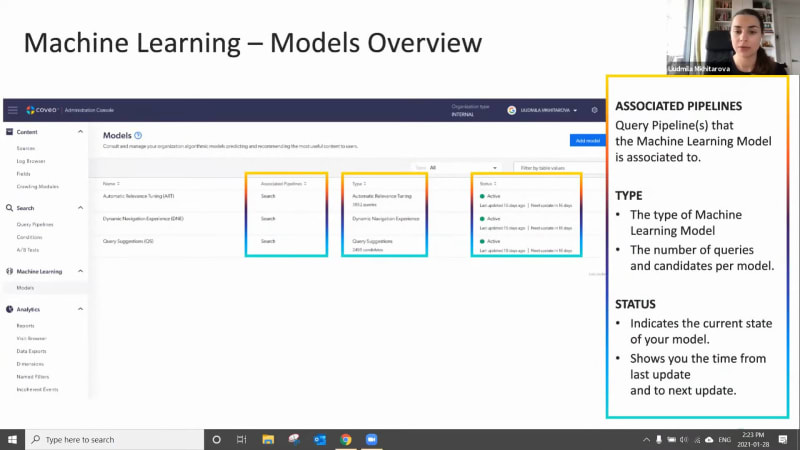
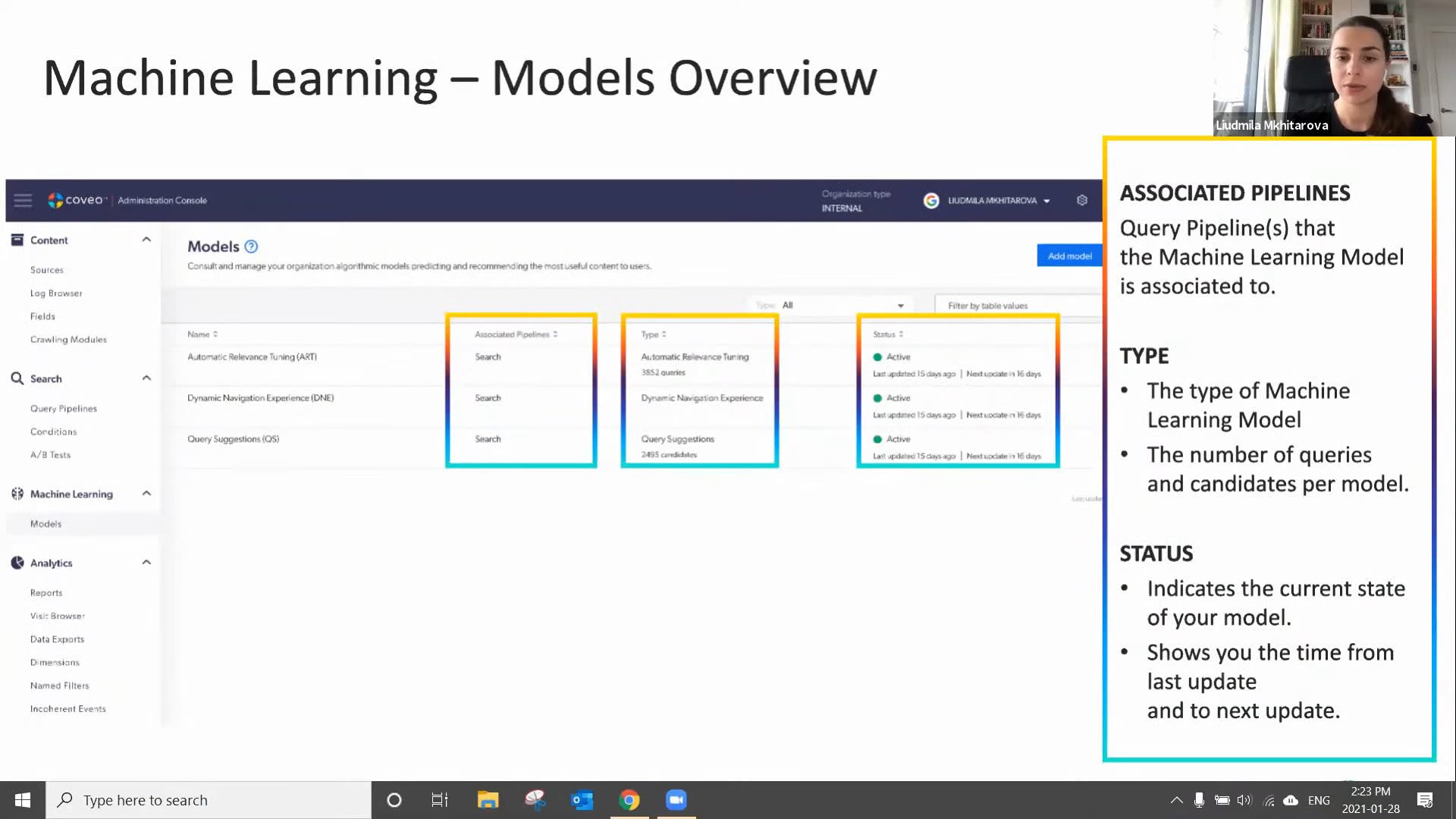
Okay. Hello, everyone. Welcome to the first learning series webinar of the year. My name is Claudine Ting, and I work on the global marketing team here at Coveo. For those who are attending a learning series webinar for the first time, this monthly webinar program is where we get more hands on with how to enable Coveo's features that can help you create more relevant digital experiences. And speaking of relevant experiences, we wanna make sure you have the tools to create more of these with the help of machine learning. Today, for part two of our three part webinar series, we're gonna focus on optimizing your machine learning models using context and Coveo report templates. Our our presenters for today are Lipika Vrama, customer success architect, and Ludmila Mitarova, customer success manager. Before we get started, I just have a few housekeeping items to cover quickly. So for this webinar, we'll entertain your questions at the halfway mark and at the end of the presentation. However, we encourage you to type your questions on the q and a box and the chat box as we go along. Lastly, the this session is being recorded, and you'll receive the presentation within twenty four hours in your inbox. Well, we're ready to get started. Lupica, please take it away. Yes. Thank you so much, Claudine. And hello, and welcome to everybody, on, like Claudine said, our first, webinar series for the year? And it's still January, so happy new year. So in today's webinar, if you haven't done our previous webinar, which was the part one webinar, make sure you go and do that one because that'll give you a little bit more context into what we're gonna talk about today. But we'll also do a very quick recap so we kind of catch you up on everything that we discussed last time. We're gonna look at how you can optimize your machine learning models. So machine learning models, like everything else, won't be one size fits all. Every customer will have a different kind of implementation, you know, a different line of business, a different industry, and a different use case completely. So here we'll talk about how you can optimize your machine learning model based on your business case. Then my colleague, Ludmila, is gonna talk about, you know, some post configuration, checks that you can do on your ML model to make sure that it's learning properly and it's recommending everything that it's supposed to recommend. Last but not the least, and the most important part of machine learning is understanding how you're getting success through machine learning. So Ludmila is gonna show you some of the out of the box reporting that is available for you to track your success on your machine learning models. So a quick recap. So in our last webinar, we spoke about how Kuberos machine learning works in general, how it learns from user behavior from searches, clicks, and how it starts recommending, you know, products or documents based on your customer's behavior or your employee's behavior. We spoke about all the different machine learning models that Coveo has to offer, automatic relevance tuning, query suggestions. We give it a little bit of intro into each one, but we really dug deep and, learned how to create the automatic relevance tuning model and the query suggestions model. We also checked, you know, after you've created your model, how do you validate that everything is okay? You know, today you create your model. Go back after half an hour. Your models are done. How do you make sure everything that you just set up is actually working and machine learning is already learning from all the data that you're providing? So this is what we did in our last webinar. And like I said, if you haven't, if you haven't seen the last webinar, go back and look at the recording. You'll you'll you'll catch up to everything that was discussed. So going back to what we're gonna talk about today is optimizing your machine learning model. So, overall, there are two ways you can optimize your machine learning models. One is by providing more context. So when we say context, it's basically telling machine learning model about your business, about your customers, about your employees, how they work, how they behave, what's important to them, what's not important to them. Machine learning will obviously learn a lot from user behavior. It'll it'll recognize everything that you will probably tell it eventually. But by context, you are giving machine learning, you know, more information about your industry, your use case, and your end users, which could be your customers or employees. The second method of optimizing your machine learning model is advanced tuning. So, basically, when you set up your machine learning model, you know, there are a number of, configurations in the UI where you set up, you know, the frequency that the machine learning should learn from or the time period that the machine learning should machine learning model should learn from or which UI it should learn from. So these are some out of the box features that you set up when you're setting up your machine learning model initially. But now it has been, you know, two or three months, your machine learning model has been learning for quite a bit, and you wanna see what else you can do to help it. You wanna see what else you can do to improve its learning. So we have some advanced techniques to use to that can help you to fine tune your ML model even more. So let's look at the first technique, which is providing context. So context, like I said, is used by machine learning model to to provide you with that first layer of personalization. So simply put, imagine you have a customer community. In your customer community, you have customers that have different entitlements. You know? Or you could have one community that is accessed by customers and partners, both. And in that way, when you provide that context to machine learning and you can say that, hey. When machine learning, this is the profile of the user. Machine learning now knows that this is what customers search for, and this is what partners search for. And machine learning is able to build build sub models, what we call as sub models, based on these context or information, additional information that you provide machine learning. So I give you one example as, you know, customer entitlement or customer role. You know, if you have an, agent portal or an agent insight panel with Coveo, you can provide the agents department and based on, you know, the kind of products they deal with. So these kind of information help machine learning understand more about the end user. So there are some key takeaways or key things that you should keep in mind when providing this machine learning context. So context, try to think of fields that have low card analogy range. What does that mean? That means that, say, for example, you you you're providing a context as the customer's profile. The customer profile will maximum have, you know, five different profiles of customer or may maybe even ten different profiles of customers. Then what machine learning will do is machine learning will build these five different sub models or ten different sub models based on what you provide. But say, for example, you're passing as a context, you know, the case ID. Case ID is unique for each and every case that is opened, and it's not necessarily a very good field to provide us context because it's way way too many fields, way too many, sub models, and machine learning is just gonna start ignoring it. And that's exactly what ML does. Machine learning knows which fields are helpful and which fields are not. So automatically, it will ignore everything that is not helping machine learning model create these sub models or create these, you know, what I would call is that profiles of of users based on how they search for. And last but not the least, context is not just for machine learning. It has many other users. So let's look at what else we can use context for. So the other applications for context, the first application is for relevance tuning. So, as you can see on the screen here, if you actually go into your Coveo cloud platform right now, Coveo admin platform right now, and, you know, click analytics under analytics, click on dimensions. If there are any existing context that is being sent in your organization, you will be able to see them there. You'll be able to recognize them. So context is you know, when it is when it is passed, it it is usually something like this. It says c underscore context and then underscore the name of the field. So that's how you will see the context come through. You will also be able to see, you know, what the name that it has been driven. Base this is the API name, the c underscore context. That's the API name. But you'll also be able to see the name that you can, you know, when you're creating reports, you will basically see this name. So coming back to our point of how you can use context for relevance tuning. So say, for example, in a customer community going back to our customer community example, I know which products my customer own because I know from their entitlements what products they have bought. Say, for example, the Coveo customer community. I know that customer a has bought Coveo for Salesforce. Customer b has bought Coveo for Sitecore. I want to create a rule such that when these two customers log in, they see, you know, knowledge articles, documents, everything related to the product they bought and not everything else because, you know, I don't necessarily want to filter them out because I still want them to be able to access those documents, but I want the documents of the products that they own to be a little bit on the higher side or, you know, bubbled up to the top. So I'll create a rule that says, if the entitlement of the customer matches, you know, the field on the knowledge article or the tag on the document, then boost those documents a little higher in the result. So those are the kind of ranking rules you can create with context. The good thing about this is these these rules are dynamic. So say, for example, you you're not creating that same rule again and again. You're not you're not saying if the document you know, if if the context is COVID for Salesforce, boost all documents tagged with COVID for Salesforce. You're just saying if the context of the user matches the tag on the document, boost it. So in a way, you're not creating ten different rules. You're just creating one rule that applies to all the different products and different customer profiles that you have. So that's one example of using context for relevance tuning. The other application for context is query pipeline conditions. I mean, also for relevance tuning, use conditions for relevance tuning as well. So here are some examples. So before when I was talking about, you know, you can create dynamic rules, which means that if the context matches the tag, boost them. But now you wanna create something very specific. You wanna be very specific about the rule that you want to create. In that situation, what you will do is you will create a rule like this. So say, for example, this is you know, we typically track the role of the customer. Sometimes we track the role of the customer that is logging in. If the customer is an administrator or the customer is a business user or a business owner, they would like to see different documents. Typically, admins would, you know, prefer to see more technical documents. So what I can do is I can create a rule something like this that says when the context of the role is admin, boost everything that has, you know, the the tag as admin. So these are very specific rules that you can create with with context. And last but not the least, one of the other applications of context is for reporting purposes. So now we know that context works just like a dimension. But, the the good thing about context is that it can be used for machine learning as well. But you can use it in your reporting. So you can say, you know, show me all the documents, or show me all the technical documents that were clicked by the customer profile you know, by the admin customer profile. So you can filter your reports by context. You can use them in tables. You can even see trends for these dimensions. So it's not only used for machine learning, but you can use it for reporting as well. Now, we spoke a lot about custom context. We spoke a lot about how to personalize. So when it comes to sending custom context, you know, there are I already spoke about some key things that you should consider. You know, consider fields that are that don't have a lot of values in them. So say, for example, you have a website. So when it's a website, you you don't have a ton of information about your your customer because, you know, it's a public website. They're not authenticated. Maybe you can know a little bit about, you know, what what location they're coming from, what city, what country, based on, you know, geolocation or based on the cookie that you keep on the browser. But other than that, you won't have a lot of information to go by. But I do know, several customers who also, in some way by, you know, same, by using a cookie, they're able to kind of take a very intelligent guess on what that customer might own or what that customer might prefer. So if you have a website or a ecommerce webs ecommerce website, you could pass the location of the user as a context for machine learning because then machine learning will know exactly which area the customer is in. And based on other customers in that area, based on what they are buying, based on what they're looking at, it would automatically suggest, you know, documents based on that. In case of a service or a support organization, and, again, you'll see a lot of common themes here that you send the location, but a lot of the a lot of enterprise organizations kind of have different content for different locations. So it really makes sense to send location as a context. And the reason sometimes you send it as a context is not as a filter, there is a difference because you don't want to you don't you don't want to take away the content from them. You still want them to be able to access it, but you want machine learning to understand that this is important for this user. So and that's why you provide the location, and you don't filter it out. So when it comes to a community like we discussed, you know, you send the account type or you can send the customer profile. In a contact center, you know, you have a Coveo, Asian insight panel, a Coveo for Salesforce, insight panel. You can send, so say, for example, in the insight panel, a couple of things that are very interesting to send us context is, you know, the product that the case was logged for or, you know, the issue type or or the kind of, or the kind of issue it was, whether it was in a production environment or a sandbox environment, or sometimes customers have, you know, a broader product line, but they will have, you know, smaller product categories or, as they call it, issue categories, you can pass that information as well to machine learning. For a workplace or an intranet environment, location, very, very important. I see in a in a lot of, customers that have workplace, you know, they will have, you know, holiday schedule based on the country you are in, or they will have, you know, lunch menus based on with city you are in. So having location as as a context also helps to boost those types of items based on the location that the that the user is in. The second one and before I go there, I wanted to just check-in very quickly with Claudine if there are any questions. Yes, Lipika. We do have a question here. So with context, are there best practices on how much context to add? Mhmm. Do you need to be selective on the amount of context you use? Is there an optimal amount of, or is there an optimal amount of context to use? Mhmm. So, I would say yes and no. So optimally, I would say, sending at least five context parameters works out really, really well for machine learning models up to five or five context parameters. But, what machine learning is also very good at is it's good at ignoring the ones that are not useful. So if you're sending, you know, a context that machine learning doesn't find relevant, and when I say relevant, statistically relevant, machine learning will automatically remove it. And Lunila is actually going to show you just a little bit after, how machine learning does that and where you can see what is being used and what is not being used. That's great. One more question that I have here. What's the difference between context and dimensions? We're using dimensions in our coveo work, but I don't think we have context. Mhmm. So context and dimensions are are you know, if I was a developer and if I had to build them, they are very similar in building them out. They're not very different from each other. The big difference between a dimension and a context is that the context can be used for machine learning, whereas dimensions are not necessarily used for machine learning. Some dimensions are dimensions that are used for filters. For example, you know, the name of your search hub because you don't want to recommend something from your public site to your sorry. Something from your customer community to your public site because you need to have those those filters in place. But not every dimension can be used for machine learning. Okay. So let's take one more before we move into the next half. So maybe this is more just like a something that needs a little bit more confirmation. But, personalizing search, does that mean each user might end up getting different results for the same search terms? Not exactly user base, but we actually build something called as a user profile. So not necessarily that each each user will start to see completely different results. With context, it's what we we call it as a soft boost. So we basically, like, boost the items a little more. So they will still see generally the same kind of results, but they might see, you know, some different results based on you know, if they're on a different location and you're passing that as a context, they might see different results. Okay. I think Awesome. I think that's all we have for just this half. We can move on to the second half of the presentation now. Okay. Awesome. So, I know I wanna give ample time for Nabilah to go through, you know, everything she, everything she has to present to you. So I'll go through this one really quickly. So tuning your machine learning models, actually, there are several different advanced settings that are available that will help you tune your tune your machine learning model to your needs. You know, for example, machine learning by default, shows up to five results. But you can ask, you can change that setting for machine learning to show more results. And talking about context, you know, good context, bad context, you can tell machine learning, hey, I'm passing this context, but don't look at it. You can blacklist it. So there are several different options available. So I would say, you know, go to our community and look at, search for custom model parameters. You will actually see a big list of everything that you can change in your machine learning model. And with that, I will pass on the the baton to my to my colleague, Ludmila, to lead you for the rest of the presentation. Thank you so much, Lipika. Alright. So Lipika talked to us about context and how to configure it and different types of use cases that we can use context for. Now we're going to come back to our Coveo org and really our Coveo org models. So in the first webinar, we looked at how to actually set up machine learning models. And now we're going to return to our models and look at how do we do that post activation or post setup check, and how do we look at reporting. But we'll start with the check here. So if we go to the next slide, if we are on our machine learning models page itself, we see here our list of models. So whatever models you currently have set up in your org, you should be able to see here. And there's a couple of different pieces of information on this page that are relevant that we can look at. So the first one being your associated pipelines for each model. So sometimes you'll have your model associated to one pipeline or maybe multiple pipelines, and you'll be able to see that here on this page. Secondly, you'll see, of course, the type of model that you've set up. So whether it's the automatic relevance tuning, query suggestions, or a different type of model. And under this type column, you're actually also going to see, for the automatic relevance tuning model, the number of queries that model is learned from and for the query suggestions model, the number of candidates the models learn from. So some interesting pieces of information there as well. And then lastly, we have the status column. So when you first set up your model, it does take a little bit of time to actually activate. Once it does, it should be in the active status. And if it's not, we do have on in our documentation information on how to read those different statuses. And as well as column, what's interesting is the model will tell you when it was last updated and when the next update will be. So you know whether it was last updated, you know, a day ago or, in this case, fifteen days ago and when the next update is. And this frequency depends on what you set up in your configuration settings for your model itself. So in this example here on the screen, we see that the last update was fifteen days ago, and the next one is sixteen days, which, adds up to a month. So we know that the model is refreshing every single month. So just some information there. But if we actually go ahead and click into one of the models, and for for our webinar here, we'll use the automatic relevance tuning model as an example, we see some more information. And I know there's quite a few points here in the model, so I've just highlighted some of the key ones we want to discuss. So the first one being the remove context keys. So look what I did highlight a little bit on this, previously, and so this is any kind of context that the model has learned is not statistically relevant enough to be included. So that means that maybe, you know, here we see title as an example. Maybe title was something that was being passed as a context, but really when the model looked at the data and analyzed the data, there is no statistical relevance to that piece of, of context. So, you know, there's there's nothing for you as a user to do in that case because the model automatically excludes that context. So it's, it's already done for you. And, secondly, we can also see what context keys the context keys to items, which is the actual context that is being used. So it's lower down on the screen there. And so this is actually showing us, well, what pieces of context are being used by the model, and, you know, how are they being used. So let's say whatever context you've included, Lipica suggested around five pieces of context is good. Well, these will be shown up if the model has decided they are statistically relevant enough. Next, we have our candidate examples. The candidate examples these are examples, of queries of top queries that the model could suggest. So really, it's just some examples, that you could use to troubleshoot or just to see that the model is working. Just some examples for you. But keeping in mind that this is really, an example, and this is just a couple of, of those examples. This is not the full list of candidates. And then lastly, we have our filters. So the filters are a very interesting part of machine learning models because the filters are are really what makes the model provide, a different experience or different recommendations for different use cases. So a filter could be a tab. It could also be, like we see in this use case, an origin level one or what we call a search hub, and it could be some other things as well. But let's say so for example, like a country, region, hub, or interface. Let's say if we use the origin level one as an example, our our different search hubs, in this case, we have three different ones. The model will learn from the data in each single search hub slightly separately, and we'll be able to provide different recommendations for each search hub. And, really, the benefit there is that you're not going to have kind of cross contamination of recommendations throughout your search hubs or your different use cases. So let's say the model learned one document in your let's say your intranet was the most popular one, well, it's not going to recommend that same document on your website on your public website because those are not the same use cases. And that document that was recommended on the Internet might not even exist or might not even be shown on the website because it's public and vice versa. So really making sure that, you know, we have different recommendations for different types of use cases. And so now that we know how the models work and a little bit of how to read them, we're going to move on to tracking success. So we've created our models. We've made sure they're active and they're working, and now we want to show you how to actually use, excuse me, reporting to track success of your models. So let's go into our reports, and it is you will go into your reports tab under the left hand side under analytics and reports, and you will see something similar to this. So you will already have, by default, a couple of reports set up in Coveo, and you can add as many as you'd like. So what we recommend doing is adding reports from, dashboards from template to start with, which is what we'll show you today. And then later on, you can actually go ahead and create your own reports. But to add a report from template, if we just go back one slide sorry about that. If we just click through to the analytics, like we mentioned, and then we're just gonna go ahead and add and click on that add button and select that dashboard from template. Once we do that, we're going to get our list of different dashboards here. So there's quite a few to pick from, but today, we're really focusing on the ones that talk about machine learning. So we're going to select to begin the to begin the detailed summary template here. We click on it, and then we'll click on select template. And we will get our, a little question here. So this question is asking you, what is your search interface or origin level one? And we also sometimes call this the search hub. Since it's really asking you, what is the use case that you would like this report to learn from? For some of your use use cases, you might just have one search hub for your entire organization. Some of you might have multiple search hubs. So this is an opportunity to narrow down which search hub you'd like to use and keeping in mind that you would like to use the search hub where you have machine learning activated, if that's not all of them, to begin with. Since we select that and we add a report, we get something that looks like this. So I actually love this report. I find it provides a lot of information, but as you can see, there's quite a few tabs. So here, we're just going to narrow in on that machine learning or ML tab. Once you go into our ML tab, we see something like this. And I just wanna highlight that, whether we're looking at machine learning reporting or really any report at Coveo, we just wanna make sure that we select the right time frame or we remember to change the time frame, if we feel that the one selected is not relevant. I always find a month is a really good time frame. If you wanna see some short term analytics, the past three months, a better one for some longer term analytics. If you only pick a couple days at a time, you might not get as relevant of results. So just keeping in mind, usually, I I recommend to kind of extend that time frame a little bit when looking at analytics such as these. So looking here, we have a couple of, of analytics, and I'll walk you guys through them. So just to quickly split it up, the left hand side is our automatic relevance tuning. The right hand side is our query suggest. And we can see, them a little bit more detail just on the next slide. So here, this is that left hand side I was talking about with our automatic relevance tuning metrics. So a couple of things here that are included. First, we start off looking at what is the total visits with searches. This doesn't really have to do with machine learning, but you'll see why it's important later. So this is our total number of visits throughout the time frame during which a search was performed. And then we look at our visit click through. So the percentage of all of our visits with at least one click event. So for example, here is a visit click through seventy five point two percent, which means, that seventy five percent, so three and four visits had a click, which is great. And then we like to look, well, what is the percentage of visits with a click on a machine learning recommended result? So this is a very similar metric, but it's really looking at, what is the percentage of visits with a click, not on anything, but specifically on a machine learning or ART recommended result. And then if we look at that as a percentage, we see it's about sixty five point nine in this case. So our visit click through seventy five, but this is that included the click on machine learning was about sixty five point nine. And then on our pie chart at the bottom here, it says something similar, but this is looking at individual searches and not visits. So truly open results or, you know, clicked on results suggested by machine learning versus not for just regular clicks. So not including not during an entire visit, but just for a search. So we see that here about seventy one percent of all searches or or excuse me, of all clicks were actually recommended, by machine learning. So that's pretty cool. So really here, what we're seeing is the value of machine learning and the value of AOT because we see that people are really clicking through so much more on results recommended by machine learning than those results that were not recommended by machine learning. And, of course, these metrics will look slightly different for every single one of you. But you can really look through these and see what is the value that I'm getting from machine learning, and am I really seeing those clicks through, machine learning results. And that being said, we can also see some analytics for query suggestion. So here, we're looking at the right hand side, of that report, and we're looking at, on the top, table here, standard queries click through, which is queries that were not recommended by query suggest. And then the bottom, we have query suggested recommended queries. So the one at the bottom here is the one where machine learning is actually recommending results, in that search box through query suggest. And so the metric we're analyzing here is our search event click through. So search event click through, like we saw in the previous slide, is the percentage of searches followed by at least one click. So I do a search, and then I click on something afterwards. Sometimes I might do a search and wanna refine my search, and that's going so then I'm not necessarily following up with a click. I'm following up up with a refinement, or I might do a search and I might choose not to click on anything. So that means I'm not clicking on anything. So here, we see that, when users use query suggested recommended queries so when the query suggestion is populated in that box, in our search box, and they actually click on a query suggested recommended result, they actually tend to click through about sixty two point five percent of times. But when somebody does not use those recommended results and the query suggestions, box that we are used to in that in our search box, when they don't click on one of those results, their click through actually ends up being about fifty six point three percent in this example. So what we're seeing here is is there a difference in the actual click through activity of users based on whether they clicked or they chose a query suggested recommended query in the search box? So it's actually interesting because we usually tend to find that, yes, there is, a difference. And those users that actually clicked on one of those recommendations by machine learning actually tended to click through on a result form. So, again, this is just some more information for you guys to see what is the value of machine learning, what is the value of query suggestions, and are you actually changing user behavior by having that, query suggestions option available? So it's pretty cool stuff. So this finalizes, the detailed summaries report, but we have one report we just briefly wanted to mention to you guys. So we're not gonna go through it in this much detail, but if you're really interested in the query suggestions model specifically, there is also a template under the machine learning section called the machine learning query suggestions template. So if you go ahead and follow the same steps and you select that template, you're going to get a report that's very, customized specifically for query suggestions. So there's some of the similar metrics that we looked at a couple of slides ago, but some additional metrics on query suggestions as well here. So same thing when you're adding this report, make sure that your time frame is the one that you wanted to look at. And that being said, this is just one of the few reports that we have with Coveo and just one of the few metrics that you can measure with Coveo. So there's really a lot of options, and it's and you guys have, as users, the ability to go in and edit any of these reports and really customize them as you see fit. So there's really a lot to do, with reporting, and we'll be able to send through some documentation and courses on reporting, after the webinar as well. Awesome. Thank you so much, Larmela. Thank you. So that kind of brings us to the conclusion of today's webinar, and then we'll jump straight into questions. I know there are many. I can see the button going bling bling bling. So to cancel today's webinar, you know, we learned about our art and query suggestions model and how we can optimize them by providing context and then fine tuning them with custom model parameters. And then Ludmila walked us through all of the out of the box reporting. And like she said, there is a lot of the a lot you can also create custom reporting if you want to, but we do have templates available to you that are in your environment right now that you can use to look at how your machine learning models, are doing in your environment. So with that, Claudine, let's get into the questions. Well, thank you so much, Ludmila and Ludmila. That was such a wonderful presentation, and you're right. The questions have been going on, during the presentation. So let's get started with what. Here is with the query suggest machine learning model, if I see a misspelled query suggest option, how long does it take machine learning to correct the misspelling? Would there be situations where I have to create a manual tuning rule rather than wait for machine learning to figure it out? Mhmm. So, I can take that one, Ludmila. So if you are seeing there is a misspelling in your query suggestion model, It so the only reason it is there is because your customers are actually misspelling it. So, and it is being misspelled. And the way so let's go back to how the query suggestions model learns. Right? So it learns from not just the queries that are happening, but it also learns from the clicks that happen after that. So if they're misspelling, but they are still finding what they're looking for, they they are still clicking and it's a success. Query suggestion model will keep learning from it no matter what. If they keep doing it, it's gonna keep learning from it. Now that doesn't mean you cannot get rid of it. Yeah, there are a lot of query suggestions that you might not want your model to show up. So if there are, you know, suggestions like those, you can contact our support team, and our support team will be able to manually remove those suggestions from your model. And it's not just for misspelling. If there are other suggestions you might not want to have, you can remove them as well. Okay. Thank you for that, Lipika. Another one here. Our Coveo use case is a public website. Can I still use context? Yeah. I can take that one. That's a great question. So I know we talked a lot about how context is related to different fields of information that we can get from clients. So as you guys can imagine, if you have a public website, it is a little bit harder to gather all of that data from your users because they don't necessarily have an they won't have an account, where they're kind of answering questions or saving any sort of information. So all that to say, you can still use context with a public website. However, the number of context fields you'll be able to use is going to be limited because you don't have generally as much information about your users. So you can still use fields, like location, for example, in, like, time of day or, anything that you can gather just from the users user accessing the public website. But if you're really interested in getting those more kind of, personal details about the users, having a login would allow you to do that. So even if you have a public website with no login now, you can always actually set that up. And for only the that subset of users that will have a login, you will be able to use context, with some additional information and details about them. Okay. Thanks for that, Ludmilla. So let's let's stay with the context of context. Are what kind of fields are bad context context fields that should never be sent? I can take that one. It looks like I'm the context person today. So, so the there are no I wouldn't say there are any bad bad fields that should never send, but I think when you're when you're sending context because, you know, context has many other, applications other than just being used by machine learning. Right? Like, when you send context, you can also use it for reporting. You can also use it for, you know, creating ranking expressions. But any of the context that you are sending through machine learning, machine learning already has the ability to remove anything that is statistically irrelevant. But keep in mind that when you're sending anything as a context for machine learning, it has to be a field that will help machine learning understand your customers, like a profile information or a role information. And it has to be a field that has lesser values. Like, for example, you know, cost a role information. A role field will have, you know, you're an admin or you're a business user or, you know, you're a viewer or something like that. It doesn't have more than ten values. So anything that doesn't have more than ten values is a great field. There are no bad fields. You can still send them, and you can blacklist them. You can say machine learning, don't look at them. I know I'm sending them, but don't look at them. You can blacklist those those context fields. So there are no bad bad fields, but you should definitely pay attention to what you're sending in, and why you're sending it in for. If you're just sending it for reporting, then use it only for reporting. If you're sending it for machine learning, machine learning will automatically understand which is good, which is not. If it doesn't, you can still blacklist it. So there are lots of ways around it. K. Thank you for that, Lipika. There's another one here. With ART, from what I know, it offers five Copayo ART injected results. Is it possible to increase the limit from five to something higher? And if yes, what are the pros and cons of that? Mhmm. So it is definitely possible to increase it. And And if you we'll send this slide later on so you'll see, the slide with where I talk about fine tuning it. You can actually add a model parameter that says increase the number of results to five to more than five. Now increasing that, the only caveat is when we say machine learning by default sends you know, returns five results, it says up to five results. It doesn't mean your machine learning model is always returning five results. And even if you increase that number to thirty, machine learning model will not always return thirty results. It will return thirty results or the maximum possible results for those interactions and those queries where it is learning the most, where it has data about, you know, a successful click the most. So if there are queries that are not happening that often and if there are queries that they're not seeing that many clicks, machine learning model might still suggest, you know, one or two documents, but not five or not thirty based on how much you increase it to. The only I don't see any caveat to increasing that number, but remember that there has to be a fine balance between what machine learning suggests and what your ranking or relevancy suggests. Machine learning learns from user behavior. If you want that to, you know, overtake what, you know, everything else that you're doing in the query pipeline, then you can increase that number to more than five. You know, going five or ten don't don't matter that much because you're not always get ten results. Specifically, for example, if you have a ecommerce website and you're increasing that number of results from five to twenty, you're basically saying machine learning give me the top twenty products that are being clicked on. That won't necessarily mean they are the top sellers or the ones that give you the most margin. So take into account factors like that before increasing, the number of results returned by machine learning. Okay. Let's take this, one last question. Can you talk a bit about semantic or con contextual search or sentiment search in Coveo? Is the ART model for it? I didn't quite get that question. Can you repeat that again, Lauren? Sure. Can you talk a bit about semantic or context contextual search or sentiment and search in Coveo? Is the ART model for it. So the contextual search ART model, it can be applied to the ART model as well. So, basically, and I hope I'm answering what you're asking for, but the contextual search is basically you're just giving more information, for machine learning to learn about your users. So, yes, it can be used for the ART model. It can be used for the query suggestion model. Most of like, all machine learning models take context into account. Okay. Thank you so much for that, Latvika. Okay. So, we're a bit over time already. We're gonna start to wrap it up. Everyone, thank you so much for joining us today. As a reminder, we're gonna be sending you the recording and documentation links within twenty four hours. Again, we hope you have a nice day. Thank you so much, and we hope you join us for the learning series webinar next month. Have a good rest of your day. Bye for now. Thank you. Thank you, guys.