
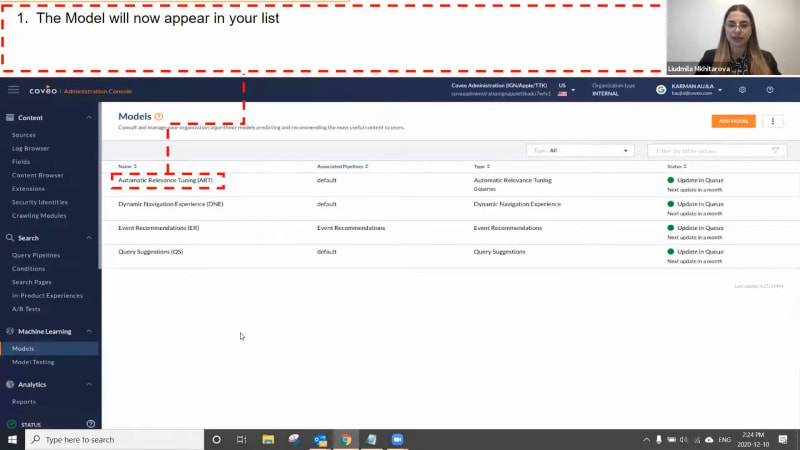
Hello, everyone. Thank you for joining us at this month's learning series webinar. This monthly webinar series is where we get more hands on on how we enable Coveo's features and capabilities that can help your business create more relevant digital experiences. My name is Claudine Ting, and I work on the global marketing team here at Coveo. And speaking of relevant digital experiences, we wanna make sure you have the tools to create more of these with the help of machine learning. To help you get started, we've put together a three part webinar series to show you how simple it is to create machine learning models with Coveo, how to activate and optimize them. Today, for part one, we'll focus on two machine learning models, query suggest and automatic relevance tuning. Our presenters for today are Lipika Gabbana, customer success architect, and Ludmila Mikhitarova, customer success manager. Before we get started, I just have a few housekeeping items to cover quickly. For this webinar, we'll entertain your questions at the halfway mark and at the end of the presentation. However, we encourage you to type your questions on the q and a box and the chat box as we go along. Lastly, today's session is being recorded, and you will receive the presentation within twenty four hours in your inbox and also in Coveo Connect, our online community. So now we're ready to get started. Ludika, take it away. Thank you, Claudine. Welcome everybody to today's webinar. So let's get started. So in today's webinar, we'll learn about Coveo machine learning. There are several different models machine learning models that are available that are offered by Coveo. We will first learn how machine learning works overall, and we'll learn a little bit about each model, how it works, where you can use it, how other customers have used it, and what they've achieved after using it. Specifically, we'll focus on two models, the automatic relevance tuning model and the query suggestions model. And then we learn how to validate those models. So now that you've set up your models, you've created it, you've configured it, you'll see if they're if they're working where they have been configured. So those are our objectives for today. So let's start off by by talking about a customer who's who's seen tremendous success with using machine learning. So we're talking about Xero. So Xero is a SaaS company that specializes in you know, they provide accounting software to small businesses. So one of the things and I'll tell you a very interesting story, and you can actually go on the website, and and look at the video that we've posted about zero or zero where they tell this very interesting story about their community. So, their community has a lot of engagement. A lot of these small businesses come into their community when they have issues, when they have questions. So they would go into the community, the customer community, trying to find answers. So one of the biggest or, you know, the one of the biggest issues that most customer had, I wouldn't call it biggest, but one of the most common issues most customers had was changing the payment details. So, it was a very simple thing to do, but they didn't know how to it could it was really something that they could do on their own, but, you know, they didn't have access to the right knowledge, article that told them how to do it. So after they started using, you know, Coveo and machine learning, what started happening was, you know, because machine learning learns from user behavior. So to learn that, you know, different users might ask the same questions differently, but they might still access the same document. They might still access the same, you know, same knowledge article to solve their problem. So what we saw happening in zero's case was that particular issue that used to come in hundreds that reduced tremendously because it's a very simple fix. They just got access to the right knowledge article that solved that problem, and they were able to self solve. They were able to do it themselves without logging a ticket. And what also happened along with that is, Cobio's ML learned from various other queries that were happening on the community, which means they were able to personalize at scale. They were able to keep their customers on the community for longer, engage with all the content that they were creating from them, and, eventually, customers are happier. So they improve their NPS. So, now that we know what, what Xero did, let's look at on the basic level. How does machine learning works? So, Hoya has different machine learning models, but on a very basic level, machine learning works on and it learns from user behavior or analytics as we put it. So it looks at what your customers are doing, and it can be anywhere. You can put machine learning on your customer community. You can put it on your intranet. You can put it for your agents, on your website. So anywhere, really. But what it will do is it will learn from all the transactions or all the interactions that are happening on your site. It will look at all the different ways customers are defining their problem, the customers are articulating their problem. And it'll also look at what are they clicking at. What are they actually buying? Maybe they clicked on this, but they didn't really buy it, and they went and, you know, bought something else. Or if they're looking for a solution to a problem, you know, they describe it this way, but they clicked on something, went back, changed it, described it a different way, and then clicked on a particular document. So machine learning, what it does is it learns from all these interactions. It also means that the more examples you can provide to machine learning, the better it learns. So that's how machine learning works, on a very, very basic level. Now let's look at all the different machine learning models that that Kavir provides. So the first model we're gonna talk about today is the query suggest model. So the query suggest model, if I had to put it very simply, I would say, if only I could articulate what I mean. So I'm on a site, and, really, I have an issue with, you know, how to change change my let's take zero's in my example. How to change my payment details? I could write it that way. Another customer will write a different way. Another customer will describe it in a totally different way. So how do we make sure all of the different ways that customers are describing their problem actually gets them the solution that they need? There is only one knowledge article or maybe two or three knowledge articles that will solve that problem. So how do we make sure that we understand that every different way they are asking that question, we are collecting that information and we're providing them suggestions. So as soon as they enter, like, on our website, for example, if I'm searching for thesaurus entries, as soon as I enter thesaurus, I will start seeing recommendations for, oh, were you looking for best practices? Were you looking for how to set it up? Or were you looking for, you know, a particular type of thesaurus entry that you wanna set up? So all of these suggestions start coming up right away based on what we have learned in the past from customer behavior. So that's what query suggestions model is all about. So not only does it provide suggestions on what other users have searched for, but it helps your relevancy tremendously because a lot of times, customers don't know how to articulate that that problem. So we're kind of helping them by telling them, hey. Maybe this is what you're trying to ask and maybe this will help you. And that's how we're improving their relevancy and providing a good, you know, a good solution to the problem that we have. Looking at, the next machinery model, which is automatic relevance tuning or what we call as ERP. So automatic relevance tuning, very simply put, it, again, learns from user behavior. It learns from what customers are searching, what they are clicking. But imagine this this this situation. You know, one of the top cases that come to any contact center is change password, forgot password, anything to do with password. So, and customers enter that, and finally, they find a document which is they had to scroll through five pages. Finally, they found a document that answered their question, and they were able to, you know, change their password. Second time a customer comes, you know, they still had to find a search for it, and they found it, and they were able to solve their problem. Now machine learning learns from all these behaviors, and it knows that, okay, this particular knowledge article solves the problem for these types of queries that happen on the site. So automatically, when the when the customer comes in the next time, we'll push that article towards the top. Either right to the top based on how many times it has been used or somewhere closer to the top. So by default, automatic relevance tuning can suggest up to five articles, and that is only by default. That setting can be changed. So we can we can suggest more than that as well. So that's what it looks like. So if you look at the screenshot here, some of the search results have the word recommended in it. So, that's a custom thing, but that's totally possible. You can do that. But typically, any machine learning suggested results will be on the top of your search results. Moving on to the next machine learning model. So the next machine learning model is dynamic navigation experience. So, basically, this is more suited for websites that have websites or, you know, commerce applications that have really long list of assets. So what I'm saying is, like, if you see on the side here, there are a lot of different categories that are that are presented to me here. Not always do customers know what to select, and sometimes customers know exactly what is needed for them to get their answers. So if we go by this example and I find the word machine learning, whenever I type machine learning, I typically want to look at technical documentation. And if that happens enough number of times, what dynamic navigation experience will do is it will move that entire interests facet to the top because that's the most selected facet. And even within that that category there, if technical documentation is clicked the most, it's gonna move it to the top. Also, we have we have ways to, you know, auto select it. So if it happens enough number of times, we auto select it. Another example where dynamic navigation experiences is is really, really helpful is in commerce. So, example, if you're if you're going and buying a laptop, and the next thing that you do is you select the screen size because that's important for you. In dynamic navigation experience, what would happen is a query will automatically learn after a certain number of interactions that that is important. The the size of the screen is important for the customer and will automatically select it or will move it to the top so the customer doesn't have to scroll down and select it every time. So in a way, we are improving the customer's experience by not having by doing things for them and understanding how they interact with the website. So that's what dynamic navigation is all about. Moving on to what we call as event recommendations or content recommendations. Now a lot of you would have seen this. So whenever you go even if you if you are on our website and you went and clicked on a document or, you know, a manual, a product recommendation, knowledge article, you will see, you know, related articles or people who have seen this have also seen this. So what event recommendation does is it learns from page views. So when I when I talk about event recommendations, I think we we have to talk creatively. We have to we have to think about it innovatively. A lot of times when we think of recommendations, we think of it as, you know, people who view this also viewed this, but they're always thinking the same content type, which means people who view this article also view this article. But that's recommendations can do much more than that. We have customers who use recommendations in very innovative ways in in the sense that they look at what customers are searching for, what pages they are going to. And based on that, they're recommending training. They're recommending products. They're recommending a lot of different content types that's not originally related to what they were doing. So for example, I go on our website, and I look for the source entries, query pipelines, which are a lot of terms you will hear when you look at Covio analytics. And if I understand this person wants to learn more about Covio analytics, I will start recommending a training for them and tell them, hey. Go to our fundamentals course or go to our basic analytics course. That's another way of thinking about, recommendations. Now moving on to the next type of recommendations, which is product recommendations. Now everyone is aware of this. I'm sure, a lot of you have done a lot of shopping during this time in the pandemic, in which a lot of times when you're buying a a particular product, you will see recommendations of, you know, frequently bought together, or people who like this also like this. And we also know that recommendations contribute hugely when it comes to conversion rate and hugely when it comes to increasing the average order value. So looking at product recommendations, we also have that machine learning feature mostly used by commerce customers where they show frequently bought products or frequently viewed products. And these recommendation components are actually very easy to to, you know, use on your site. These are, you know, small components that you can put anywhere on your site. We have customers that use product recommendations that show frequently viewed products right on their home page. So every customer whose every customer that visits their home page actually sees what these other customers are viewing so much. K. Now looking at what we're going to do next, I'm gonna invite, my colleague, Ludmila here, who's actually gonna walk you through because we talk about so many different machine learning models. I'm sure by now you're eager. Just tell us how we do it. So I'm gonna invite Ludmila who's gonna walk you through, setting up of the machine learning models. Yeah. Thank you so much, Lipica. So Lipica did a great introduction to all of our models. And as she said, now we're going to take a look at, okay, what do we actually have to do to get them up and running on your orgs? So a couple of things first. There's a couple of prerequisites that need to be met before you can start setting up these models. Nothing too huge. First of all, for all of Coveo machine learning models, you wanna make sure that, usage analytics is actually getting data, from your sites, and that the data is actually being sent to your Coveo org. So the reason for that is we need actual data in your learning models to learn because that is what they actually use to provide their recommendations and without data, the models can't learn. So if you guys have the Coveo JCOI set up, which I'm sure a lot of you do out of the box, then this is already going to be happening for your org. And if you don't, if you have a more of a custom implementation, you could just double check to make sure that you are sending those analytics to Coveo. And once that's done, a couple of few things for, the query suggest and ART models. So for the automatic relevance tuning or ART model, a little thing, you wanna make sure that you have a feature that can actually send queries and a result list component. So I'm sure pretty much all of you have this set up. What that means is we want a search box that can actually send off a query or something like that, and we need an actual list of results because that's how, your results are actually going to be ranked. And those, results that are gonna be pushed to the top of that list obviously need to go somewhere. And then for our query suggestions model, you need your Coveo omnibox component in your search box. So the search box, again, that's where your query suggestions are actually going to be populated. That's where they're going to, that's where your users will see those suggestions. And you just need to make sure that you have that Coveo, omnibox component set up on that search box. And once that's done, we can go ahead and actually start setting up your models. So this process is going to be in two steps. So the first step is going to be really creating that model. We'll be selecting your model type, telling the model how much data to learn from and how often to refresh, And then the second step is associating that that model to a UI, and the way we do this is through our query pipelines. And so we'll show you how to go through both of these steps in detail starting with how to actually create that model. So if you're following along with us, you can go ahead and log into your your Caveo administration console, which will look something like this. And we're going to head over to our machine learning section, left hand side, and to the models tab. And once there, you're going to see your existing models if you have any already set up. You'll see, a list over here. And then we'll click on that nice orange button over there that says add model in order to actually start adding our machine learning model. And so once, once you click on the button, we're gonna be prompted, all the models that Filipica outlined for us. For the purpose of this webinar, we're going to go ahead and select the automatic relevance tuning model. But if you're going ahead and creating the query suggestions model or even a different type of model, you can go ahead and do that as well right now. And here in this step, you're also going to name your model. So the name doesn't really impact how the model works, but you want it to be somewhat descriptive. And ideally, I'd recommend, also adding the use case for which you're using the model to that name. For example, you can call it something like ART website search. And once you're done, you'll go ahead and click on next. And here, you're going to be prompted, to select what we call the learning interval. So the learning interval consists of your frequency and your data period, and these are quite important. So we mentioned before that you really need that Coveo, or you really need your site's data for the Coveo machine learning model to actually work and to activate and to learn. But, you know, when we say it needs data, this isn't just general data that the model pulls. We actually specify what data the model is learning from, and this is really where we do it. So that frequency is going to tell the model how often to actually refresh. So let's say we want model to refresh daily or weekly or monthly, and then the data period is going to be for how much data or how much data the model actually learns from on every single refresh. So let's say if we're updating weekly, like we are in this example, do we want the model to learn from the past week, from the past month, the past three months, or etcetera? And so for this, by default, we have weekly for data frequency and three months data period the models learn from, but you can update this. And Lipica will also talk in a little bit more detail about when you'd wanna use which use case in a couple slides. Once you're done that and you're done selecting, you can go ahead and click next again. And so we're pretty much done. We're gonna be prompted, with adding our model, but a quick little note. If you're ever in a position where you'd like to really filter down on what data you want the model to learn from, you can actually select, this learn from feature and select what you want the model to learn from. So maybe a specific use case, like a specific search hub, or maybe you wanna even exclude search searches from the data the model learns from. But for our sake for today, we're not going to filter down on anything. We're just going to have the model learn from all the data, and we'll click on add model. And one more thing to add to what Ludmila was saying here is, because coherent machine learning actually learns from data. So the more data, the more analytics, the more behavior information you can provide, the better it is for for for the model. So try not to restrict the model as much as possible. But, again, you know, you have different use cases where the searches don't really matter. For example, you know that your agents will search differently than your community, so then you don't need them to learn from each other. But if there are, you know, sites that are very similar to each other, they can definitely learn from each other, so keep it open. Yeah. That's a really good point. Thank you, Lipica. And so once you're done, once everything is set up, you'll see your models here on the list, and we see the model we just created, up and running, which is awesome. But little quick note, especially if you're doing this along with us, once you very first, create your model, it's not yet active. So a model a machine learning model with Kabeo can take up to about thirty minutes to activate, and what it's doing in that time is it's actually processing for the very first time all of the data that it's learning from. So depending on how much data you have, it can take a little bit of time to really activate. So the more data, the longer it'll take. So we're just saying that, in the case that you're creating the these along with us, and then we are going to show you how to test them in a little bit. So you wanna make sure that tomorrow is actually active before testing it because it'll only really start working once it's active. But once it really becomes active after the first time, you're good to go. And once done, you'll see, you know, you'll see that the model will become active, and you'll be able to to use that. So here, we're done with actually creating our models. And, really, the next step after this is going to be adding it to our, user interface for the query pipeline. But we're just gonna go back a little bit to the data frequency, and data period. And I'm just gonna let Lipica talk about these in a little bit more detail. Yeah. Of course. Thank you, Ludmila. So I know when Ludmila was creating the model, you named the model. And I think the most important step when when creating a machine learning model is actually selecting the data period of the frequency. So the data period basically, you know, is the amount of data that it can learn from. It can learn from like Ludmila was saying, it can learn from a month, a week, a day. You can select that. So, choose a data period that maximizes the amount of data that ML can train on. So if if if an if on your website you have, you know, millions of sessions in a day, you don't need to worry about learning from three months of information. But if you have lesser, so maybe somewhere around, you know, two hundred, three hundred a day or even lesser than that sessions, then think about maximizing it by choosing a larger data period so that it learns from more user behaviors and more actions. And then talking about frequency. So when we're talking about frequency, we're talking about freshness of information. So we're talking about trending information. So let me give you an example. So typically, when customers go live, they will go live with the machine learning model. But at that point, we want to learn as fast as possible. We wanna collect as much information, about the user behavior as quickly as possible. So we select a data period and frequency that are that are very, very sharp. So data period is one week and frequency is one day. So we are learning every day. We're refreshing every day, and we're learning from one week of data. But as the customer matures, you know, in a month, when we have a lot of information, when we have a lot of fresh content and we know about the user behavior, we increase that data period to be longer. So it really depends on the kind of use case you have, the kind of website you have. So, for example, in case of, let's talk about data period. So if you have an intranet where most of the time, the searches are very similar. They don't really change a lot week by week. Maybe they will change in a month because, you know, December is the holiday season, so everybody's looking for the holiday schedule. And, you know, if March is tax season, so everybody wants to make sure they have their tax forms. But they're very different from each other. They're they're very far apart. So we don't need to learn that often, which means we select, you know, a smaller data period, And we can even select a larger frequency, which means it doesn't have to learn that often because it doesn't change that often. But if we are an online retailer and every day there is something new coming on the website, There is a new trend. Now everybody wants to wear black boots or everybody has their eye on this red shoe in your in your on your site. So Kovir needs to learn that very, very quickly. So in those scenarios, you will you will select the data period amount frequency that are shorter so we learn as much as possible about trends and and, you know, we have fresh data all the time. Okay. Before we move on to this one, do we do a quick time check to see if we have questions? Yeah. So we do have a couple questions here, Ludmila. The first one that we have over here is, do we need to create multiple machine models of this machine learning models of the same type if I have multiple use cases? Okay. I can take that one. So, it really depends. So if you have different use cases, then I would say yes because, you know, different use cases basically means you have a contact center and you have a customer community. The way users interact with the contact center is different from what they interact, how they interact in a community. And, also, the content is different. In the customer community, you won't show internal content that are usually available for your agents. So it's not just how they search, it's also what they have access to. So, yes, I would say if there are different use cases, you definitely need to build different machine learning models. You need a new query suggest. You need a new ARP, based on how different they are from each other. Okay. Thank you for that, Lipica. Another question that we have here. Can I reuse my machine learning model? Do you wanna take that one, Lipica? Or Yeah. Sure. So I think it goes back to what Lipica said. So if you have a new use case, you'll wanna create a new model. So it kind of depends on what you'd like to reuse it for. So realistically, I guess the answer would be probably not. You can reuse it, but if you have a new use case that that you're setting up or that you'd like to add a model for, then you'll probably wanna create that new model just like Levica explained. Okay. Thank you so much. I think that's it for now. We can, can carry on with the webinar. We have around less than fifteen ten to fifteen minutes left. Yes. We'll get on with it. So, the next part is for Lendula, so I will let Lendula take it away. Yeah. Thank you so much, guys. Alright. So we saw how to actually create our machine learning models, and we talked a little bit just during the questions as to how do we associate them, what do we do with them, but now let's see what is the next step, how do we actually associate them to a query pipeline, and how does that work. So for this step, we're going to go under our search section again in our administrative console with Coveo, and we'll go under the query pipelines tab here. So for those of you that don't currently have a query pipeline, for for the UI for which you'd like to add the model, we're gonna go ahead and actually create a a pipeline right now. But I'm going to guess probably a lot of you already have a query pipeline set up, which you use. So in that case, just skip this part and just go ahead and open up the query pipeline which you're using. But let's say if you don't have one, you'll go ahead and you'll just click on and you're prompted to add the pipeline. So first things first, we're gonna add a name. Again, the name doesn't actually influence how it works, but I I strongly recommend to add something descriptive just so you remember what you're using the pipeline for. And then secondly, if you'd like, this is optional, but you can add a user note. So let's say if I'm creating this today, I could maybe say something like this was created by Luke Mila on December tenth two thousand twenty. And then another important note is that, you know, when you're creating your pipelines, you don't wanna just create a pipeline for everything, for all your searches. You wanna narrow down on a condition. So pretty much the use case for which you're going to be using this pipeline. So I know that some of you on the call, you probably have this actually hard coded, in your site. So you you might already have, if you already have a pipeline, for example, you might have the use case, for example, your search page or your community, etcetera. You might have that already hard coded, but if not, our best practice is to use conditions just because they're so easy, to use and to change and you don't actually need to go ahead and code anything. So we'll show you how to add a condition here. Just click on that add condition button and pretty much you'll select just a couple things. So usually what we recommend is we recommend to create a condition based, well, specifically for your query pipelines based on your search hub. So, for example, your search hub is, and then whatever that name is. So let's say search might be community, it might be something else. And then just click on add condition. And once done, we're going to have that condition associated to our pipeline, and we're ready to create and add our pipeline. So, again, if you already had a pipeline you're using, you can go ahead and click through to that one. We're just in our new pipeline here. And then the next step is going to be it actually go ahead and associate that model. So if we click on the associate model button, it's going to, once again, prompt us to associate our model here. We'll go ahead and we'll select which model we wanna use. So just for our purposes here, we're using that automatic relevance tuning model. But, again, if you're using a different one, just go ahead and associate that one. And then the only difference here is that if you're using the query suggestions model, you're not really going to have any advanced configuration set up, or prompted. But for the ART model, we have some advanced configuration, which you see on the right hand side here. Walk through these a little in a little detail because, they do affect how your search is going to work. So the first thing that you see is called the ranking modifier. So the ranking modifier actually affects how much of a boosting each result is given by the machine learning model. So recommended is two hundred fifty, and it's it's selected by default. You don't really need to change this. However, if you want your results let's say you have some other manual rule set up already, etcetera, and you really want your results to be boosted even more, you can, you can increase that two hundred fifty, but it's not really necessary. Just quick note, please don't set this, this number to none, which would pretty much mean that the model isn't boosting anything and has no effect. So just make sure you don't lower it. Then secondly, we have what we call match the advanced query. So by default, the setting is turned on. When it's turned on, what this does is that all searches and all recommendations recommended by the machine learning model by ARRT match the advanced query, which is the facet or filter selected of the search. So I'll I'll give a concrete example. Let's say, you know, I'm looking for shoes. I'm on a website and, I type in shoes in my search, and then I'm gonna select a facet for the color. I'm gonna select red. So having this, advanced clear matching advanced query section turned on means that all the results that machine learning are going to recommend me are going to be results that are, you know, include red as the color. So you might be thinking, well, of course, I want this. Like, why wouldn't I want this to match? And most of the time, we do recommend that that you do match the advanced query. However, keep in mind that by selecting this, selecting this feature, you are reducing your number of possible results because it's possible that machinery might have, you know, blue shoes or or a different type of shoe, or maybe a different type of product to recommend based on its learnings, that do not match the facets. So it really is a business decision for you to make whether you wanna you wanna keep that on. But by default, it is turned on. And then secondly, we have what we call match the query. So this is another feature that could possibly reduce the number of your results if active. By default, this is turned off. But if you turn on match the query feature, what this is going to do is ensure that all the recommended results match the actual query or the search term that the user searched. So let's go back to our shoes example. I'm looking for red shoes. All my queries that are or all my, results recommended by machine learning are going to be red shoes. So, again, you might be thinking, well, of course, I want that. Why wouldn't I? But if we go back and look at different use cases, sometimes you don't want your results to always match the query because that does limit your number of results. So let's say if we use an example, like, somebody is looking for coronavirus, maybe you don't have, any results under coronavirus, but you have a lot under the words COVID or COVID nineteen. Well, in that case, machine learning will learn from that behavior and will recommend results that under COVID nineteen, which is what the user is looking for, but that doesn't actually match the user's query. So because of that, we usually, by default, recommend to keep match the query off. But if you're depending on your use case, especially if you are a commerce use case, so we think you can turn this on just to make sure that your users are actually getting the results that they search. One Alexa, what are my users gonna learn more? You can always do some AB testing, in order to see what gives you better results. And then lastly, we have a feature called ITD, which is a very niche, type of machine learning feature. So I'll just let Lipa could talk about it in a bit more detail. Yes. Thank you, Ludmila. So, in a very short and simple way to put what ITD does is ITD is more very specific use cases. So it's very specific, and it's only used for, like, support channels where you, you have, you know, an insight channel for agents, something like this, or in your in a case creation page. And the reason ITD is used in those pages is because in those pages, typically, your query is not a typical query. It's not a, you know, keyword query. Typically, you know, is the case subject that we take into account or the case description that we take into account before we start recommending results. So when it comes to, you know, those big chunk of, you know, text like a description, which can sometimes go on for a very long time, it sometimes can difficult to figure out, you know, what word is in front of a map. That. So what ITT does is it kind of comes through that entire text and gives you five refined keywords, which are then used to generate your recommended results. But like I said, it's only for very specific use cases where you have longer queries. You can decide what you want to use as a long query, whether you want your case subject, prescription, or you want them both. It's really up to you. You can also AB test this feature and you can decide which combination works best for you. So now moving on to our last part, which is we have created the models. We have associated them to the pipelines. But how do we make sure they're working and they are active? So going back to the data. Yeah. Thank you so much. So this is the fun part, making sure that the models are actually working, and checking out what they really do on your site and on your use case. So as I mentioned, if you just created your model right now, it might still be activating, so it might still not be active. So just just make sure it's done setting up before you're testing them. But we're gonna show you how to test both of your models. So first of all, for query suggestions, go ahead, log your log on to your website or go on your website or or search use case, and do start doing some sort of search. What you're going to do is you're going to right click, click on the inspect tab, and then you're going to see this little window kind of like we see in step two pop up that, has a couple of different tabs, and we wanna pick the network tab. A little step I forgot to mention, we're doing this through Chrome, and Chrome is really the best browser to test this for. So if you have Chrome, please do this on Chrome. Once you select your network tab, you're going to see something like we see on the left hand side of the screenshot here. And go ahead and start typing an actual search term into your search box. So, first of all, a couple of things should happen. If there's recommendations that the model has learned about your results, you should see those actual recommendations start coming up. However, if you're typing something, let's say, a term that maybe isn't that's relevant to your website or for which there just wasn't really any data, the model might not have actual recommendations for you. But regardless, it's going to be running the query suggestions model, which you'll be able to see in your network tab as we're seeing it here. So if you see that working, your query suggest model is working. And that's great. And then we also have our automatic relevance tuning validation. So a little bit more technical, but I'll walk you guys through this. So again, you can see the exact same search page, and what you're going to do is you're going to access this Coveo debug panel. So how to do it, depending on whether you're on a Mac or a PC, you'll follow the instructions on the left hand side, and you'll double click on a result. So not just on any part of your page, but specifically on one of your Coveo results. Don't double click on the URL because that's gonna spring into the URL, but somewhere kind of in the results box that's not, not a URL. You're going to see this box pop up, and, we're going to recommend that you select highlight recommendations and enable query debug at the very top like Lipica is showing. What's going to happen, there's going to be a lot of text, but what you wanna be on the lookout for is this ranking modifier that we see highlighted. If you don't see it, you can scroll down or you can even search in the debug panel, for ranking modifier. And you wanna see, does it say reveal art? If it says reveal art or reveal a r t, that means that the this specific result was actually recommended by machine learning. Now another way to check after we piloted that recommendation highlight recommendations box, if you just click out of here, you're going to go back, or click out of the just the debug debug panel. You're gonna go back to your results here, And you're going to see every single result that was recommended actually, in this little gray box or what we call highlighted. So all those results were recommended by AirTree. So if you see those, your AirTree is working and suggesting results, and you know that your model is up and running. And so there we have it. We've created our models. We've associated them to a query pipeline, and we've tested them and validated that they work. So gonna pass it back to you, Lipica. I think you're just on mute. Sorry. So I know we have very little time left. So, let's just look at if Claudine has any questions from the audience before we wrap up. Sure. So just wanted to check. Are there any questions coming in? We do have a few over here. Do we always need to create a new query pipeline when creating a new model? No. You don't. So like Ludmila was saying that, typically, you know, if you have been using career for a while, you will have a query pipeline associated to your to your UI, and we do recommend that, you build query pipelines by by the user base. So if you if you have a contact center, you will have a query pipeline for them. And if you have a community, you'll have a query pipeline for your community. You don't necessarily need to build a new one every time you create a new ML model. Like was showing in the steps, you just need to create your model, and then you can associate it to the pipeline that already exists. Awesome. Another one over here. How do I know when to create a new query pipeline? How do you know when to create a new query pipeline? Is that the Yes. Okay. Typically, if, so what Ludmila was showing, there was something interesting in there when she was going into the debug panel. You can actually go into debug and figure out if your UI is associated with the query pipeline. You can also see that in usage analytics, if a query pipeline is coming through. If it's coming through, you're good. You're golden. You don't need to create one. Okay. There's, I think one last question over here. Is there an extra charge if we use these machine learning models? Nope. No charge. No extra charge. Awesome. Yeah. Okay. I think we can, we can wrap up. Ludwika, Ritmila, I know you have a few things, just to summarize what we've learned for this afternoon. Yes. So summarizing everything we've learned this afternoon, I know it was a lot of information, but we basically saw how machine learning works in general. Then we looked at the different models that Coveo has, all free of charge, like the question asked. We also learned how to create the automatic relevance tuning model and the query suggest model. We also saw, you know, some tips and tricks on contributing ML models, found some stories about how customers have done it, and how we validated if your models are working or not. So what I also wanted to tell you is that, you know, like Pauline said in the beginning, this is a webinar series. So you will hear from us again with our next webinar, which will be about you know, now that I've created your models, it's it's a basic configuration. We do not look at anything, you know, custom or anything specific that you can do. So what will happen is in your next webinar, you will see how you can customize it. How can you not really customize, but I would say optimize what you already have, and we'll also look at reporting. We look at how do we report on it. How do we know if ML is working for us or not? That'll be our next webinar. I know I, I just wanted to, get one, one more question out of the way. Also, before that, yes, we will be resending the recording, within twenty four hours. Last question for the day, I have multiple sites, each with their own query pipeline. I can use the same model with each pipeline. And if so, is there a reason to set a condition? I would say that if all of your websites I I don't think all of your websites do the same thing. If they if they have different audiences, which is why you have different query pipelines, Unless you think the machine learning model can actually benefit by learning from all the websites and applying to all the websites, then you can reuse that ML model, which I don't think is is likely. But I would say still put a condition on it because the condition is what helps you route the traffic to your, to your to your query pipeline. So if you have a condition on your query pipeline, that'll help you guide where your traffic goes. Okay. Thank you so much for that, Lipika. I know we've gotten a little bit over time. I just wanna say thank you so much for everyone who attended this learning series webinar. As mentioned earlier, this will be a three part series webinar. So the next one will be, towards the end of January. Please take a look at your inbox for emails, to register for the next one. We also encourage you to watch the recordings after set up your own machine learning models. You can watch it on your own pace. We will also be sending, training courses on Coveo Academy, documentation articles to make sure that you have everything you need to set up your own machine learning models within your Coveo organizations. Okay. Oh, you're very welcome, Art. Thank you so much, everyone. We hope you have a great rest of your day. Bye for now. Thank you. Thank you.

Setting Up Machine Learning - Part 1

