
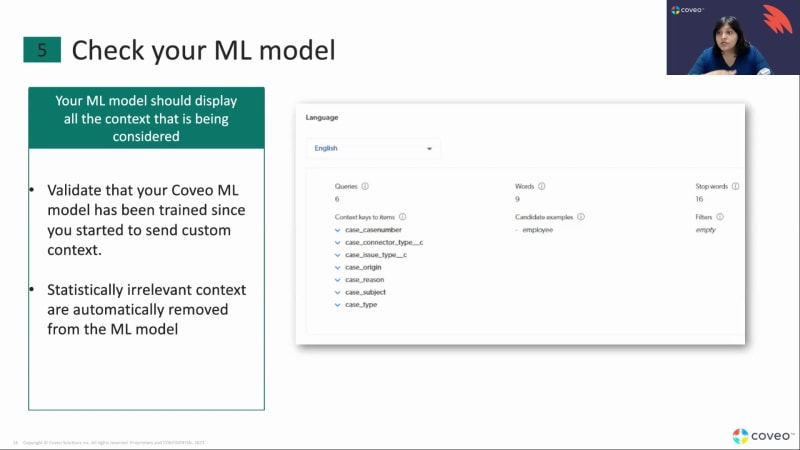
Hello, and welcome everybody to our CS learning series. This is part three of our learning series, so there have been two parts before. Our learning series is, you know, is is there for our customers to learn more about our product features and functionalities and to get a little bit more hands on with how to implement a certain functionality or how go about using our analytics dashboard, any of those things. Before we get started, I wanna cover a couple housekeeping items. So if you are, if you have a question in between, feel free me, option on your Zoom or you can send it in chat. We will be monitoring the chat throughout, but I will stop around the middle of the webinar to take a quick check on how many questions. But that's it. Sit back, relax, and enjoy, and also ask questions. So for today's webinar, the topic for today's webinar is advanced analytic dashboards and personalization. But what we really will be talking about is custom context. So today, we will be looking at, you know, custom context and how you can use custom context in your reporting, in your machine learning algorithms, and the various different applications of custom context. I'll give you a couple of examples of, you know, how our customers are using custom context, by different lines of business as you all come from, different industries. You have different applications of Coveo. You might be using Coveo for a contact center or you might be using Coveo on your community. So based on where you are with your journey in Coveo, I will be giving a couple of examples of what to expect and what you can send, based on what we have seen our customers use, you know, through these years. Then we'll go through step by step, look at how you can so, one thing I wanted to mention is that adding custom context, you know, for some lines of business, it is, it can be straightforward because there is a UI and you can just go in and type in and you can add it. But if you are, you know, using a customer community that is maybe not on Salesforce but on-site core or you're using our headless framework, you definitely need a developer to do this for you. But what I will do today is, you know, chat, you know, chat down those steps for you. So when you go to your IT team or you go to your developer, you can say, hey, this is what you need to do to send the custom context. So let's get started. What is custom context? So custom context is very similar to, you know, having different fields that are kind of, used to create different buckets of behavioral pattern. An example would be if you have a contact center and you have different departments in your contact center that take care of different products or, you know, you have different levels of support, you know, level one, tier one, tier two, tier three. This is something that you can send us custom context. And we know that our machine learning models, COVID many machine learning models. But I'll give you the example of our ARP model, which is our automatic relevance tuning model. That model learns from user behavior. So it learns from searches and clicks. So what we are trying to do with custom context is, you know, if we don't send any custom context, Covia is just gonna understand, okay, this is the business and users search for this and they click for this. But if you send us custom context, then we understand really what is going on in your business. We understand the context of your business, pun intended there. So we understand, okay, this is the department and this is this department typically searches for this kind of information. And typically, these are the kind of documents that help them because it could be different for different departments. And have an intranet, and if I go on our intranet and I look for custom context, I might be looking for, you know, examples of how customers are using it or, you know, case studies about it. But if an r and d person goes into our intranet and looks for custom context, they might be looking for technical documentation, how to implement it, or how do I change this, how do I do this, more of a how to and more technical aspects of it. Which are you know, it's exactly the same topic, but we are looking for different things. So if I send the department as a custom context, now machine learning understands, you know, oh, she's from CS. And typically, CS people want to look at, you know, these kind of documents. And typically, R and D people wanna look at these kind of documents. So that is why it's very important to send custom context, and this is in perspective to machine learning. Applications of custom context, which we will see today. Some things to consider when you're thinking about custom context. The first thing is think about the values you wanna send. Typically choose values that have a low cardinality range. And if I explain further on that, it just means that if you're sending, say, for example, the department, then I always keep coming back to this example. So, you know, we kind of tie tie it back to what we were talking about. So if I send the department information, typically, organizations will have maybe ten, fifteen departments. That's a good value to send because it's easy to bucket information based on that. But if you send something like case ID or document ID or something that is an ID that is different for different, you know, different content, that might not be a good idea when it comes to, you know, how custom contents is used by machine learning. You can still send it, but what happens is machine learning automatically ignores what is statistically many reasons why something is statistically irrelevant. One of the reasons is it has just way too many values, so I can't create those buckets. Right? So couple of things you wanna consider when using custom context. Some examples of custom context for your organization. Now if you have, say, a website, you can send the location information. You can send the products that are owned by that user. You know, a lot of our customers, it can be difficult to understand, you know, the end user when you're on a website because they're not authenticated. They don't declare who they are. We typically go by search patterns. You know, if they're looking for these kind of things, typically, they like to click on these kind of documents. But we know that certain organizations also, you know, they have different methods of tracking customer information. You could be using a separate app or a separate, you know, software to track this information. And Coveo can utilize that information to create these buckets of user behavior. When it comes to e commerce, again, there's tons of things you can send as custom context. You can send the customer segment, the buyer persona. If your customers are logging in, great. Send us more information about that. Service and support, and I'm gonna talk about community and the contact center. So if you have a customer community or what we call the customer portal where your customers are logging in, they're looking for, you know, trying to solve their problem on their own, and they are logging cases, they're accessing cases, they're accessing your user manuals. Good things. Right? In that situation, the customer is logging in, which means you have a ton of information about them already. So send us information like entitlement. What is what has the customer purchased, and what what type of documents are related to that product? In that situation, imagine that a customer logs in. They look for, you know, something very simple as changing password. It could be different for different products or it could be the same. But if we know what product was owned by that customer, we will show them documents only related to that. And in this situation, we're not filtering anything. We're just saying, you know, we know where you come from, and this is typically the type of documents that help customers like you. You can also send the account type, and that will help us understand, you know, if you have, you know, a more of a low touch account type or a high touch account type based on where they are. They might need access to different documents. So that is also a helpful information to to send to us. Then comes a contact center. A contact center is really you have tons of information already. So for example, let's talk about the Coveo inside panel. You have, you know, your case information on your left and you have the Coveo inside panel on the right that is contextual and is giving you results based on what is happening in the case. So the case is for, say, for example, Coveo for Salesforce, I'm only going to show a for Salesforce documentation because that is what is going to help me understand the customer's problem. Now if I want machine learning to understand this, let's send all of that information to machine learning. Send information about the agent to machine learning. If the agent is a tier one agent, you send documentation that are meant for tier one agent. You you boost them. And again, I'm not saying filter them because they should still be able to search tier two document. Right? They shouldn't filter them out. But what we will do is because of machine learning, we might boost those documents a little bit, the tier one and the tier two documents. And if you have, you know, an intranet use case or workplace use case, what we have seen a lot of our customers send is the user role or the user department and the location. Location seems to be a really important one. The reason being, you know, the kind of searches that happen on the Internet. Like, for example, I'm searching for tax documents or I'm searching for, you know, the holiday policy or vacation policy. It depends on who I am, where I am, where am I located geographically, and I get the document based on that. So these are important information that you can consider sending as custom context. And if you look at all of these examples that I've given here, all of them will have a low cardinality, which means they will not have a ton of values in them. What are the other applications of custom context? So custom context cannot, you know, is used for machine learning, but you can also use them for relevance tuning. And this is a very, very powerful tool when it comes for, you know, creating dynamic boosting rules. Say, for example, you wanna say, if the if the customer has purchased and I'm gonna take example. If the customer has purchased for Salesforce or has selected for Salesforce in the case creation page, I'm gonna boost all the all my documents that are tagged with that product a little to the top. Again, not I'm boosting them to the top. If I didn't have custom context, what I have what I would have to do is create at least one rule for every product. I would have to say, when the product is this, do this. When the product is this, do this. But if I had that value in my custom context, look at the third example I have over here. So this is one rule that will take care of all of those different ranking expressions that you might have to create. So what you would have to do in this case is just create one rule. And whenever I say, for example, the customer is selecting career for Salesforce, So what it would do is it'll automatically or dynamically fill this value with for Salesforce. And it'll say, oh, the knowledge category on the article is for Salesforce. And if they match, boost that article by a hundred points. So what happens is automatically it bubbles up to the top. But I if I didn't have this context over here, I would have to create as many rules as I have products. And that can be very cumbersome to take care of, very cumbersome to maintain, save a product name change in the future. So this is a better way to approach that. Other applications of customer context are reporting. You can use them for reporting. So in this screenshot you see here, it says community product line is customer success. So what this is doing is community product line is something that is sent as custom. And maybe this is something I should have spoken about before, but by default, Coveo captures around sixty six different fields, and sixty six different dimensions that you can report on, like browser. You know, I think the the type of the document, the I think it does author as well. But if you want to understand more, because every customer is different, every implementation is different, we have a lot of our customers that want to use custom context. Right? Because Coveo cannot, you know, cannot know the context of your business unless you tell what it is to us. So for example, in this screenshot you see that we Barca collecting the community product line information, which is, you know, the product line or the product group that the customer is selecting. And what we're looking at in this detailed report is that we're looking at, okay, how many different, clicks did these kind of documents have? Or when the product line is customer success, what kind of documents are people actually looking at? Right? And this goes back to my previous example. If I am in the customer success department, the typical products I want and the typical documents I wanna look at is customer case studies. I wanna look at, you know, documentation, but not too technical documents. Right? This the with this help of the custom context, you can build reporting as well. Okay. Now we go into the crux of things. We understand these different steps to adding custom context, and I'll go through them a little bit quickly because I'm gonna do a demo later on so you can see step by step what we do. First thing is decide your key value pairs. And I think I have repeated this many times by now, but it's very important to think about what you're going to send as custom context. Now you can take another approach and say, you know, machinery already knows what is good and what is bad. It doesn't I don't have to be the one taking the decision. So then you can send as many custom context as possible. Right? But if you really want a cleaner, easy to manage implementation, give it a thought. Give it a thought. Give it a thought because you wanna use custom context for your reporting, for your relevance tuning so you can boost things or bury things. You can also use it for for for your, for your machine learning. Right? So think about fields that you will need in your reporting. Do you want to know how a department is adopting? Say, for example, you launched Coveo and you launched KCS for the particular department, and, they're all using the agent inside panel, but you really wanna understand, are they really adopting the product? Are they really searching, clicking, attaching like they should be? And you wanna take a look at this by depart or by whoever is the manager that all of these agents report to. Collect that information as custom context. It will not only have machine learning, but you can report on it. You can use them in relevance tuning. You can boost and bury rules based on those. Send that information. So give it a thought. You can do the brute force approach by sending everything, but the better approach is always to give it a thought. Okay? The second thing is ensure this context is sent with analytics. So what should really happen is any call that you're sending back to Kaveo. So if you are a Kaveo customer, what you will be doing is you will be sending searches, clicks, views depending on what Kaveo component you're using. So if you're using a search box, you will send searches and clicks. If you're using a recommendation component, you will be sending the view event. So these are analytics that you send back to Clear. Make sure that you're sending this custom context information on each one of those calls. You're sending it on the search call call. You're sending it on the view call if you have a recommendation component. Why is this important? Because machine learning learns from clicks. Remember, a very important thing machine learning will learn from successful outcomes. It definitely looks at your searches, but it looks at click. Clicks are most, most important thing. So if you're only sending it on search but not sending it on click, it's not really helping machine learning understand the behavior pattern. Same goes for views. If you're sending it for the recommendation component, and custom context can be sent with everything. They can be sent with searches, clicks, and views. Make sure you're sending them with each and The third step, and this I would say, kind of is an optional step. If you only want machine learning to to use the custom context you're sending, but you don't really care about reporting. This is a rare case because if you're sending it for machine learning, you would want to know how well it is doing. Right? So what you would want to do is you want to add it as a dimension, and I will show this to you on the platform where this is possible to do. By default, like I said, Covio has, you know, out of the box dimensions, which are, you know, you can call them as metadata that we track with every search and click. Like, where did this user come from? What browser did they use? What device did they use? All of that is automated, but you can add custom dimension is will help you use that, custom context in your reporting as well. So it is an optional but not an optional step because you really want to know how your customer con custom context is doing. And remember, if you go back to the first step, I said, give it a thought, think about what you wanna send, and so this is quite an important step as well. The fourth step is more going back and checking. Hey. I added so many different custom fields to be sent or custom metadata to be sent. Were they all sent Barca correctly? Am I getting the right value or not? And when I say the right value, this is more of a UAT phase. So typically, if you're doing something new, you would want to do a user testing where you want to make sure that all your values are coming through properly. The first thing to test is, are they coming through in searches? Are they coming through in clicks? And the second thing is, is the value correct? So, for example, in the screenshot here, you'll see that I have I'm using Coveo in, opportunity, page layout inside of Salesforce. So when I see an opportunity, I see the opportunity name, I see the opportunity amount. I see who the owner is. I see the opportunity team. And I'm sending all of that as custom context. Now, for example, the amount. Like, if you look at it, it's it's saying two hundred thousand dollars. I wanna make sure it's coming through as two hundred thousand dollars and not some googly googly that I cannot report on. Right? So these are the things that you wanna test before you want to go ahead and use custom context in your report. Last but not the least, custom context, the main purpose of it is using in your machine learning models. And I will show this to you in the platform where you can see this. But your machine learning models would automatically if it's a good context, they will start using it. Right? So if they start using it, you will see it in the machine learning configuration page, and you will see them under the context keys to items. Like here, you're seeing case number, connector type, issue type, case subject, all of those good things. Right? And if you're seeing it here, you should also be able to see, you know, how many different values do we have for them and how many different candidates do we have for them. You should also be able to see the ones that are rejected by machine learning, and I will also go into the platform to show you that. So you should be able to see also why they are rejected. Right? Now the most exciting time, it's demo time. Okay. So let's go back to so what I'm going to demo today is one of the use cases and one of the lines of business. Unfortunately, we don't have time to go through each and every lines of business. But what I have done is in the deck that I have, I have linked, to resources that will help you understand how to do this if you have a Coveo headless implementation, how to do this if you have, you know, a Coveo JS UI implementation that is not exactly inside of Salesforce or if you have a Kubeo for Sitecore implementation. So let's look at it. So what I'm looking at on my screen right now is the opportunity object. So if you are familiar with Salesforce, Salesforce has different basically, like opportunity cases, accounts, like, things that you wanna, you know, keep track of. Then each of them have fields, And each organization can add custom fields. So very similar to what you see in Coveo, you can have custom fields as well. So anything that you see here so this is the opportunity object. You can see all the different fields over here. Anything that you see for c is an out of the box field. Anything that you see with the underscore c is a custom field. Okay? So what you can do is, in your thinking phase, is what field can I send? What field do I wanna send? The first step to all of that, do I have that field have that field in your in your COBRA index as well? So you should be indexing that field. But even before going to indexing, do I have that field in my source? Like, if I want to do want to send document as a custom context, do I have that field in my object? So this is where you would check it. This should be available to you even if you're not an admin, but the other steps that I'm going to show you will need to be an admin to do it. But I'm gonna show you step by step what is gonna happen. We have very good documentation which has screenshots that'll tell you, you know, exactly what to do with it. So before I go into showing, you know, where you can see the context and whatnot, I'm just a quick white check and see if we have any questions. Okay. It doesn't look like okay. We're all good. So the other thing I wanted to show really quickly is so this is my sales cloud implementation. So what really is happening here and if you're familiar with how Coveo works is you have your case on the left and then you have the Coveo insight panel on the right. In this situation instead of a case we are looking at an opportunity. Okay? So let's do an inspect over here and look at the network tab. See, you know, what's happening. I'm just gonna switch it tops. It fires an event. I'm gonna look at my b two call. Typically, it's called me two question mark. And if you look at that and go into your payload, you'll be able to see everything that is coming through as context. So in this situation, you know, your opportunity amount, your, opportunity name, opportunity ID, all of these things are coming through as custom context. Now not all the fields will be listed here. Only the fields that are coming through as custom context. Now if you remember, one of the steps was to make sure that you see that field in your searches as well. Right? You're sending those custom context in your searches as well. If I wanna make sure, you know, if that's happening or not, this is where some data, and then I will look at everything that is coming through or not. And this is where you will check if things are coming through. There is an easier way and I will walk you through that too. But this is, you know, if you wanna do a spot check of how the values are coming through, you know, how the, how the custom context looks like. That is where you'll go. And I'm gonna close this really quickly now. For Salesforce, it can it is, like, fairly easy to do, a custom context. What you can do is over here, go into the edit and you go into edit page. I'm just gonna move things around a little bit. It looks like I might have a slight audio problem, and I'm trying to see if I can fix it. So one of the things that you wanna, do is go over here. I went into edit page. I clicked on the inside panel and you you can see there's like a light blue, you know, cover on it. And then you see, a field called record fields where you see the opportunity, all the fields that we actually saw in the context field. Right? See the opportunity amount, opportunity, real time, opportunity name, and all of that. Some of them have an underscore underscore c. Some of them don't. The ones that don't are the out of the box fields. The ones that have are the custom fields. And then I say out of the box fields are Salesforce out of the box fields, Barca Elliott. So what would you do if you want to add a custom context? So if you wanted to add, say for example, opportunity owner, the name of the opportunity owner or something like the I have the owner ID, but if I want to add something else, go into my opportunity Salesforce object and look at the different fields that are existing over here and choose a field that I want to add. So for example, I want to add the pinpoints field. I think that was already added. The only thing I need to do here is if for example, take the contact ID from here. And if you look at it, it doesn't have an underscore underscore c, which means it's an out of the box field. So all I have to do is go over here at the end of the list. Put a comma space and just add that. So the other thing you need to remember is depends on what kind of object you're using. I'm using an opportunity object. So one thing that I have to do is write something like this. I have to write that this is an opportunity, underscore, and then the contract ID. And then you save it. And that's about it. Once this is done, this takes care of, you know, sending that information with searches, clicks, everything. You don't have to worry about it. This is a very specific scenario, in in Salesforce where it does all of this automatically. It might not be the same situation, but it it could be different for different implementations. Ignore that few letter. I I think I already have it. So the next is I need to add it into the Clear platform for reporting. Right? So I go into dimensions. And if you look over here, I see a lot of different kinds of dimensions. I see a b test, a b shift version. And if you see over here, if I say user defined, it'll show me all the custom dimensions or custom context that I have. The difference between we actually did a session for custom dimensions as well. If you've missed it, go back and review the session that we did, the first session that we did. We went through custom dimensions. The different context very quickly is that custom dimensions are not considered for machinery. Custom context are. That's the only difference. You can report with it. You can use it in ranking expressions, all of those good things. So anything that you see with c underscore context underscore account renewal date, that's where it's called a context. So that's where you will add it. And how will you add it? You click on add a dimension. You'll have to put the API name, and you can actually get the API name from here. This is your API name, or you can also get it from, you know, the network tab where I was showing you. You can get it from there, and you enter it over there. And then make sure to do this to check all the different fields over here. And that means that this dimension or this custom context is now collected on searches, clicks, Example of a search click and custom event would be if you're in the inside panel, a search is a search. If they're doing a manual search, it's a search or if they're just loading the case page, that's a search. They're clicking. A click is a click. No explanation needed for that. But a custom event could be, you know, them attaching a knowledge article to a case. I wanna send that information with the custom event as well. Okay. So once you add the dimension, where you will be able to see how it looks like and what you can do with it. So if I go into my visit browser and I look so visit browser is a place where it'll show you all the things that happen in that session. Search, you know, it'll look at it chronologically. So if I look at this one over here, you'll look at, you know, searches that happen. And if you look, inside one of these steps, you'll be able to see all the different custom context that are coming through. Opportunity name, the solution. Say for example, opportunity stage. All of that is coming through the same things that we saw as custom context. All of that is now coming through in the visit browser. So these are a couple of steps that are needed for, you know, adding custom context into Cobain for Salesforce. In the documentation, I have made sure that, you know, I link, in this deck that I link, you do document have different implementation of. The last thing is that I wanted to cover today is using user context in reporting. So one of the applications of custom context is using it in reporting. Right? So you should be able to report on anything that you send as a custom field. You should be able to report by department. You should be able to report by opportunity stage, whatnot. So these are some examples of how you can do some custom reporting based on the custom so you can send it like, in this example, we are sending the case origin. So we are sending basically where this case what's the status of the case, case regulator is obviously a custom field, case driver. So if you look at these screenshots over here, you'd there are pie charts that are this came from from the phone, how many from email, how many from, live chat, and so on and so forth. So and then how many from case status. So these are the different things that you can report on. You can create pie charts. You can add them as filters. You can add them as conditions, anything. And here's another example of how you can use custom context. So this is an example of a customer who is sending document category or author as, you know, document category and author as custom context. What you can see here in the pie chart over here is they are trying to determine which kind of documentation is the most popular on their community. So, you know, documentation, the types of different documentation that are not that popular, that don't get any clicks, and are not helping customers, you can maybe stop investing in those, investing your time, your money in those, and focus more on the documentation categories that are helping customers. So then, you you know, you know exactly based on data that is coming to you every month, and that you can see what is helpful, what is not helpful, and what can you do about it. Right? So these are some examples of how you can use custom context in your reporting. You can create, you know, out of the box reporting and you can add them as filters. So say, for example, if I go back over here, go into reports, and I add a dashboard over here, and I want to add the search details. I select the template. I'm gonna select the right origin, And, just give me one second. I'm gonna add a report. So in here, say, for example, I want to add a filter, and I only want to see it by a certain opportunity stage. So if you see me scrolling through, what I'm doing over here is trying to search for the custom context that I that I sent. So I'm gonna send here opportunity stage, and you can see these are the different opportunity stage that are showing up. I only want to see actions that are happening, like how users are using in that particular stage. And this is an example of using it. But say, for example, you add a department as a custom context, You can now filter down this report by department. So you use the value proposition, you add a filter, and then the whole report kind of, you know, boils down to what is happening in there. Now this is a demo or get scared by all the zeros over here. But if you have good usage, and you are sending custom contacts in all of your searches and clicks, you should be able to see good amount of data and you should be able to segregate your information as well. I'm gonna go back to my slide now. No. Just give me one second. Slideshow. So those are all things, like, topics that I wanted to cover for today. I'm gonna quickly move and show you all the resources that we have attached to this webinar. I have some resources that will talk about custom contacts in general, and then we will look at custom you know, how you send custom What I showed today is very specific to Salesforce inside panel. It's not the same across different lines of business. So that documentation will help you something when you have a different implementation of Cobio. And then I'm also looking at, you know, if you have a headless implementation, you're not using our JS UI framework, but you have you you're using our headless framework. How would you send custom context using that? And then I'm also looking at site core, and how you will send user contacts if you are a COVID for our Sitecore, customer. But, that is all I had for today. Looks like we have a question. I'm just gonna read the question out. Can we add Salesforce field as column in the reports metric cards? Yes. You can. So if you are sending the field as a custom field, and, let me think of an example. So if you're using, say, for example, opportunity stage, like, just I was saying opportunity stage, You can add it as a field column, and then you can look at the searches that are okay. I hope that answered your question. Can you show me how? Yes. I can. Just give me one second. Okay. Let's do this. I'm gonna add a tab. I'm gonna add a card to a section. I'm gonna add a table. And then so for example, let's look at opportunity. Opportunity. Oh, sorry. Opportunity stage. And then I want to look at the click event count for that stage. I add it, and that's how you would see it. And again, don't get scared by the zero values because this is, again, a demo org. Sometimes you can you will see zero values, but you should be able to see good values in your reporting. Where can I view part one and part two of this webinar, please? So if you go on career dot com, go into our resource center, and type in learning series. You should be able to find even if you don't type, I think you should still see all the different learning series. You know, three part learning series. So there were two parts before this. So if you do, learning series part one, part two, you should be able to find all of them. Okay. One more question. Hi, Lipica. Can you put the user context inside core link in the chat? The resource? Okay. Cool. Let me see if I can put it on the chat right away for you so you can check it out. That's the thing. Let's do that. So this is the this is the page. Cool. There you go. Okay. I don't see any other questions. I'm just gonna three more seconds to see if there are more questions, and then I can give you time back in your day, the most precious thing ever. Okay. No more questions. So thank you everyone for joining the webinar. This webinar was recorded. So it the recording will be with you in a couple of days. And thank you everyone for your time and patience, and maybe I'll see you again. Thank you. Bye.
Understanding Usage Analytics: Part 3

